Form-by-form - narrated
All forms with brief instructions
Same screens as the Form Wise guide, plus short narration: what the screen is for, what to do first, and links between related forms. Demo shop: Sample Distributors (GSTIN 29AAAAA0000A1Z5).
- Register / Sign in, then Settings
- Parties - Supplier, Customer, or Both (always enter supplier GSTIN when registered)
- Items
- Opening balances if starting mid-year
- Purchase (stock in), then Sale
- Pay suppliers / Receive from customers
- Books and GST reports
Original screenshot-only guide remains in the parent folder: User Guide Form Wise.
Auth
Sign in and registration
Sign in
Start here every day
Use the email and password given when the shop was registered (or created under Users). Click Continue to open the dashboard.
- Dealers and staff log in here.
- New shop? Use Register shop.
- CA / consultant? Use Register consultant.
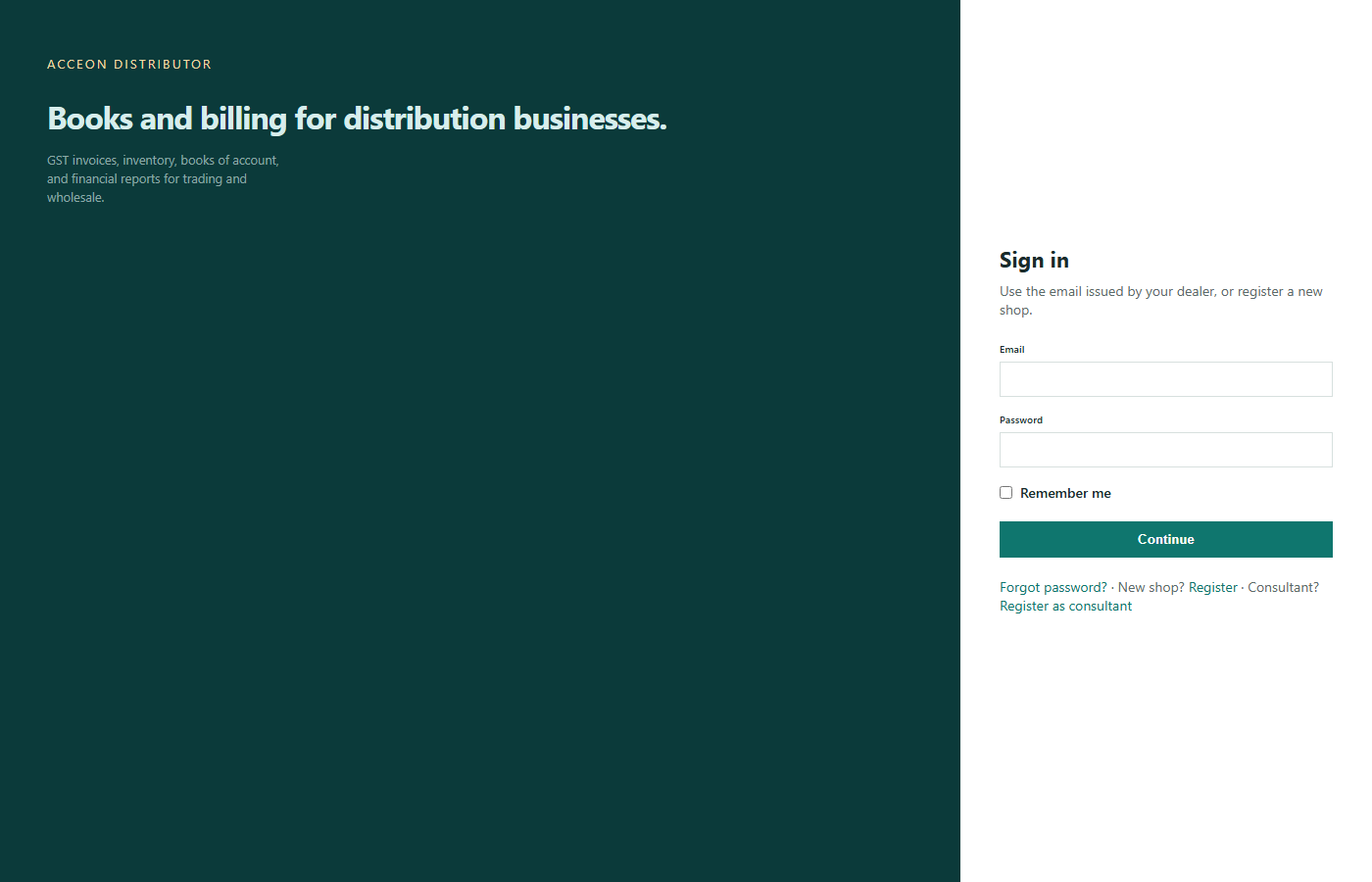
Screen: Sign in - Sample Distributors demo.
Register shop
Create a new distributor shop
Enter shop name, GSTIN (if registered), phone, state, owner name, email and password. This creates the first Dealer (owner) login.
- GSTIN should be 15 characters when the shop is GST-registered.
- State decides CGST+SGST vs IGST on invoices.
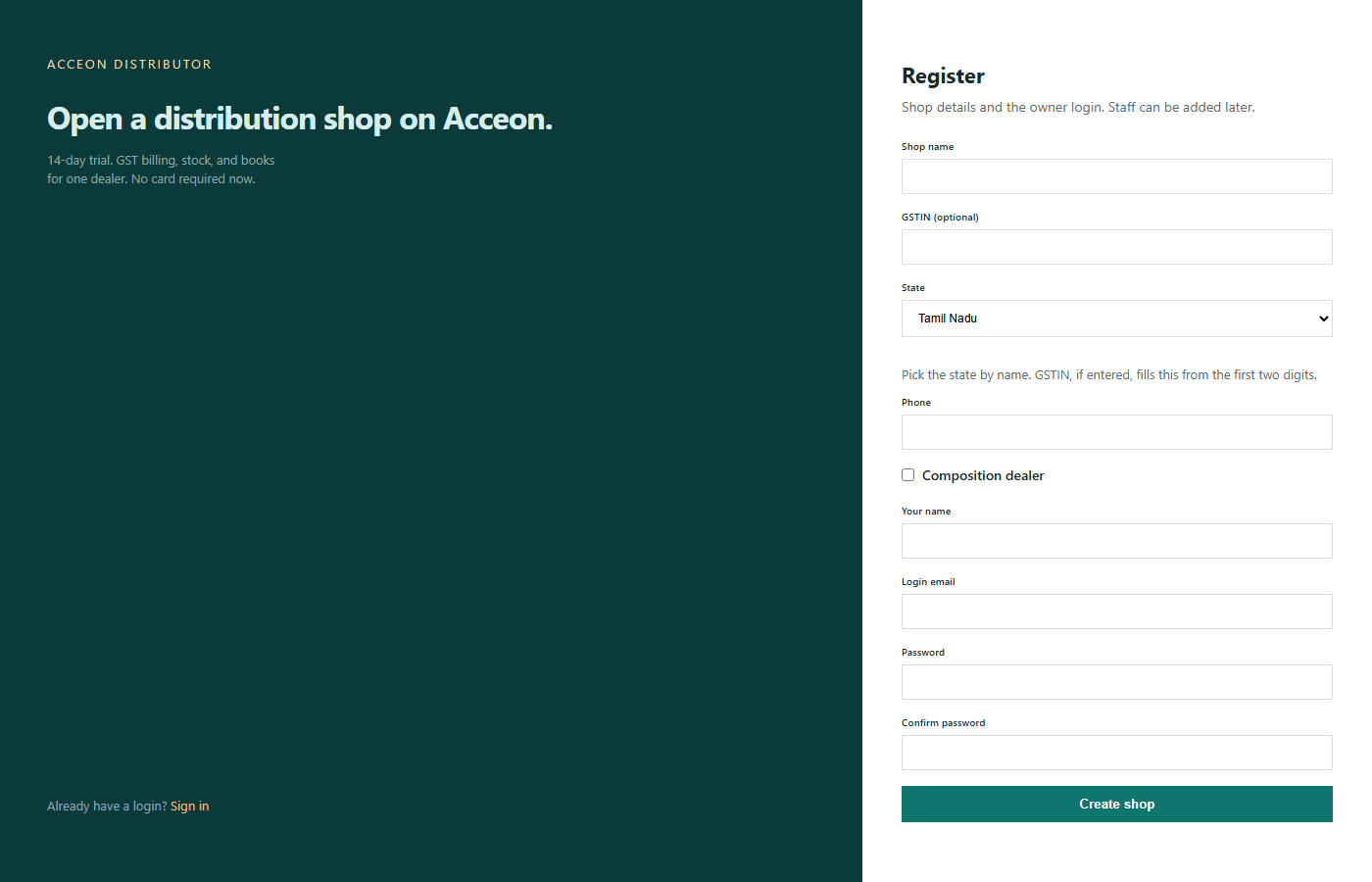
Screen: Register shop - Sample Distributors demo.
Register consultant
For CA / external consultant
Consultants register separately, then request access to a shop. The shop owner accepts the request under Consultants.
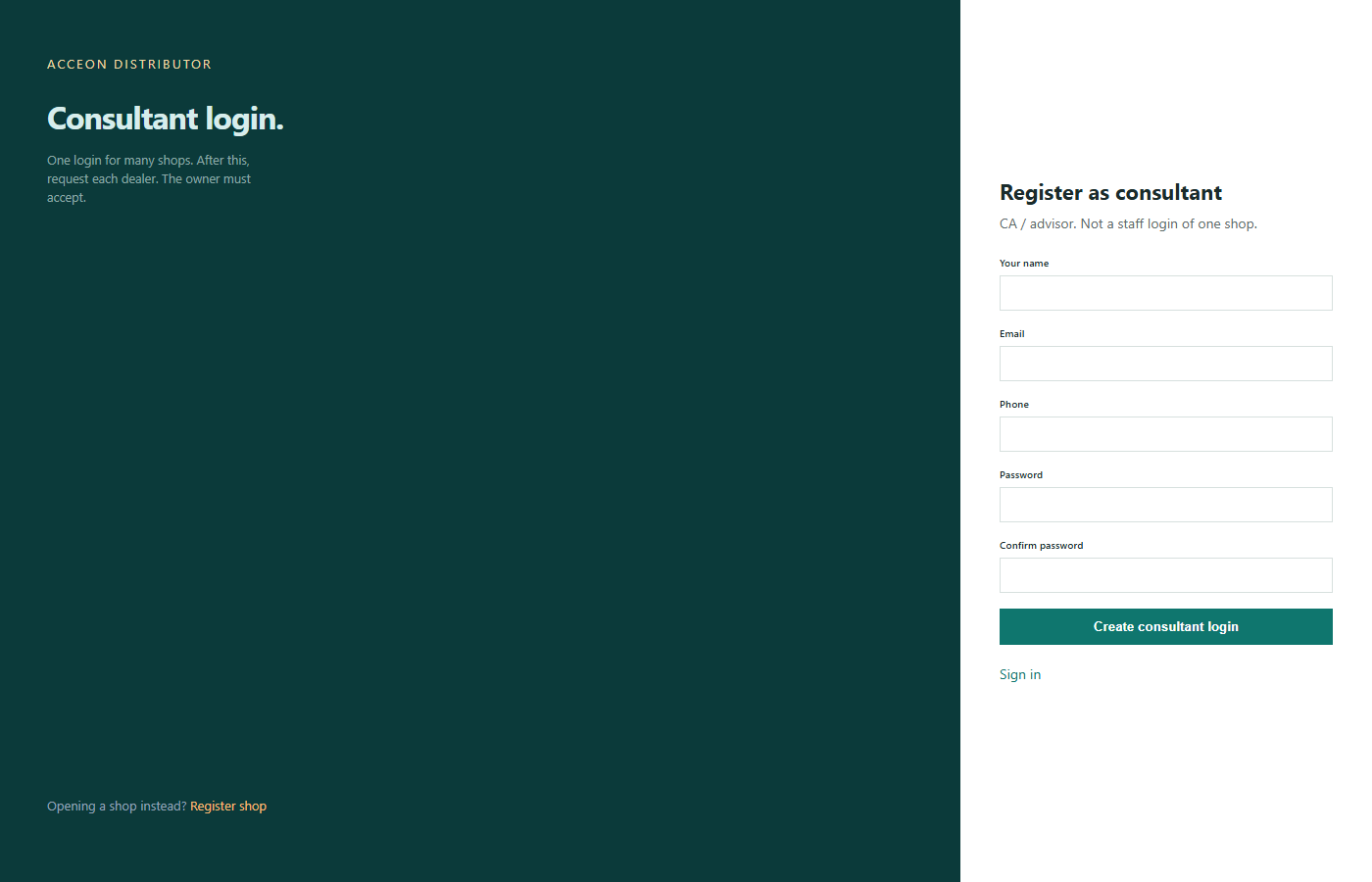
Screen: Register consultant - Sample Distributors demo.
Forgot password
Enter the login email to reset the password when staff cannot sign in.
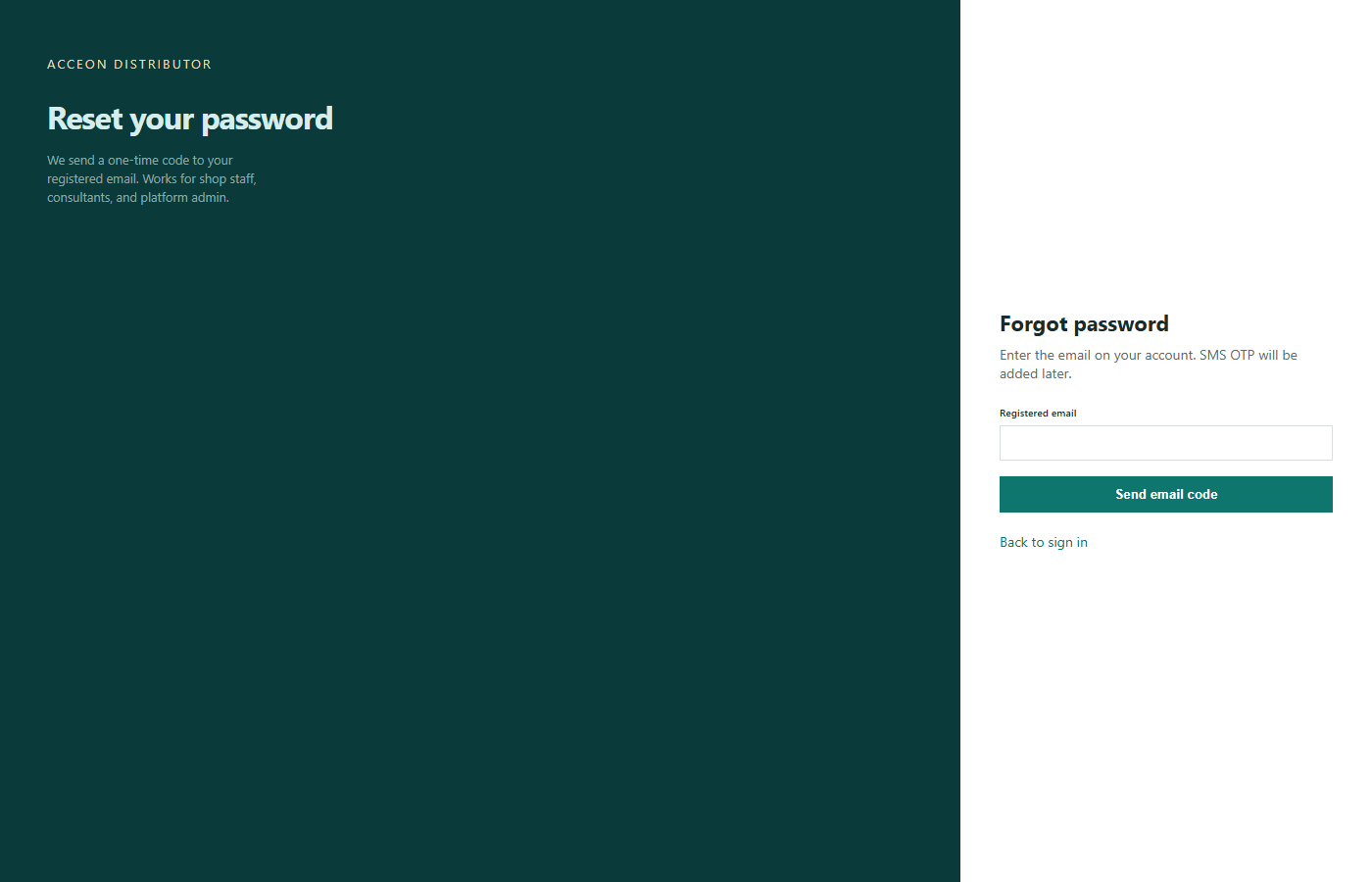
Screen: Forgot password - Sample Distributors demo.
Home
Dashboard after login
Dashboard
Home screen after login
Shows shop name, GSTIN, FY, and shortcuts to transactions, masters, books and reports.
- Check FY (financial year) at the top before posting vouchers.
- Recommended setup order: Settings, Users, Parties, Items, Opening balances, Purchase, Sale.
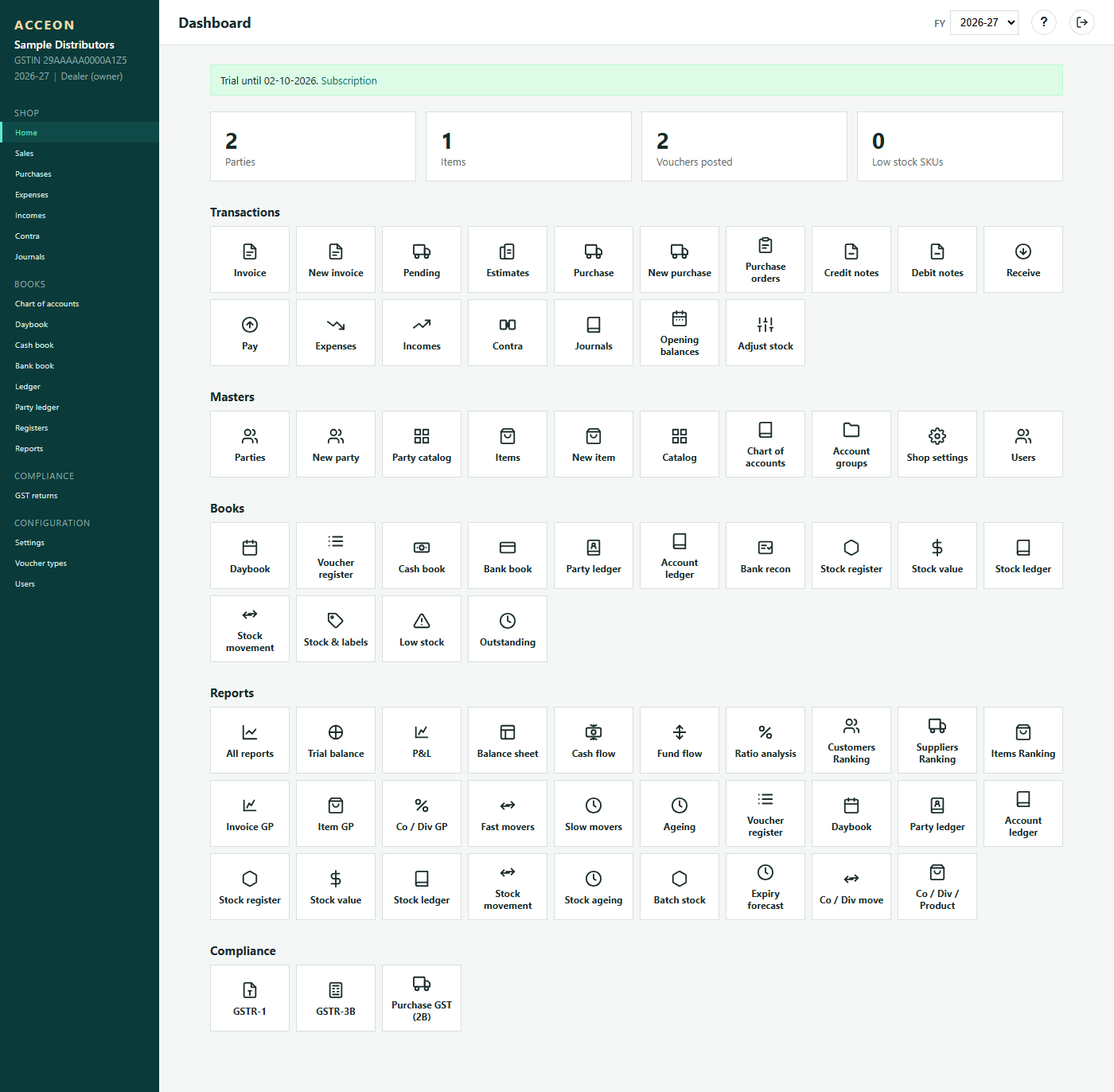
Screen: Dashboard - Sample Distributors demo.
Masters (create these first)
Parties and Items before Purchase / Sale.
Parties
Create parties before purchase or sale
Parties are your suppliers and customers. Create them here (or inline on a voucher) before you book a purchase or sale.
Three categories:
- Supplier - from whom you buy stock (example: Supplier Test and Co).
- Customer - to whom you sell.
- Both - same party can be supplier and customer.
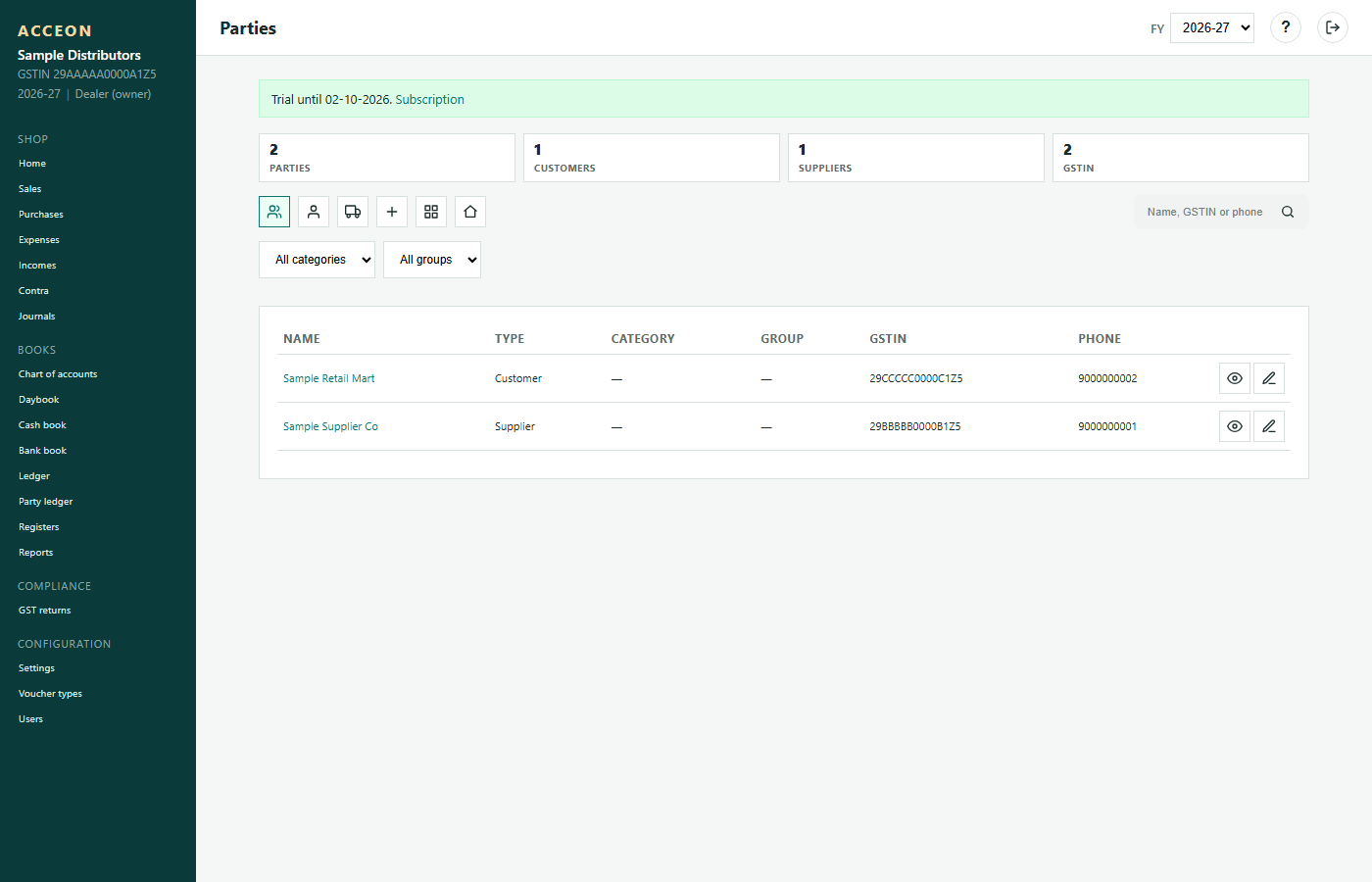
Screen: Parties - Sample Distributors demo.
Create party
New supplier / customer
- Choose type: Supplier, Customer, or Both.
- Enter Name, Phone, Address, State.
- Enter GSTIN for registered parties (15 characters). Leave blank only for unregistered.
- Composition suppliers: mark composition so their bills store tax as 0.
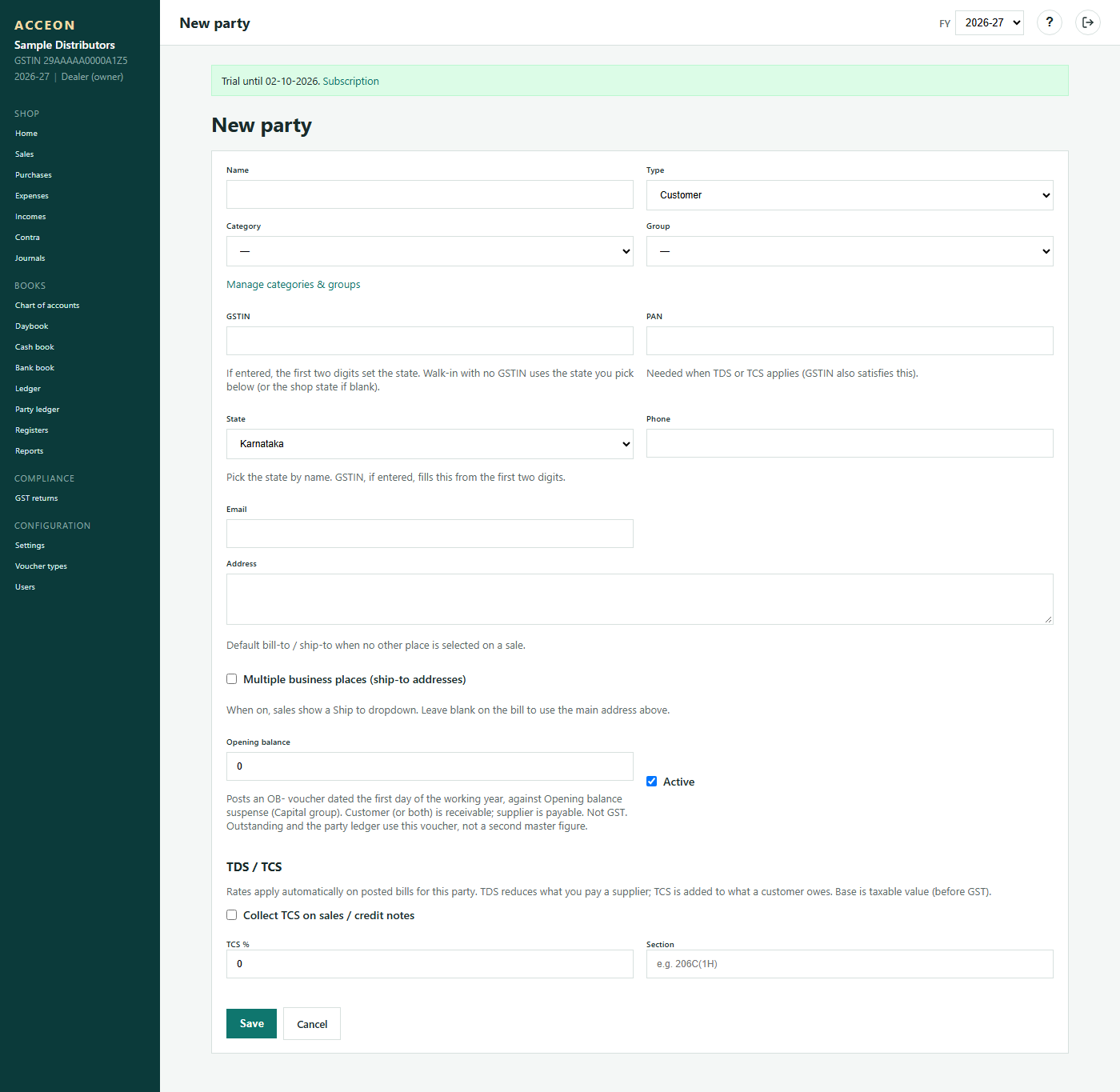
Screen: Create party - Sample Distributors demo.
Party catalog
Optional party-wise item rates / catalog. Use after Parties and Items exist.
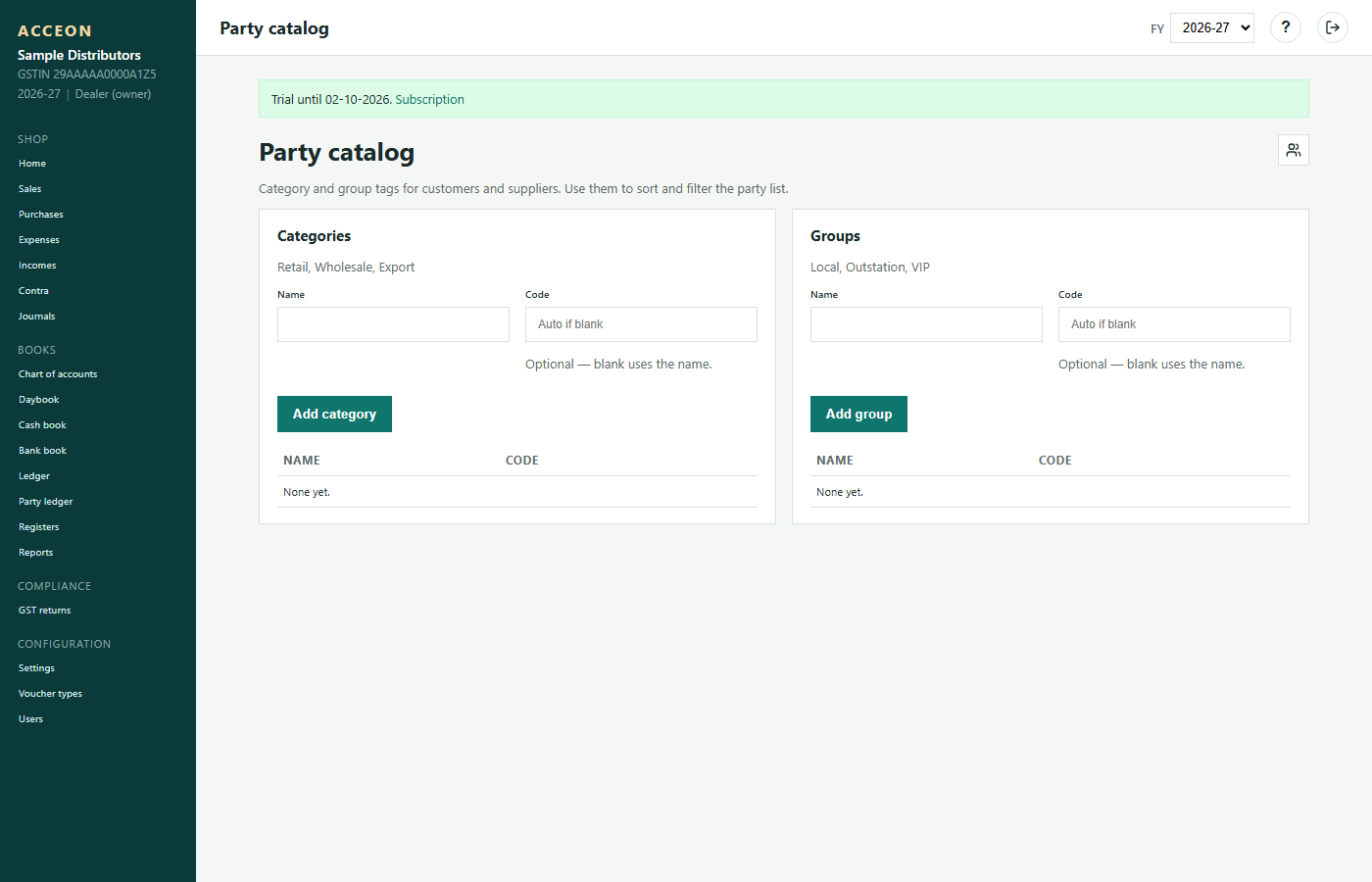
Screen: Party catalog - Sample Distributors demo.
Items
Create items before purchase
Products you buy and sell. Create items here before adding lines on a purchase or sale (or use Add item on the voucher).
- Enter Name, HSN, GST %, purchase rate, sale rate, MRP where known.
- Stock quantity comes from posted purchases (and openings), not from this master alone.
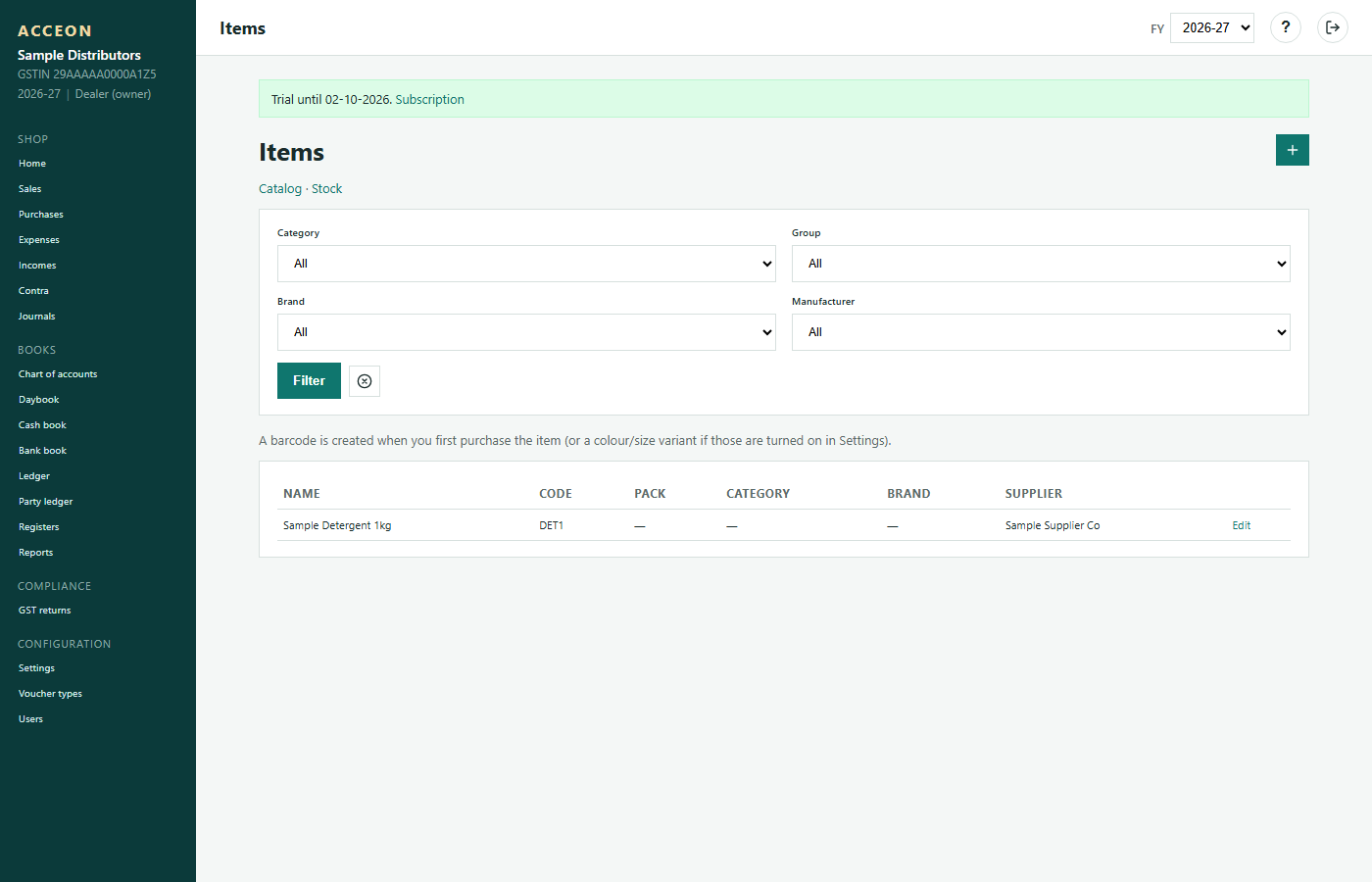
Screen: Items - Sample Distributors demo.
Create item
Minimal fields: Name, HSN, GST %, rates. Colour/size variants appear only if enabled in Settings.
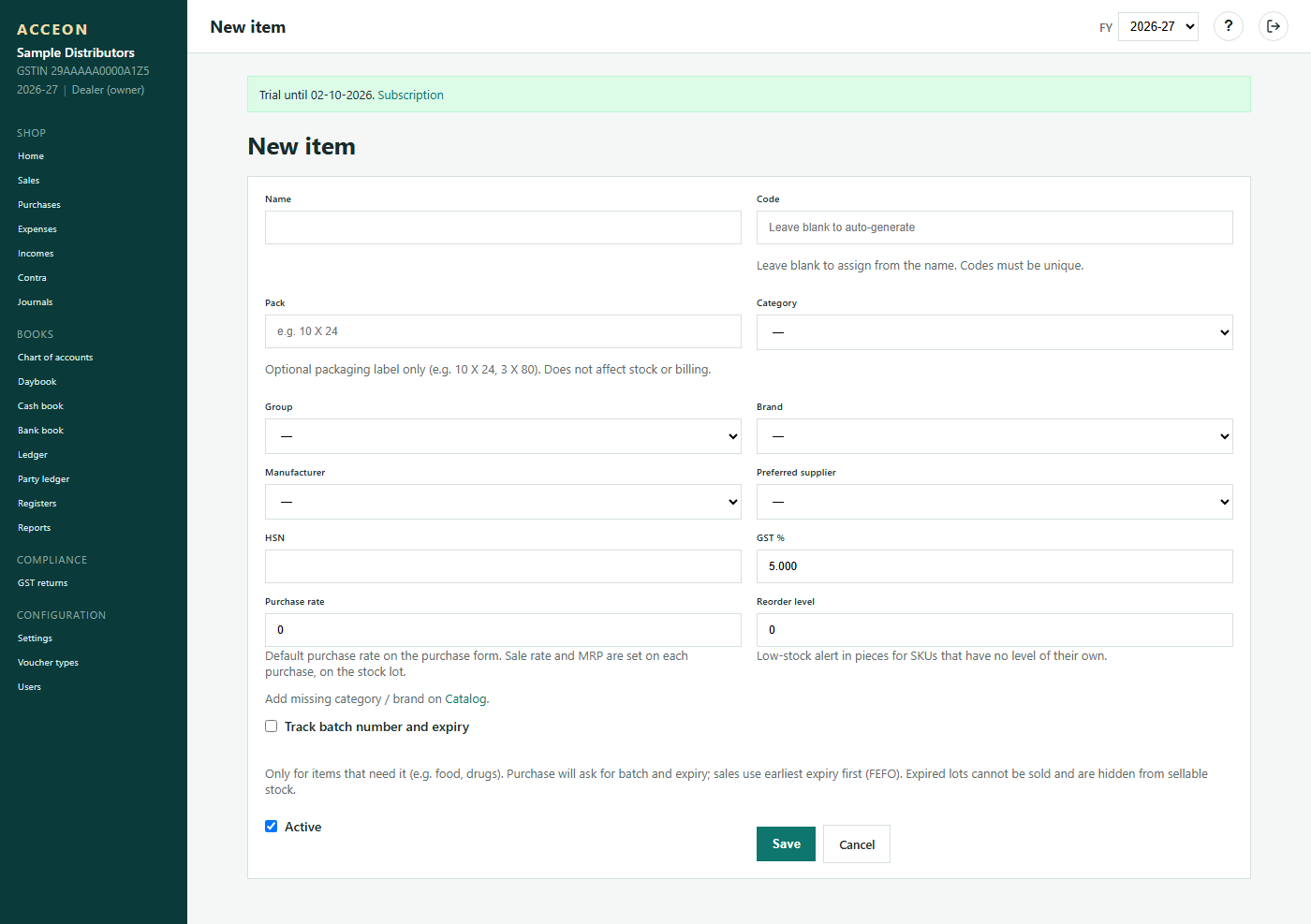
Screen: Create item - Sample Distributors demo.
Catalog
Catalogue view of items for browsing and printing. Masters still live under Items.
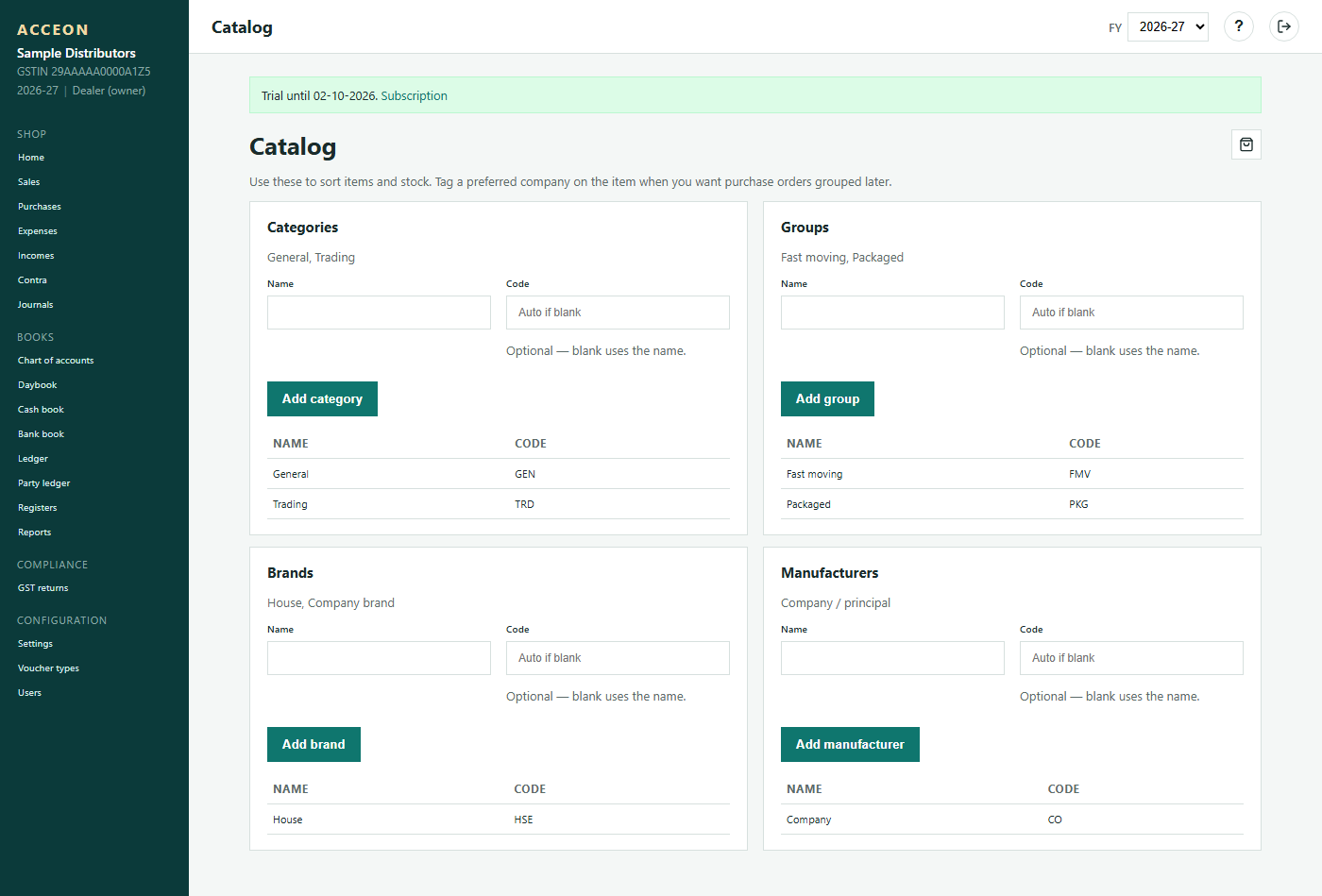
Screen: Catalog - Sample Distributors demo.
Chart of accounts
Ledger accounts (cash, bank, creditors, sales, purchase, expenses). Most shops use the defaults; add ledgers only when needed.
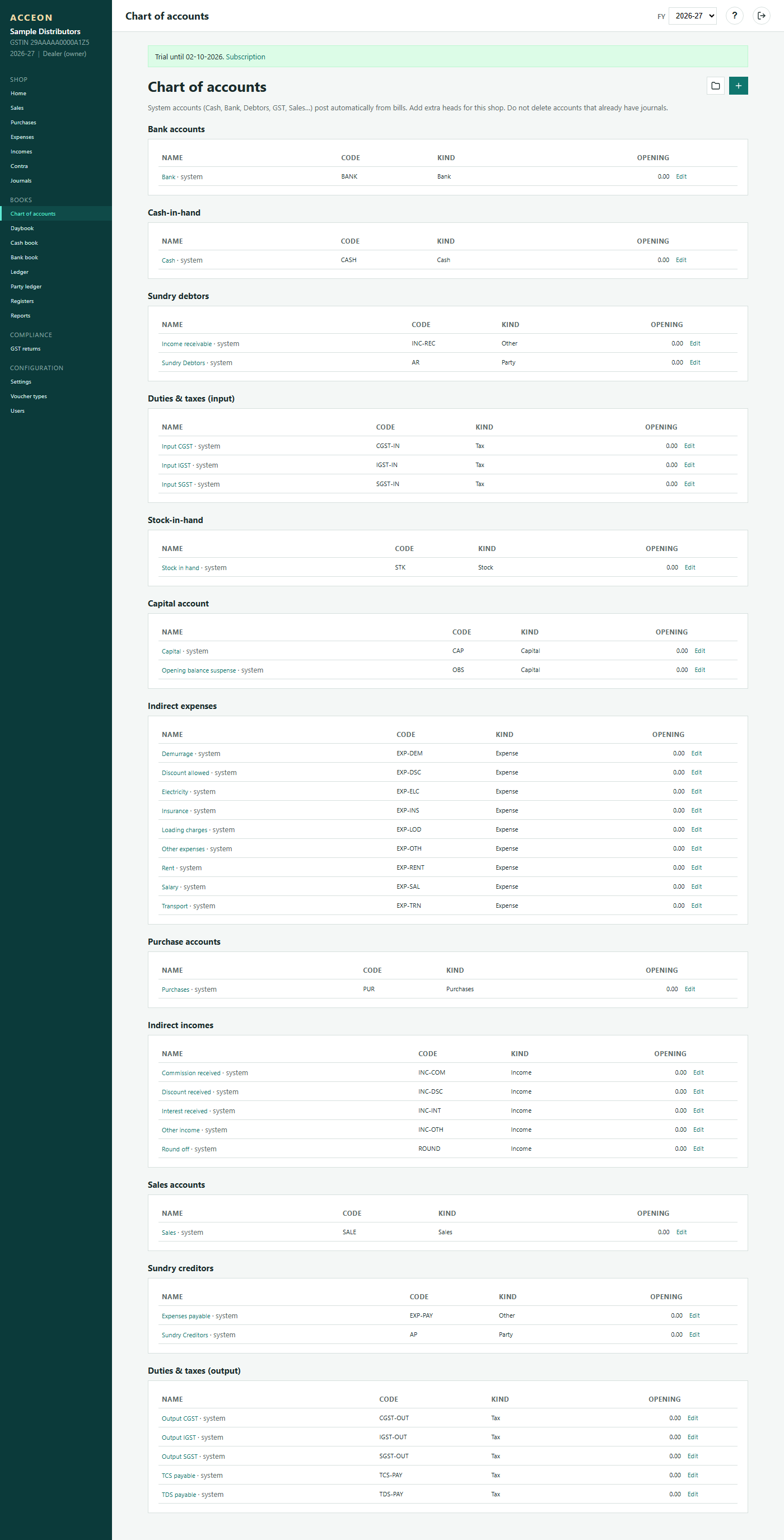
Screen: Chart of accounts - Sample Distributors demo.
Account groups
Groups that organise the chart of accounts. Rarely changed day to day.
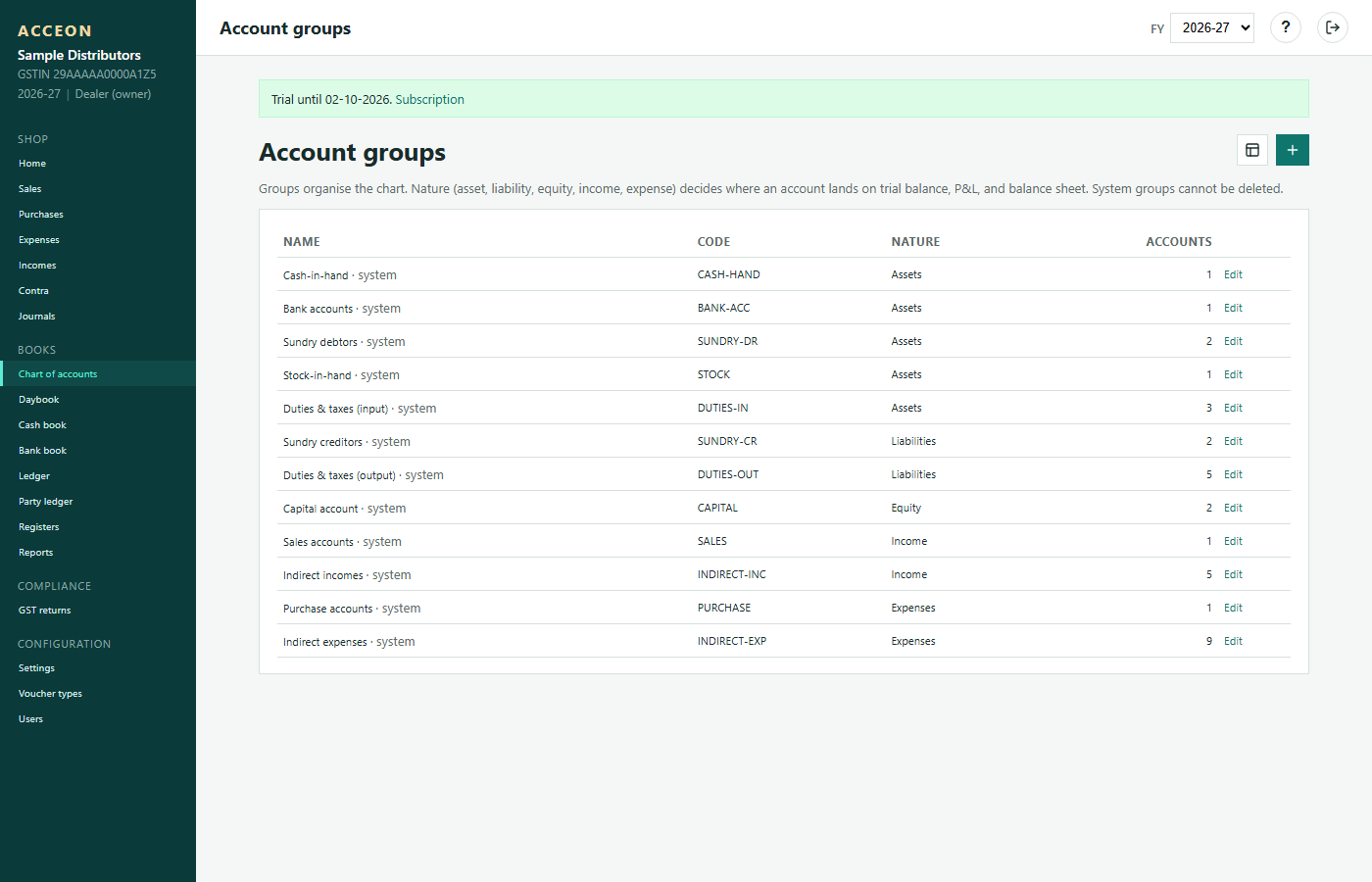
Screen: Account groups - Sample Distributors demo.
Transactions
Purchases bring stock; sales use stock; then receive / pay.
Purchases
Supplier bills list
All posted and held purchase bills. Open a row to edit, print, email, WhatsApp, pay, or cancel.
- Before you start: create the supplier under Parties and the product under Items.
- New bill: Create purchase.
- Orders (not stock yet): Purchase orders.
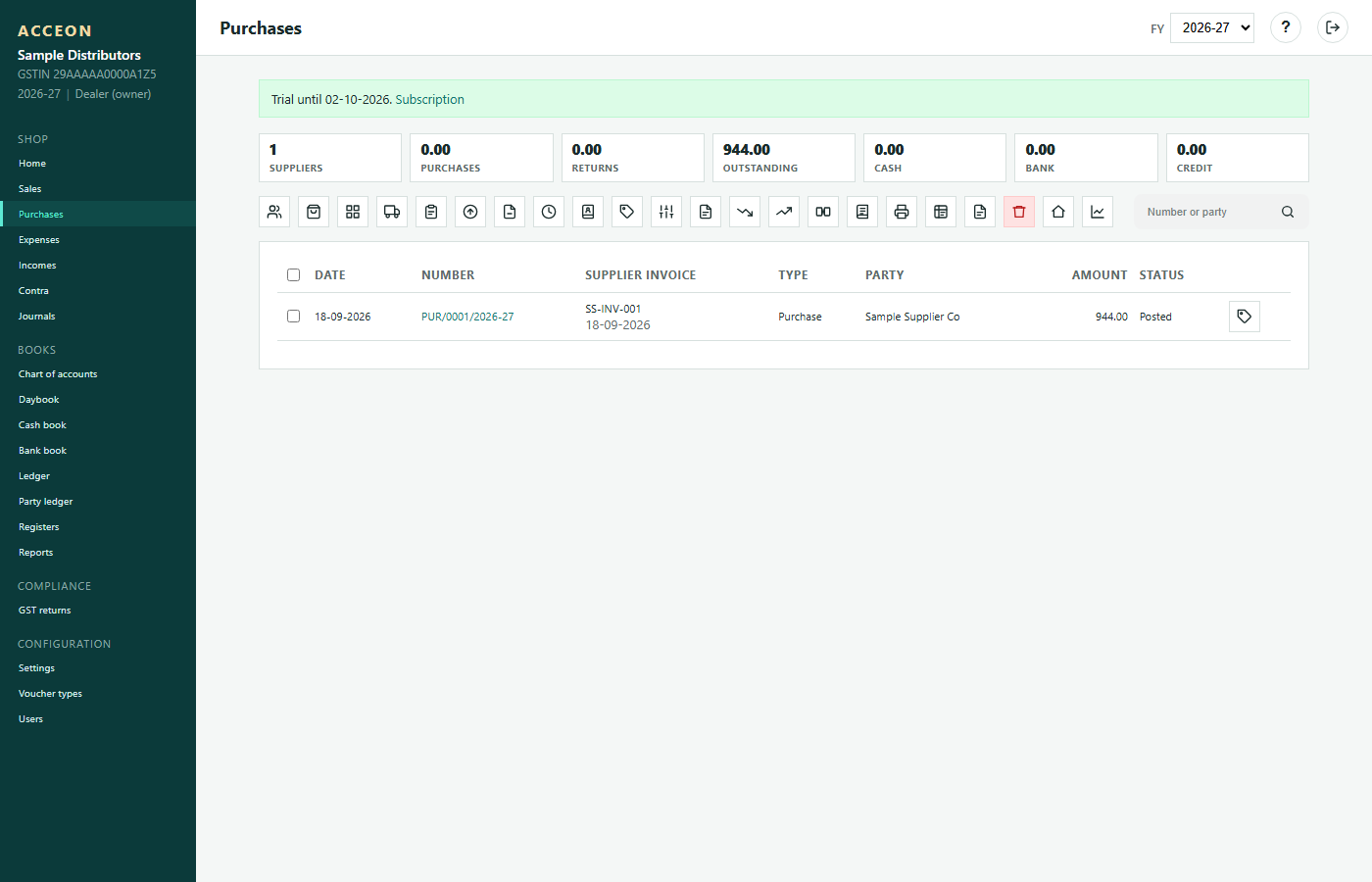
Screen: Purchases - Sample Distributors demo.
Create purchase
Enter a supplier invoice
Prerequisite: Party (supplier) and Item should already exist - see Parties and Items. You can also use Add supplier / Add item on this screen.
- Select Supplier.
- Enter supplier invoice no. and date (needed for GSTR-2B matching).
- Select item, enter purchase rate, sale rate, MRP, qty, then Add item to bill.
- Optional: discounts, additional charges (transport, loading).
- Hold parks the bill (no stock yet). Save as credit posts stock and payable. Save and make payment posts and pays together.
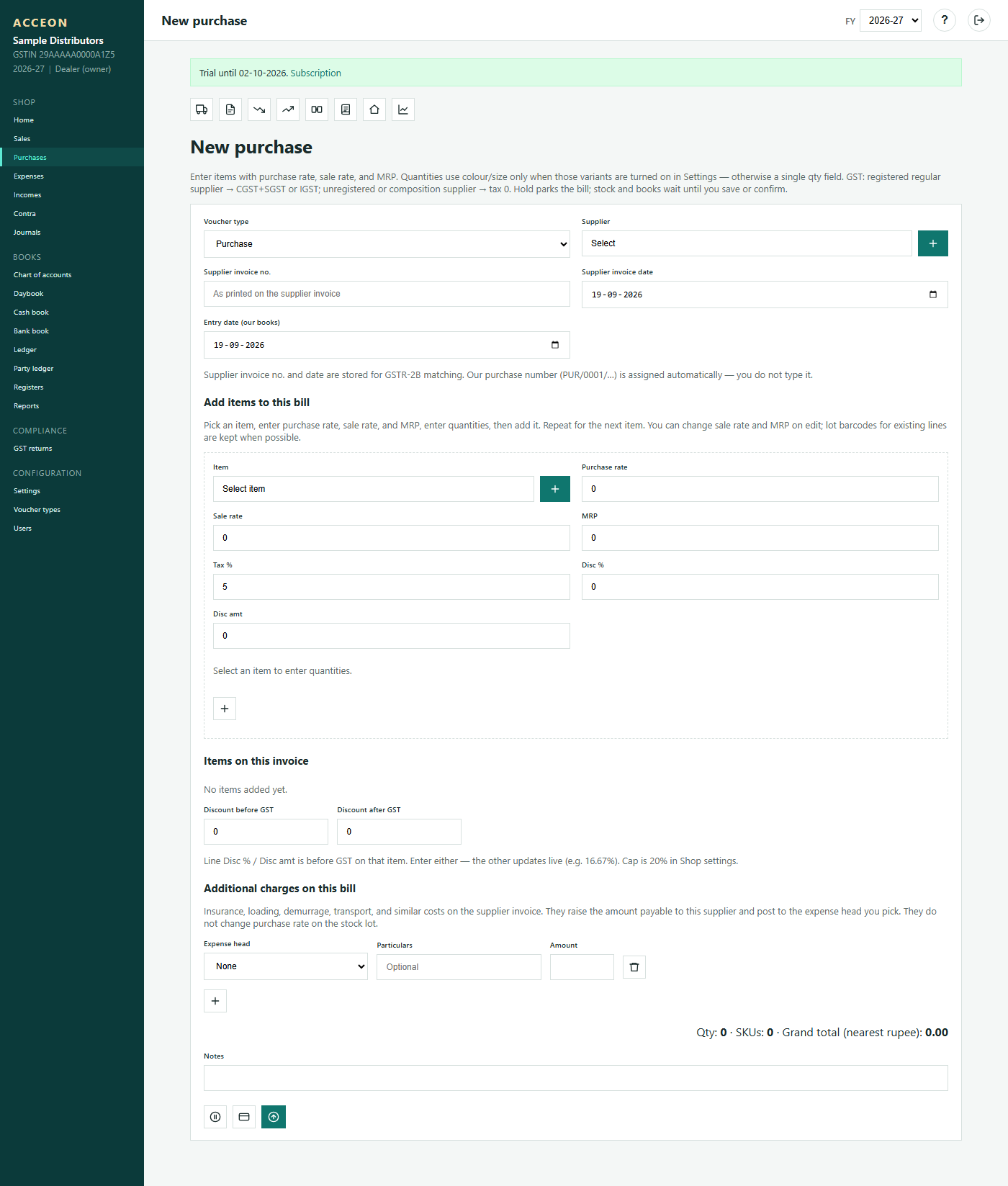
Screen: Create purchase - Sample Distributors demo.
Purchase orders
A PO is a commitment to buy. It does not bring stock until you receive it as a purchase bill.
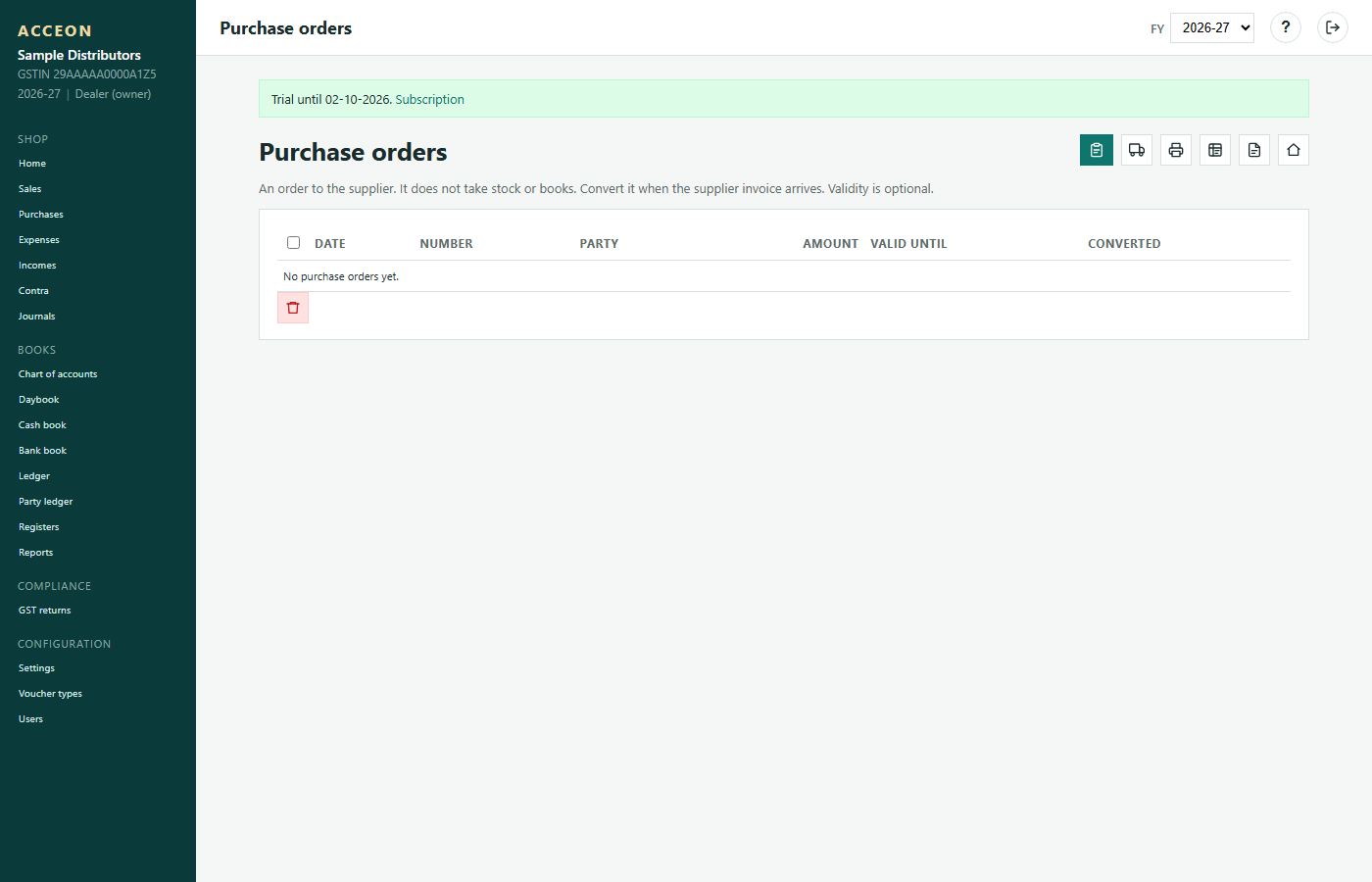
Screen: Purchase orders - Sample Distributors demo.
Sales
Customer invoices list
Before selling: customer party (Parties) and stock from Purchases (unless short sale is allowed).
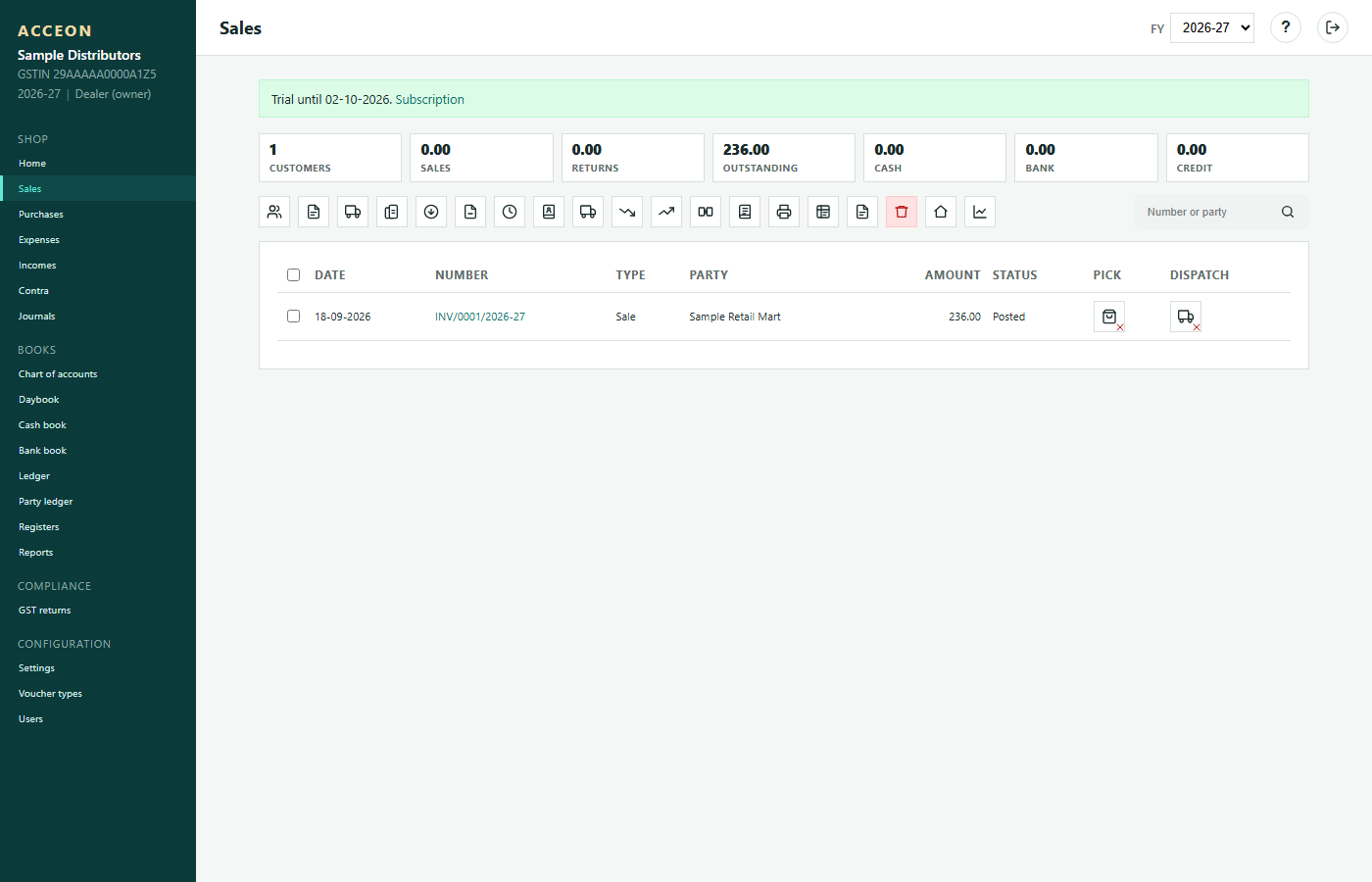
Screen: Sales - Sample Distributors demo.
Create sale
Select customer, add items from stock, rates and qty, then save. GST follows customer GSTIN and state vs shop state.
- Customer must exist in Parties (Customer or Both).
- Items should have stock from purchase.
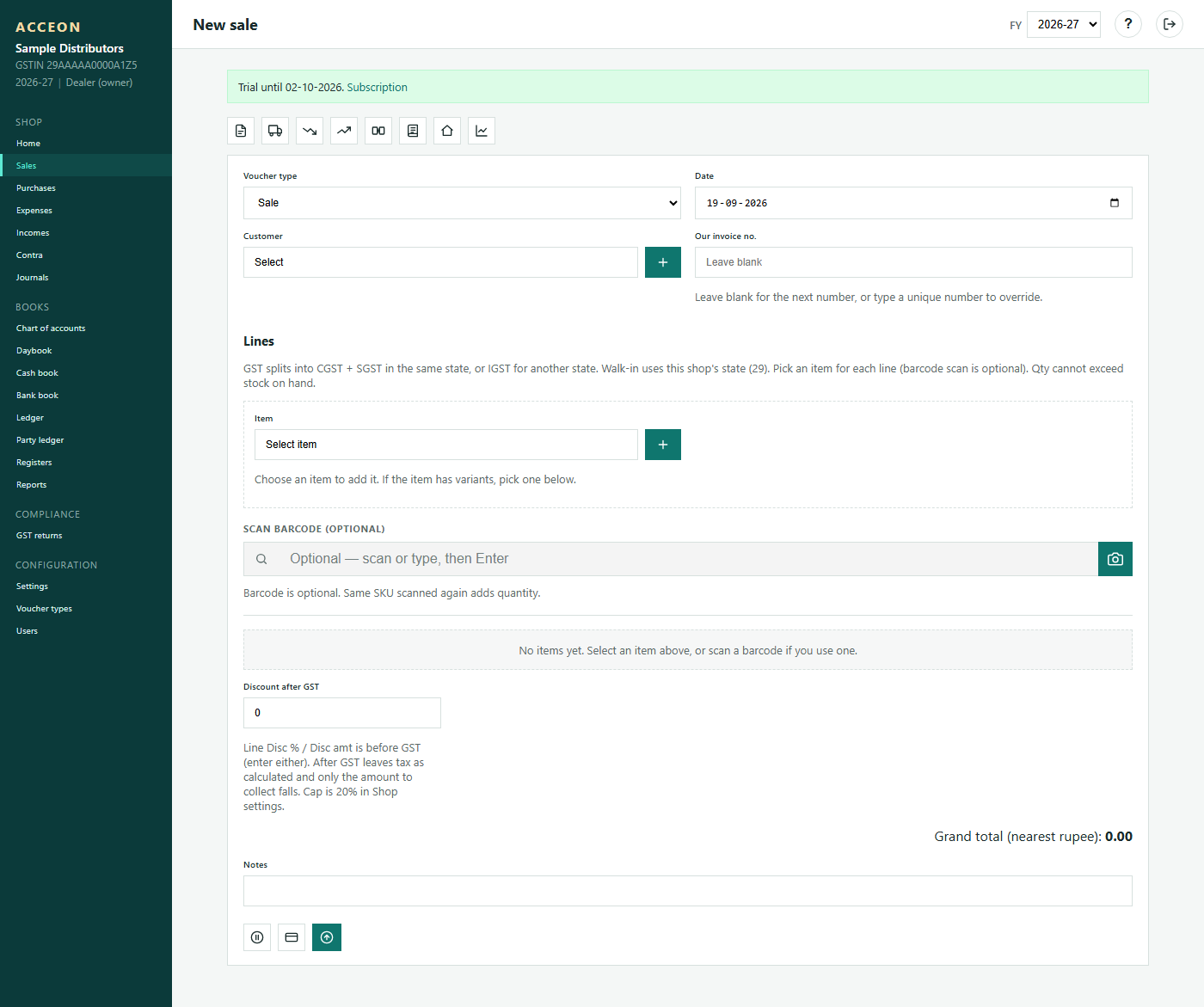
Screen: Create sale - Sample Distributors demo.
Pending sales
Sales waiting for pick / dispatch / confirmation. Clear pending so stock and books stay correct.
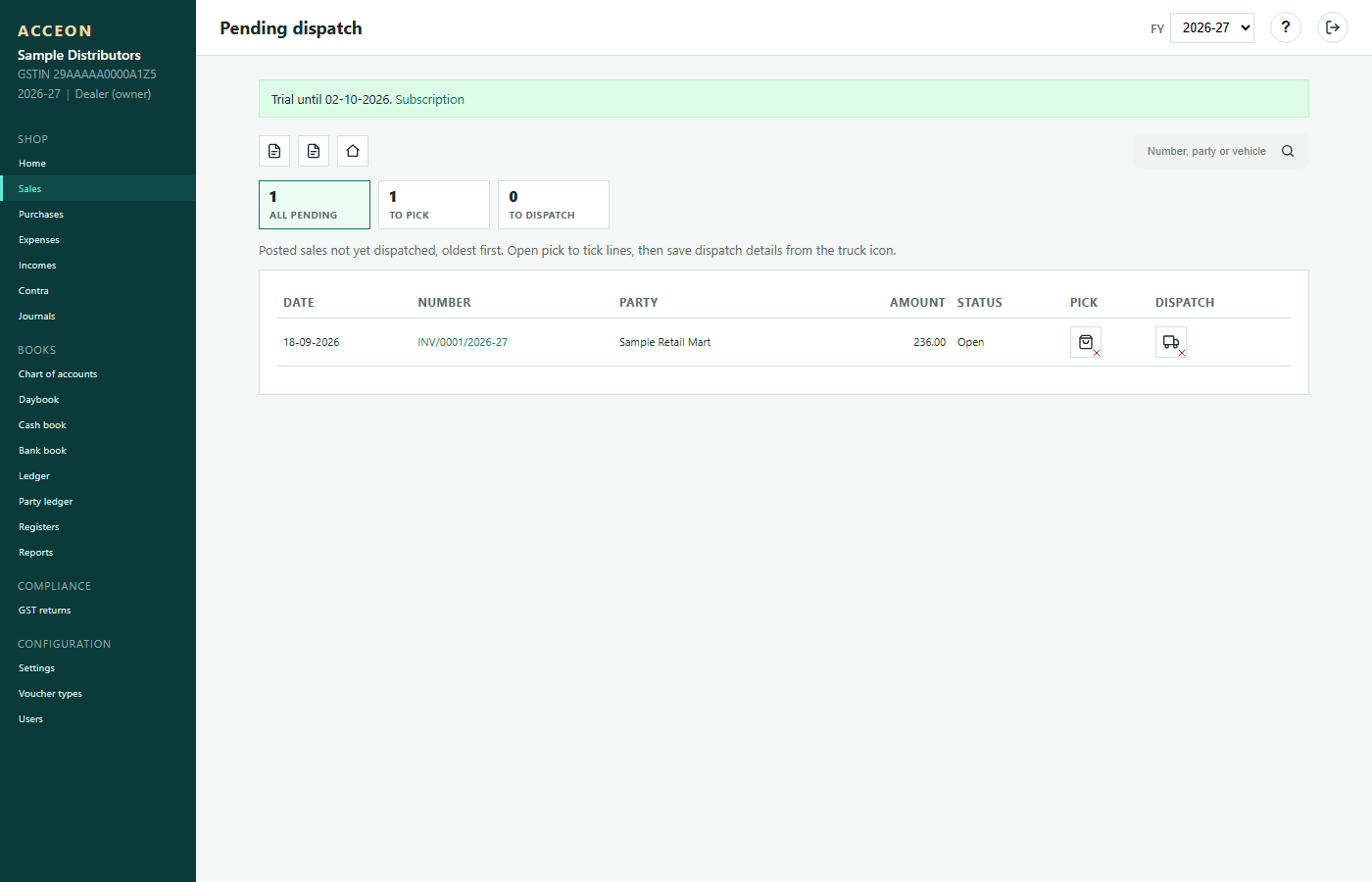
Screen: Pending sales - Sample Distributors demo.
Estimates
Quotations for customers. Not a tax invoice until converted to a sale.
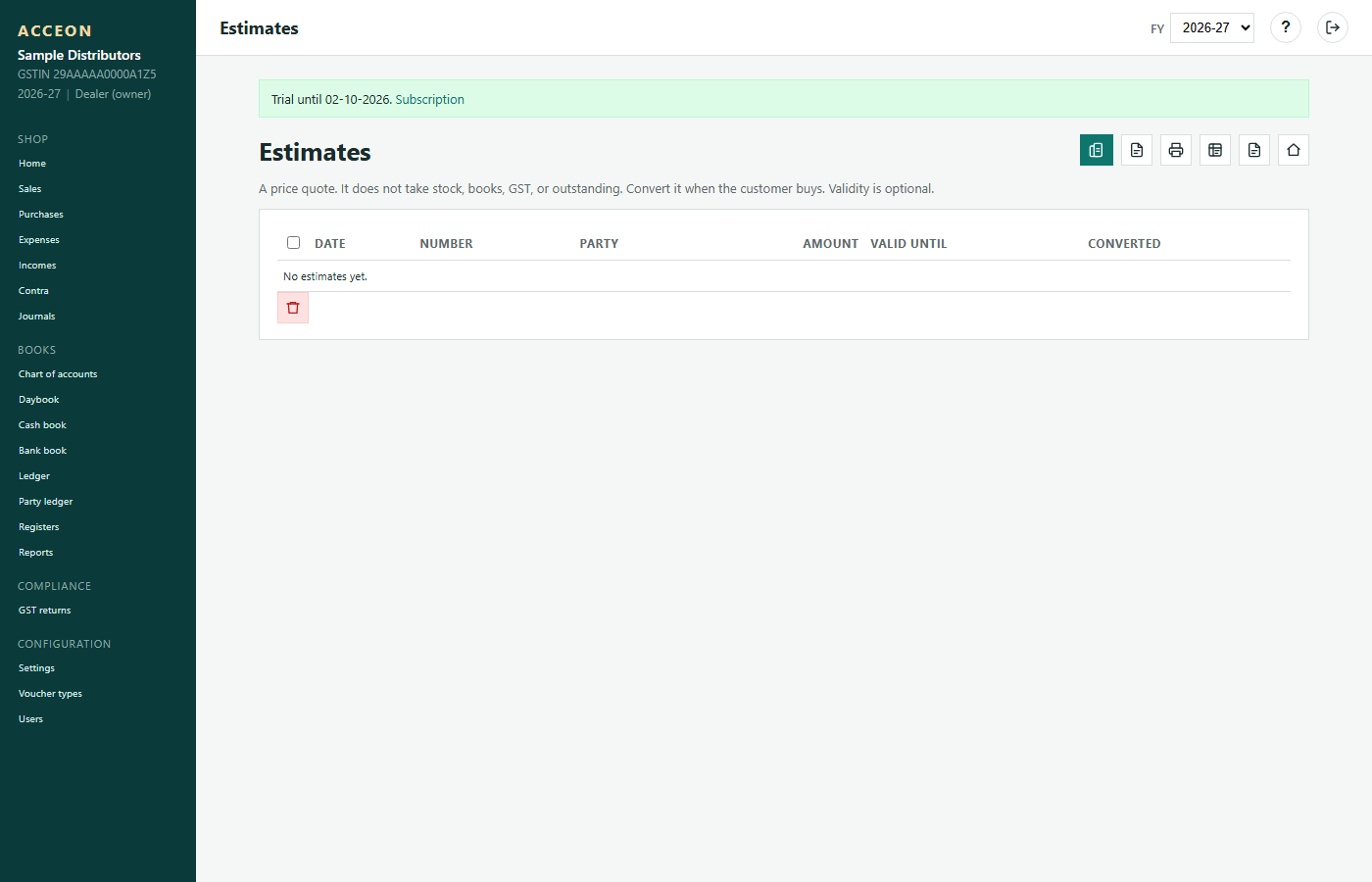
Screen: Estimates - Sample Distributors demo.
Credit notes
Sales returns / credit to customer. Reduces receivable and usually returns stock.
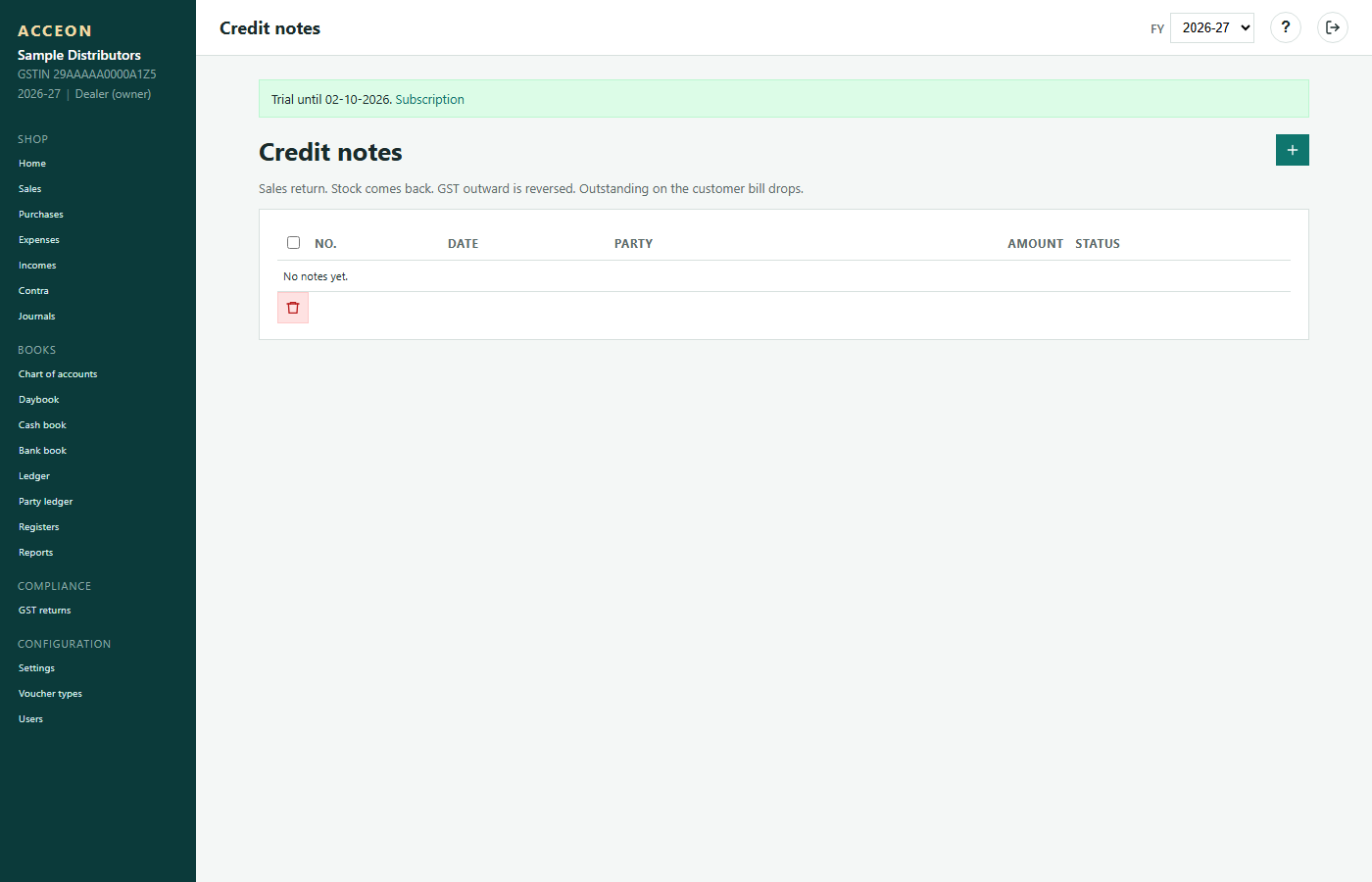
Screen: Credit notes - Sample Distributors demo.
Debit notes
Purchase returns / debit to supplier when you return goods. Related to Purchases.
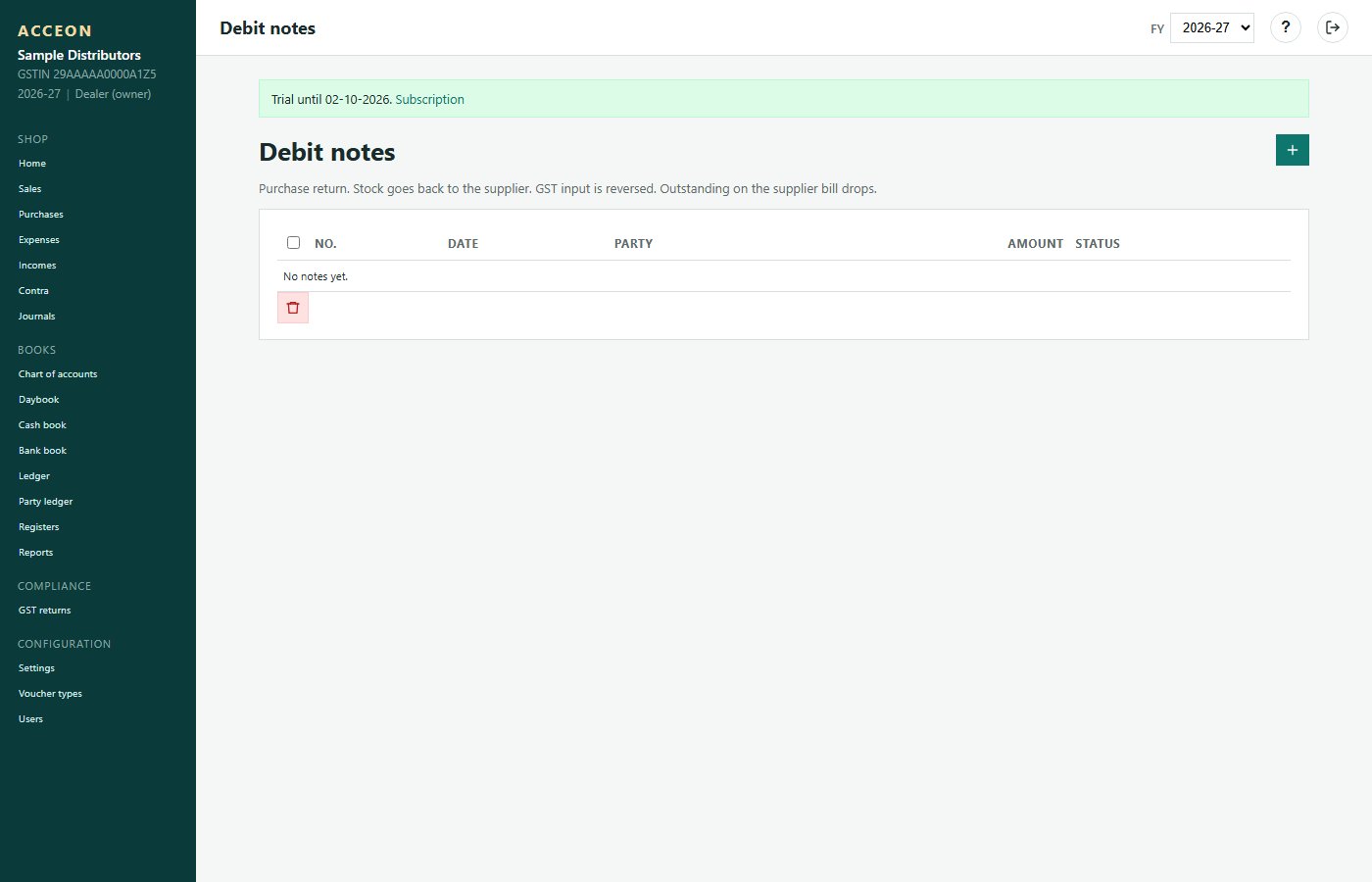
Screen: Debit notes - Sample Distributors demo.
Receive money
After a sale on credit
Record customer receipts (cash / bank / UPI) against outstanding invoices.
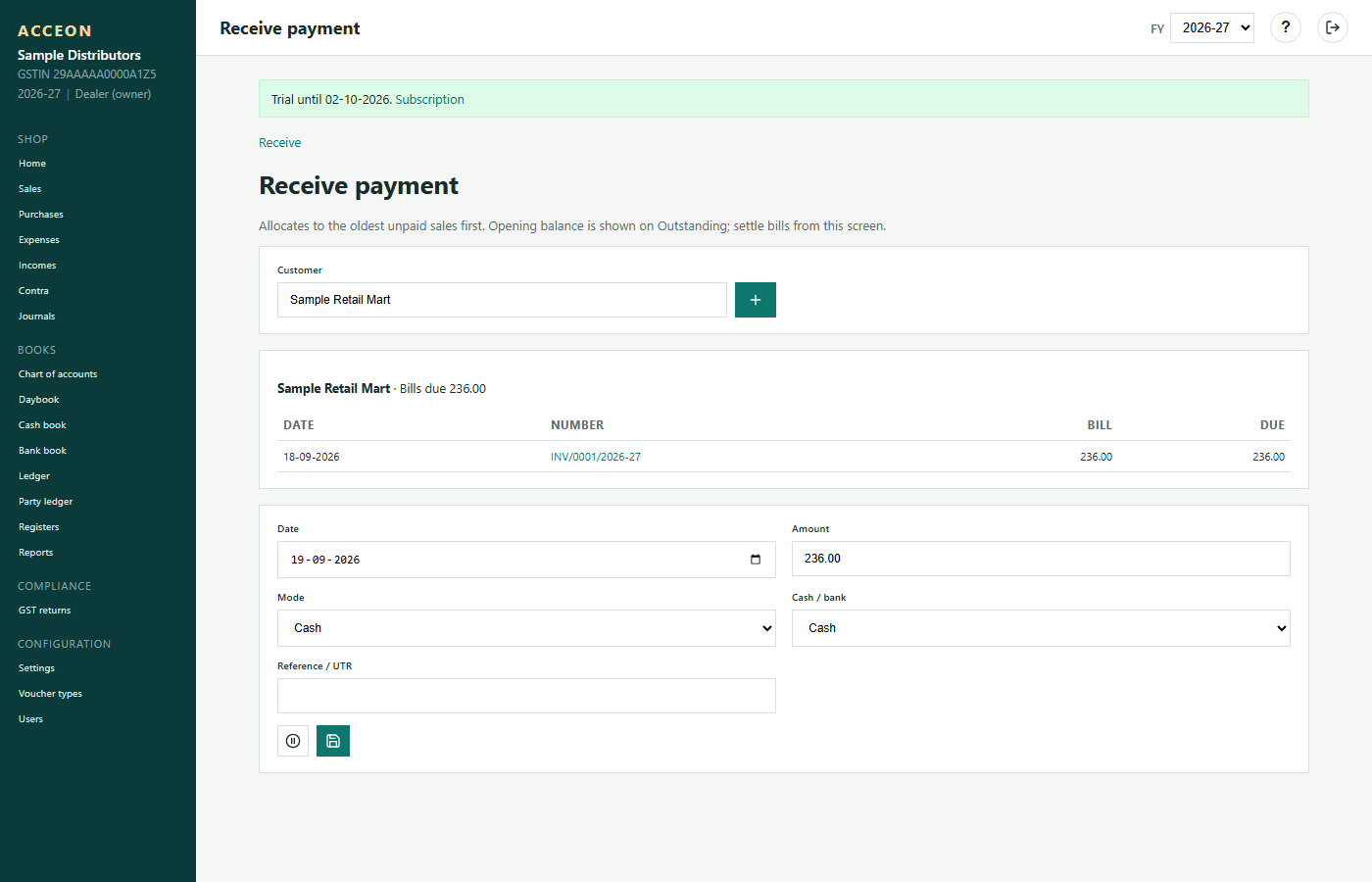
Screen: Receive money - Sample Distributors demo.
Pay money
After a purchase on credit
Pay suppliers against posted purchase bills. Choose cash/bank, amount and UTR/reference.
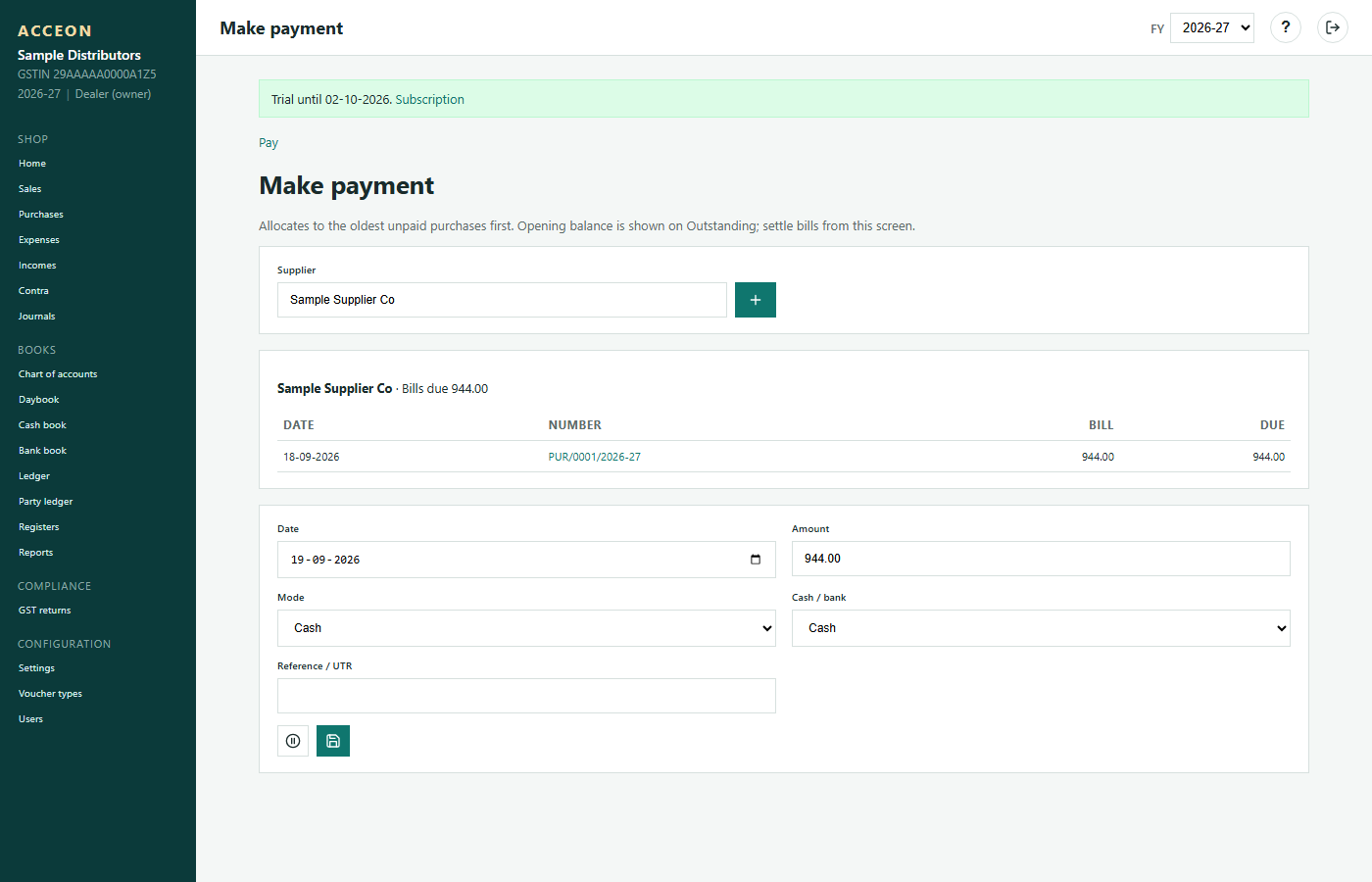
Screen: Pay money - Sample Distributors demo.
Expenses
Shop expenses not on a supplier purchase bill (rent, salary, electricity).
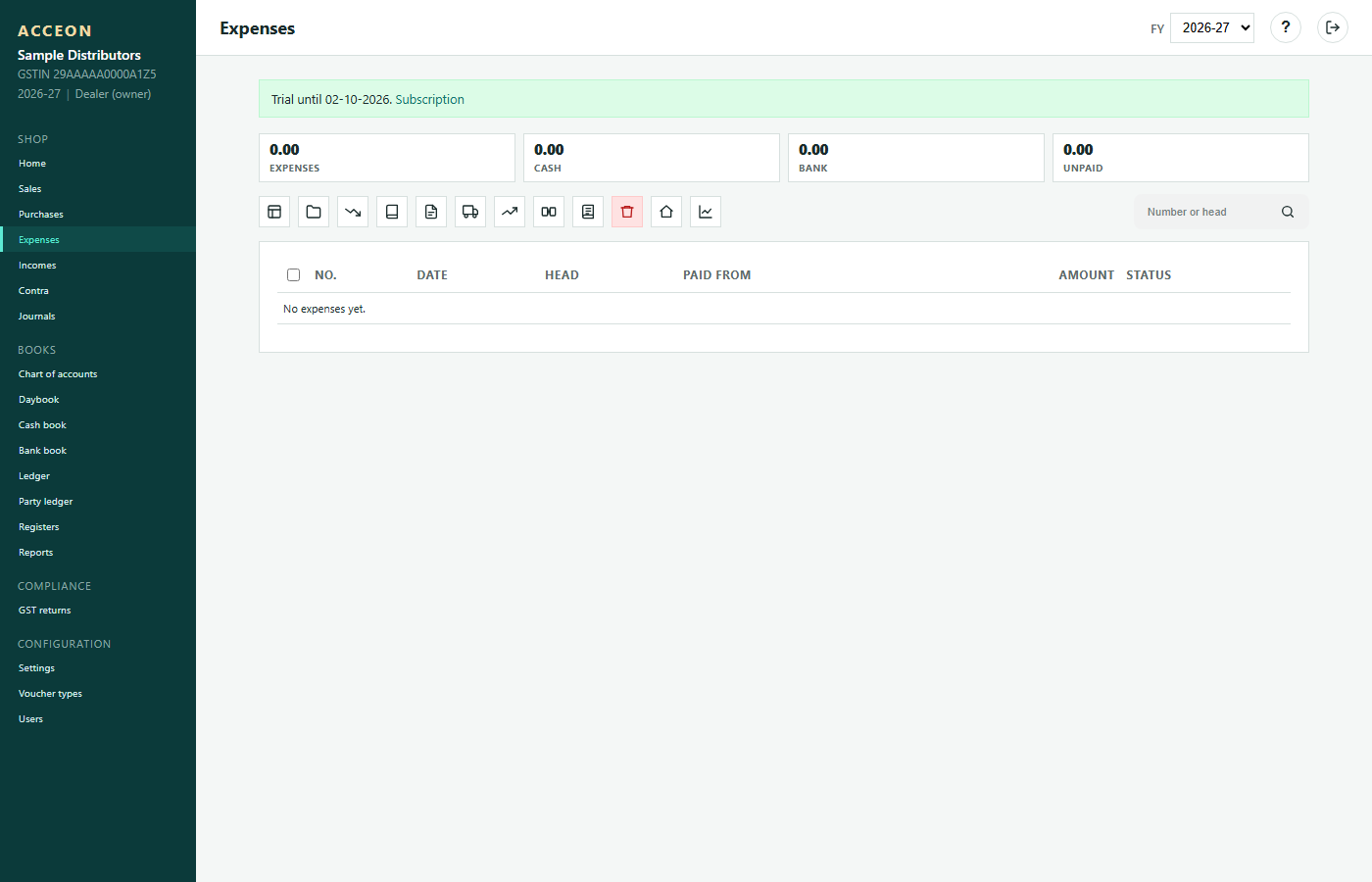
Screen: Expenses - Sample Distributors demo.
Incomes
Other income not from sales invoices (interest, scrap, etc.).
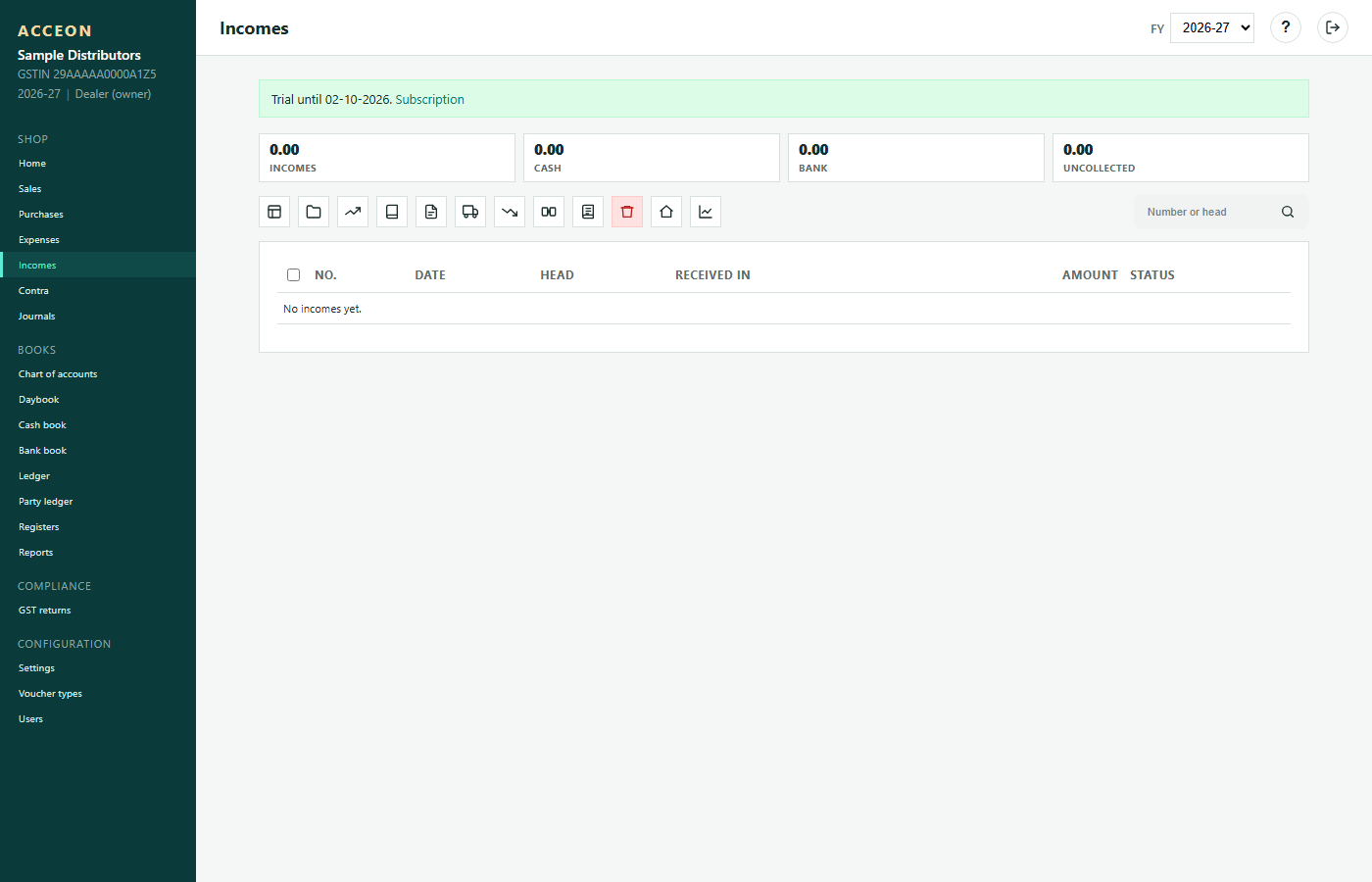
Screen: Incomes - Sample Distributors demo.
Contra
Move money between cash and bank (or bank to bank). No profit-and-loss impact.
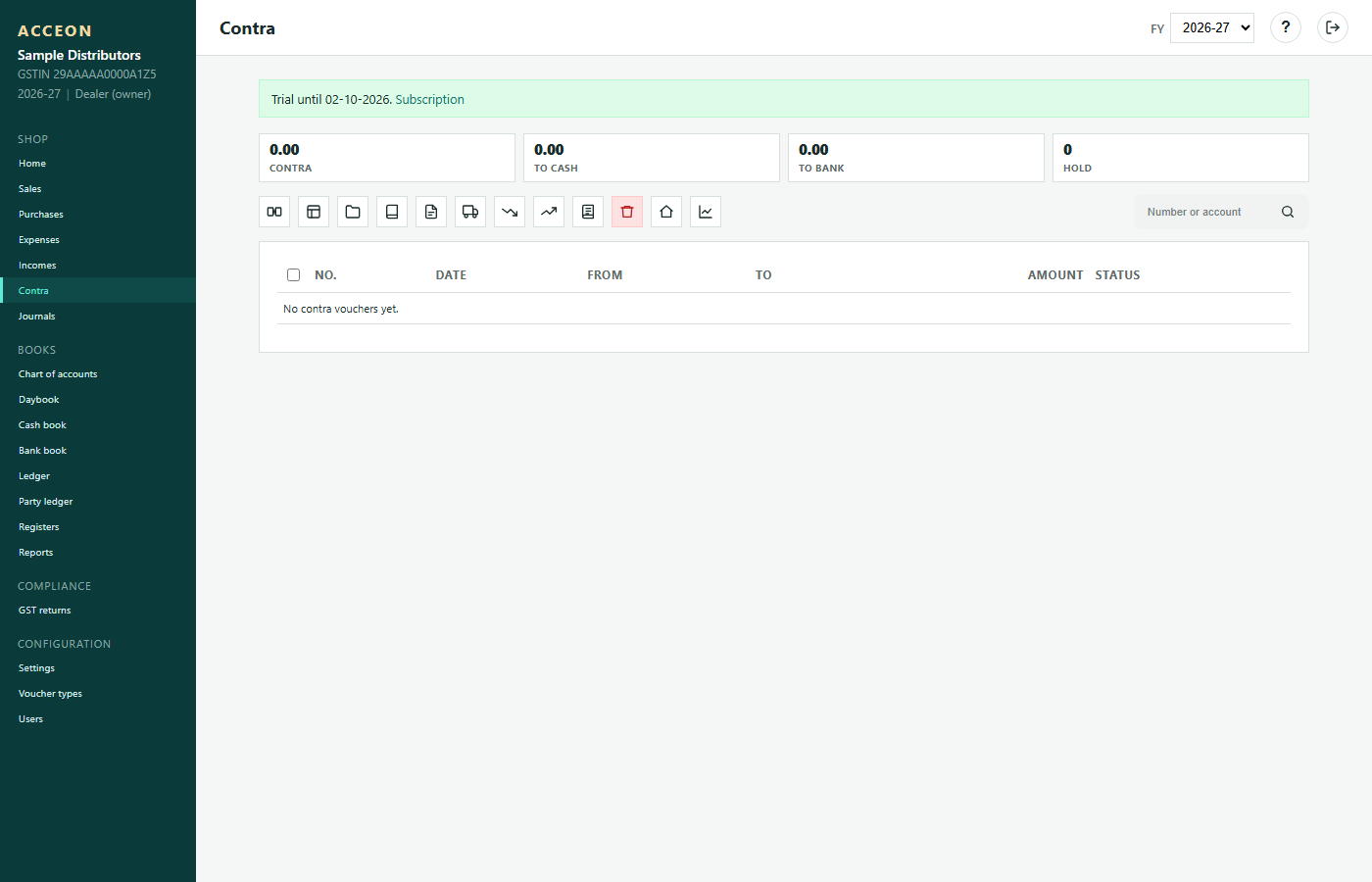
Screen: Contra - Sample Distributors demo.
Journals
Manual double-entry adjustments. Prefer standard vouchers for normal work.
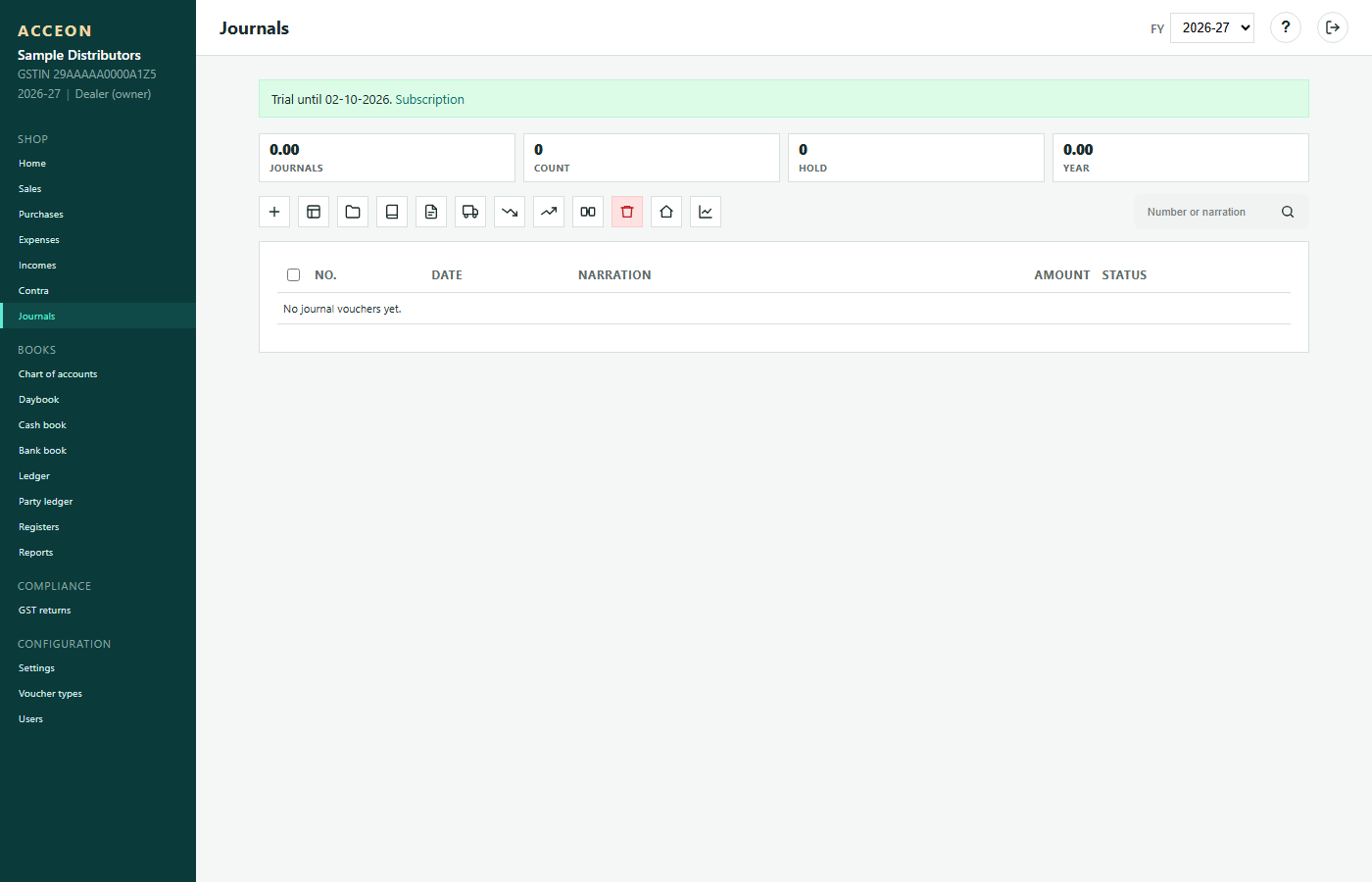
Screen: Journals - Sample Distributors demo.
Opening balances
When starting Acceon mid-year
Enter opening stock, cash/bank and party balances as on the go-live date. Do this after Parties and Items.
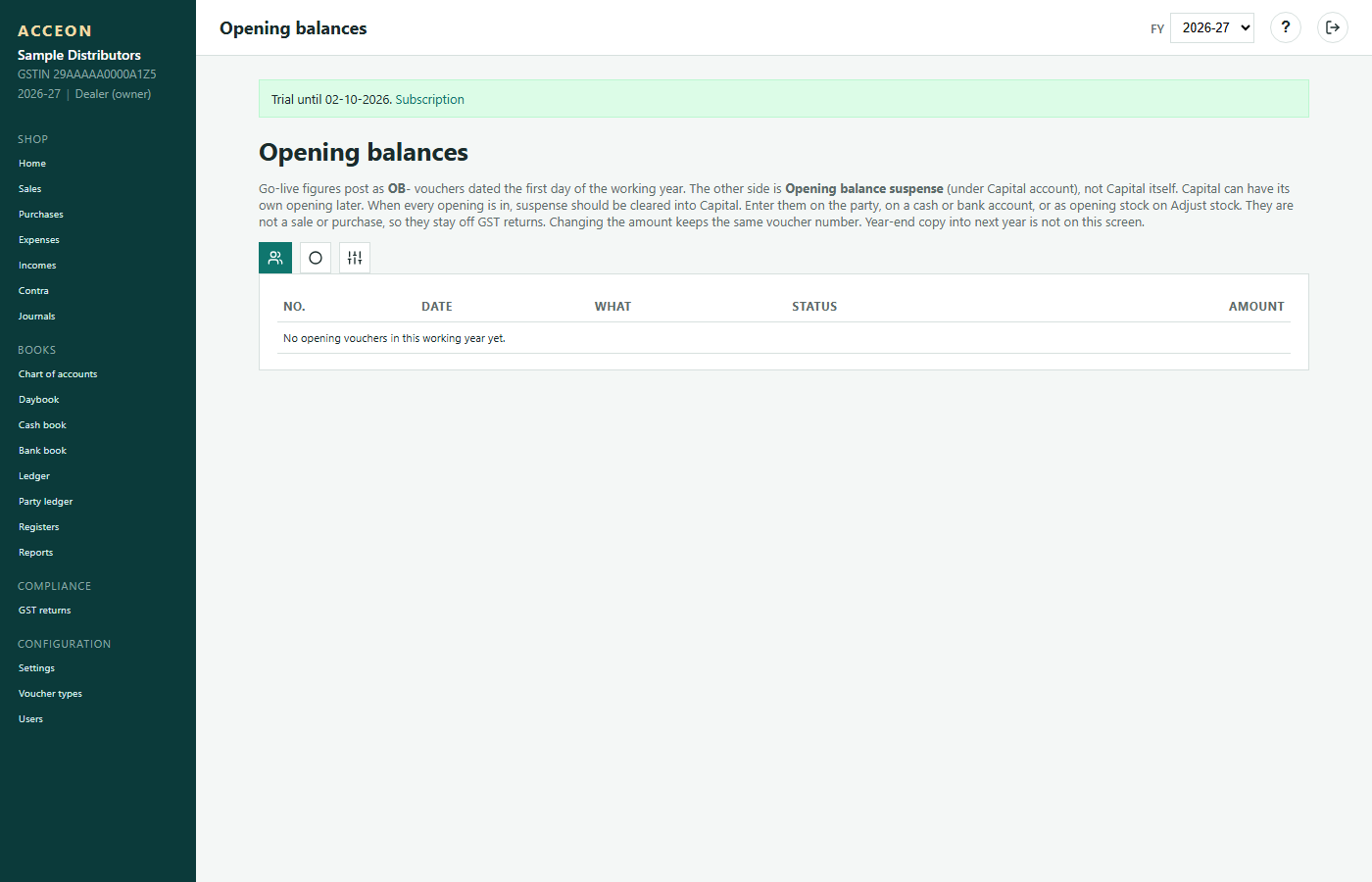
Screen: Opening balances - Sample Distributors demo.
Adjust stock
Correct stock for damage, loss or found goods. Prefer purchase/sale for normal movement.
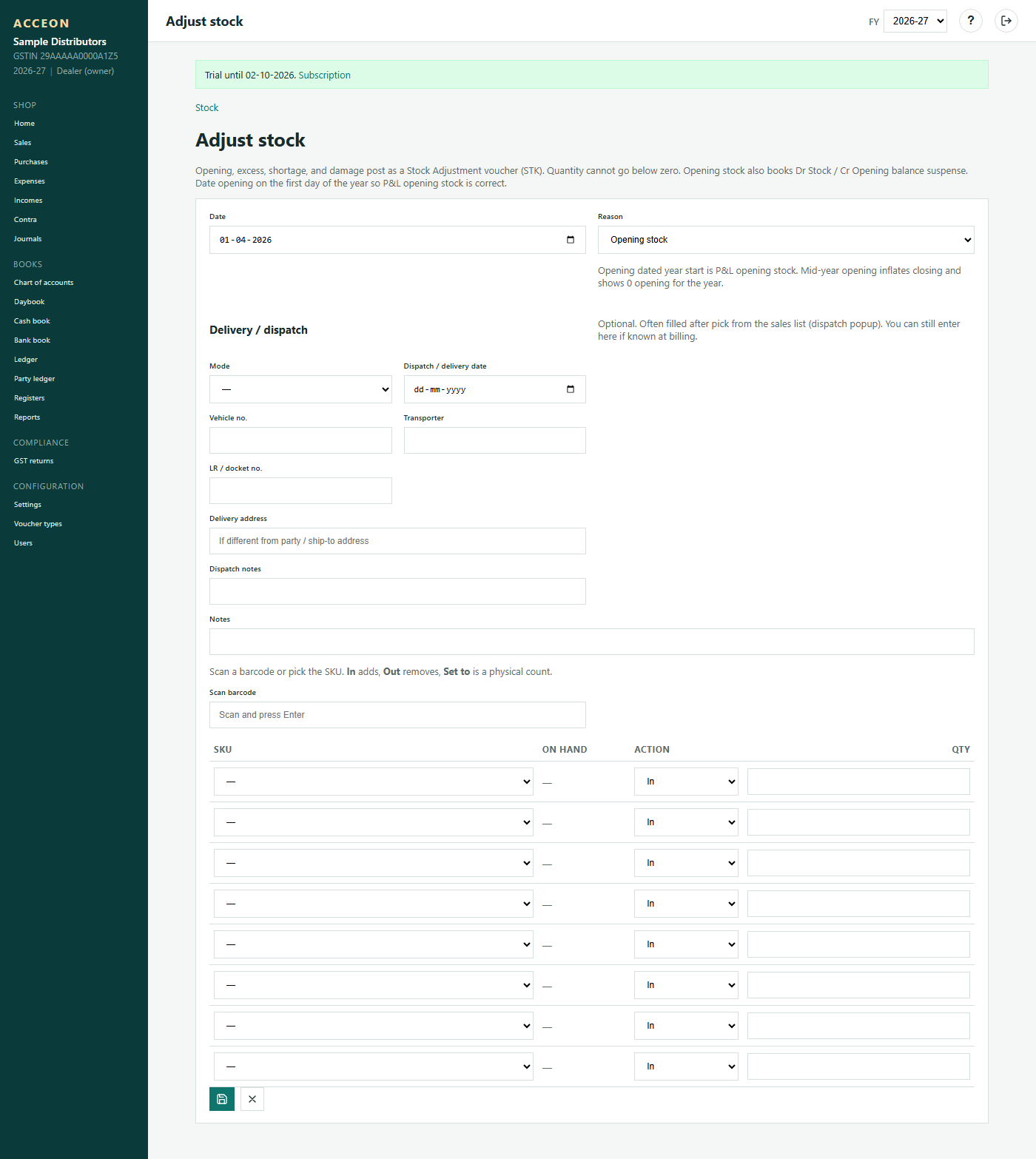
Screen: Adjust stock - Sample Distributors demo.
Books
Daybook, cash/bank, ledgers, stock registers
Day book
All vouchers for a date - the daily activity register.
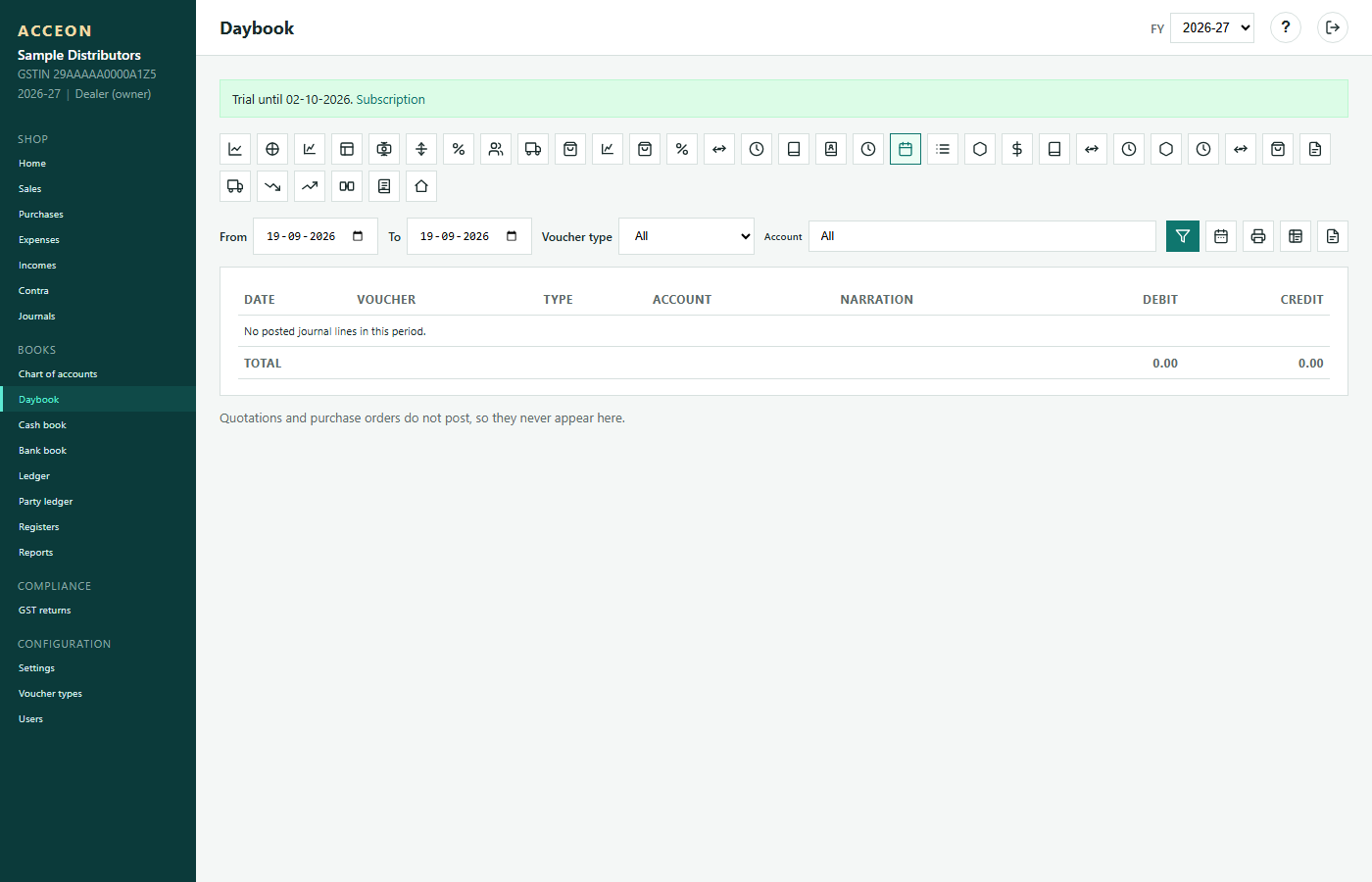
Screen: Day book - Sample Distributors demo.
Voucher register
Register of vouchers by type and date range.
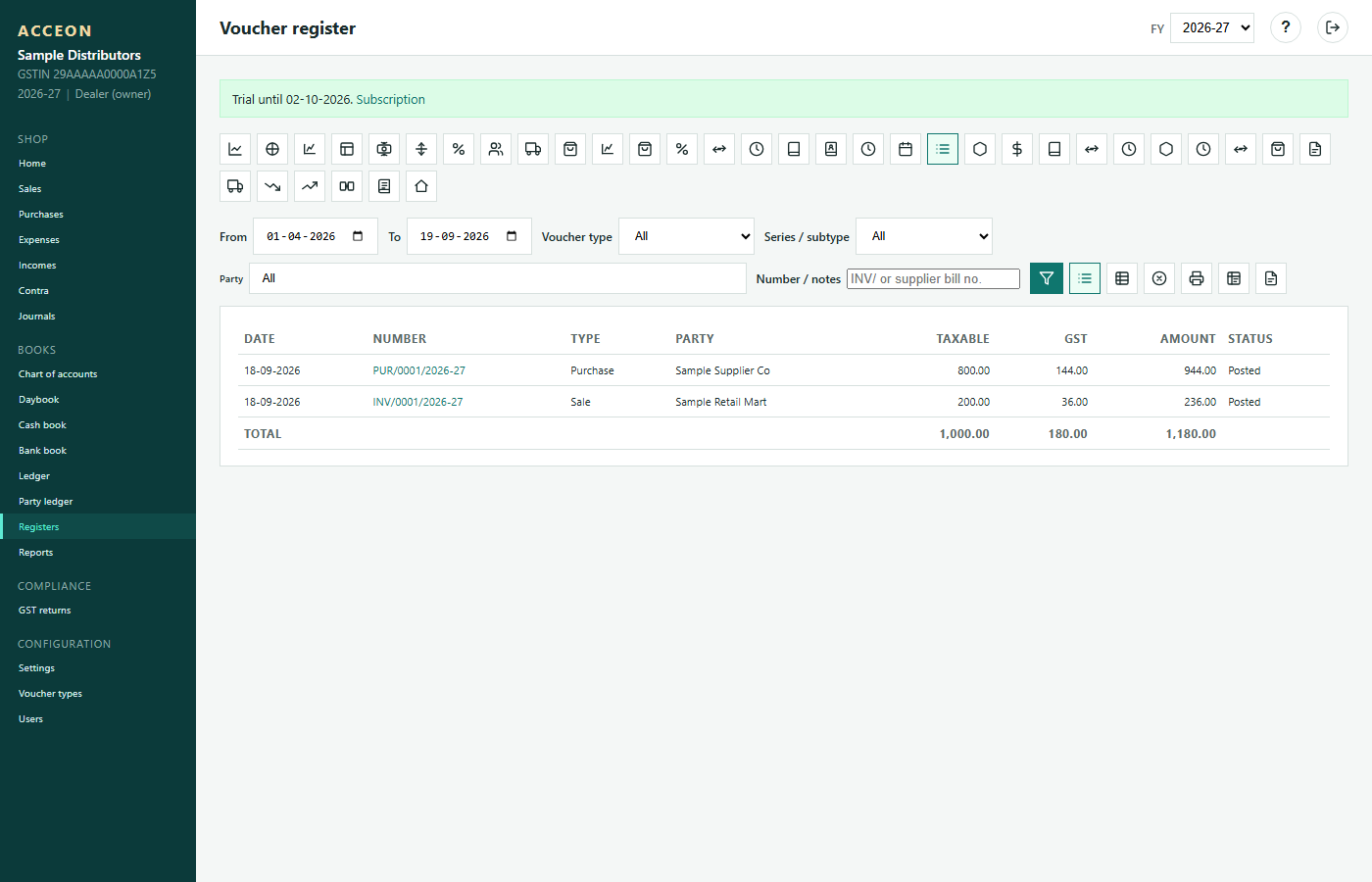
Screen: Voucher register - Sample Distributors demo.
Cash book
Cash receipts and payments. Should match physical cash if postings are correct.
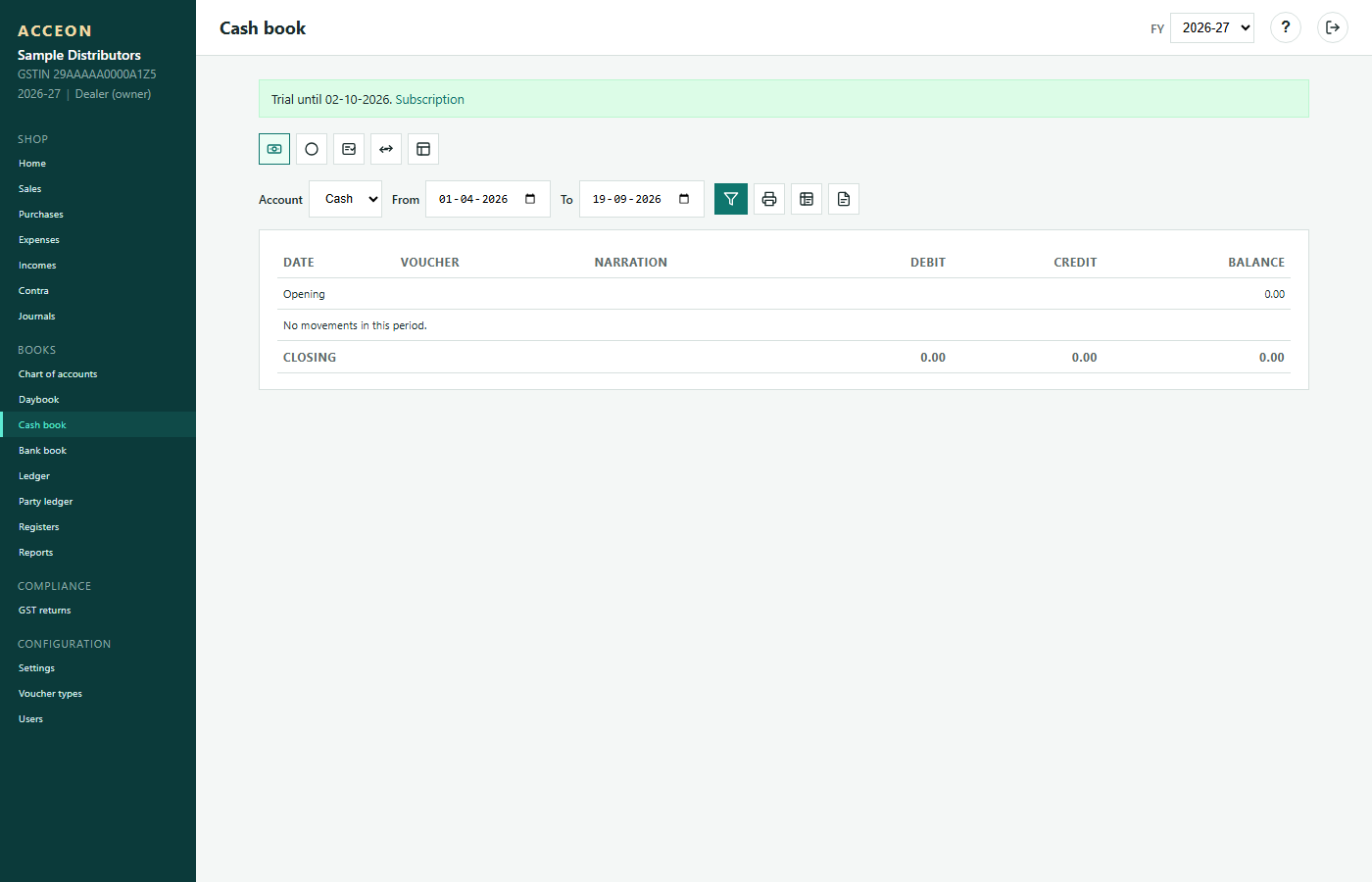
Screen: Cash book - Sample Distributors demo.
Bank book
Bank ledger movements. Reconcile with Bank reconciliation.
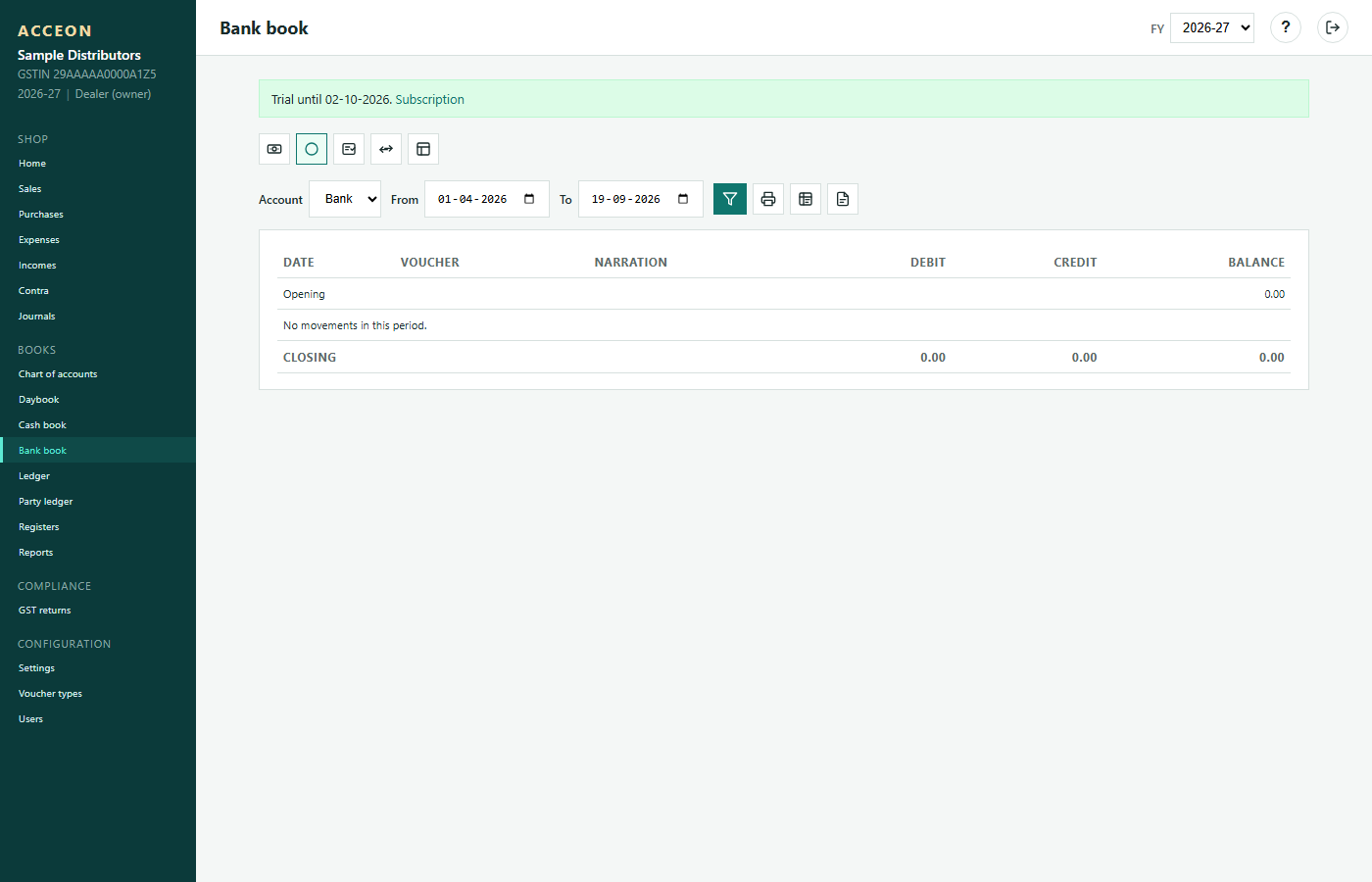
Screen: Bank book - Sample Distributors demo.
Party ledger
Statement for one supplier or customer: bills, payments/receipts, running balance.
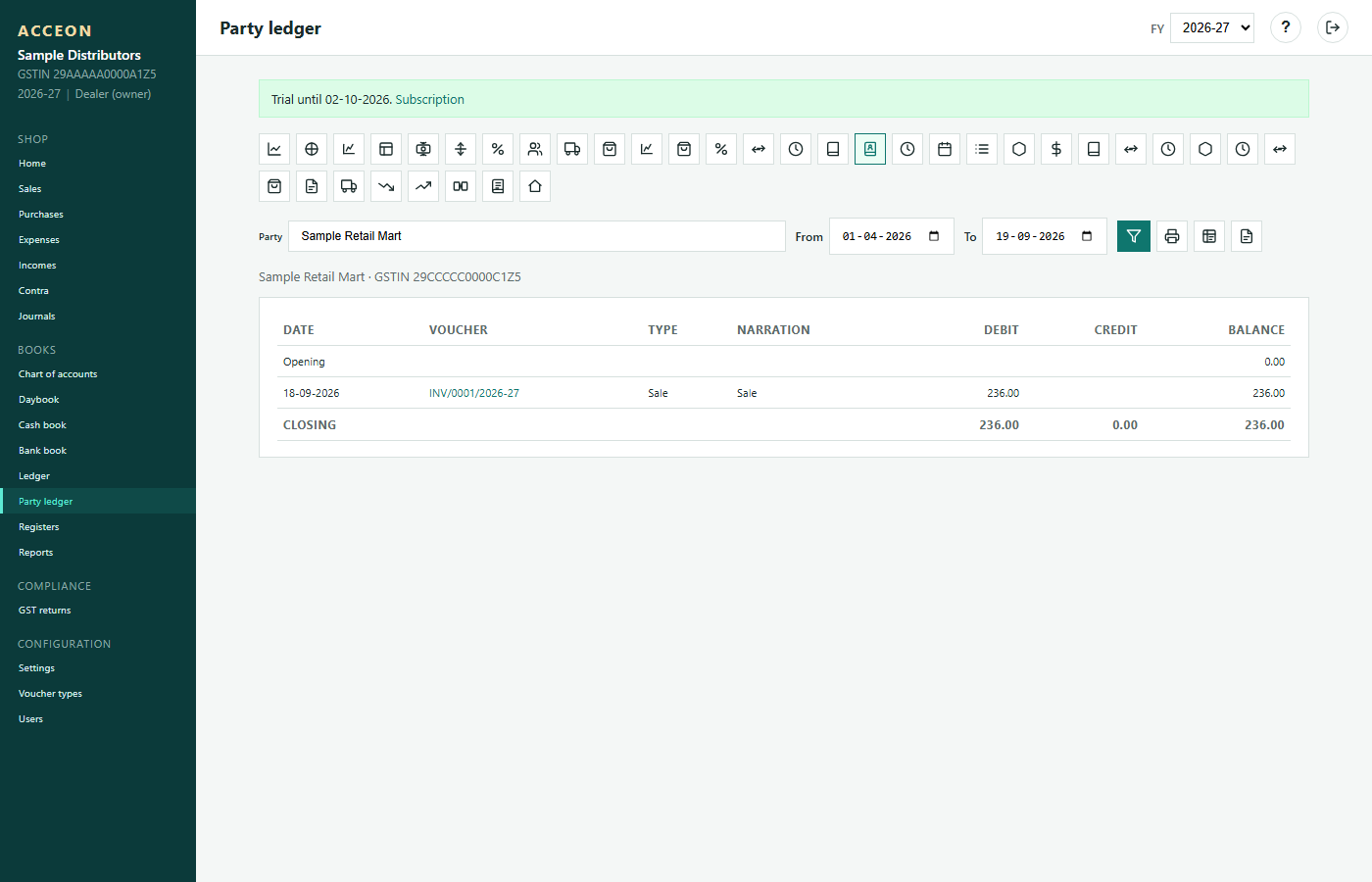
Screen: Party ledger - Sample Distributors demo.
Account ledger
Ledger for any account in the chart of accounts.
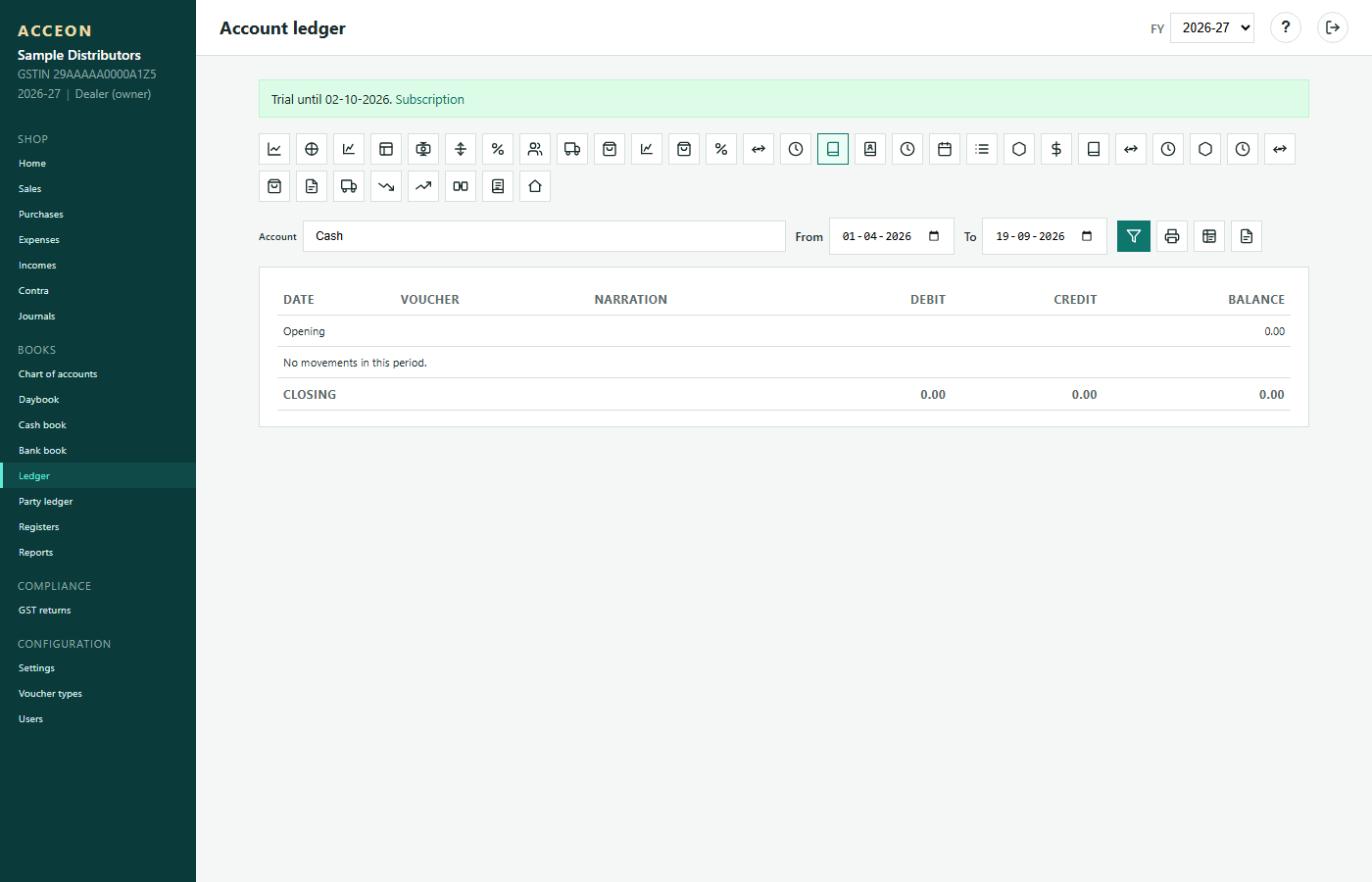
Screen: Account ledger - Sample Distributors demo.
Bank reconciliation
Match book entries to the bank statement until balances agree.
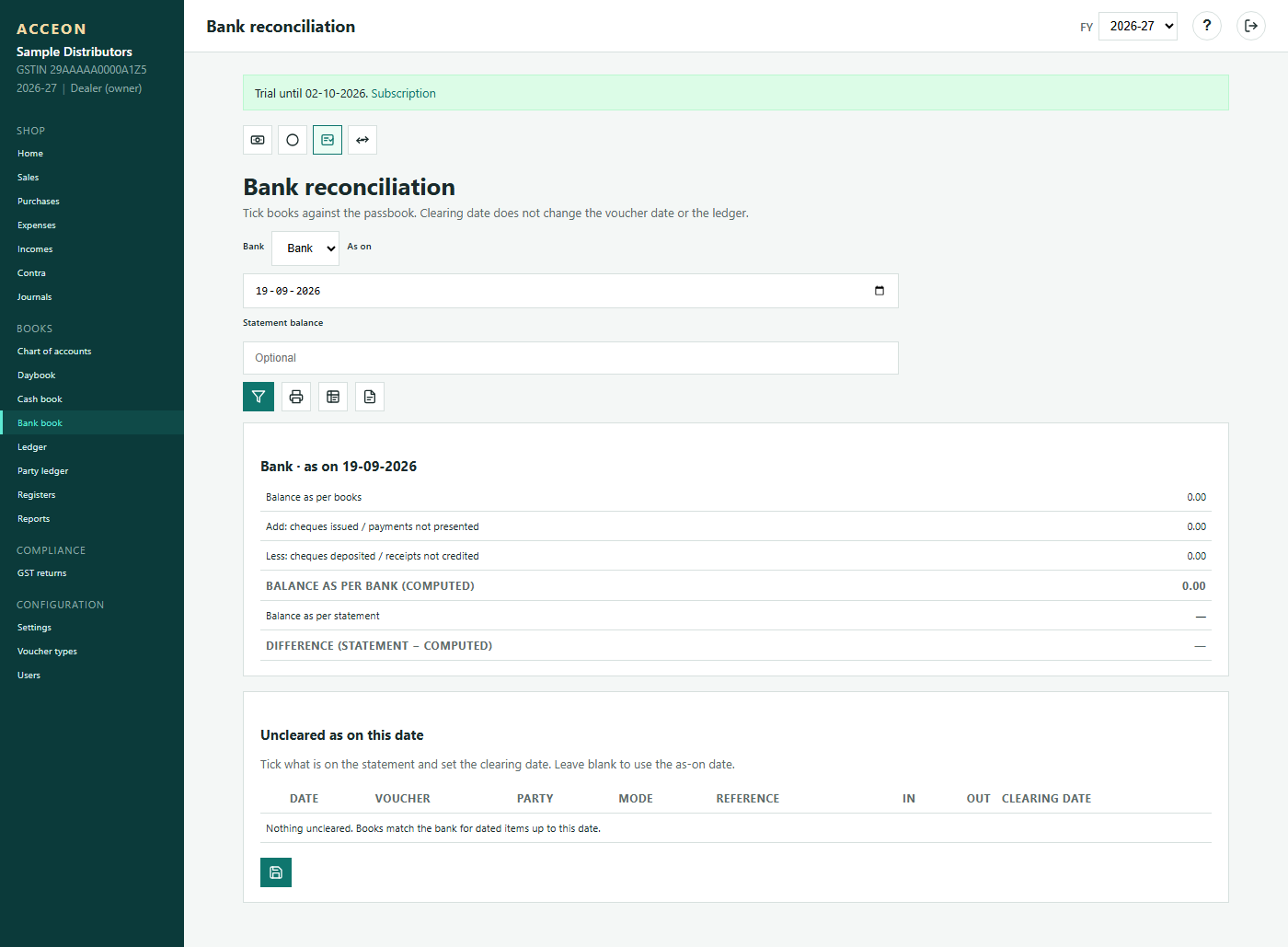
Screen: Bank reconciliation - Sample Distributors demo.
Stock register
Quantity movement of items over a period.
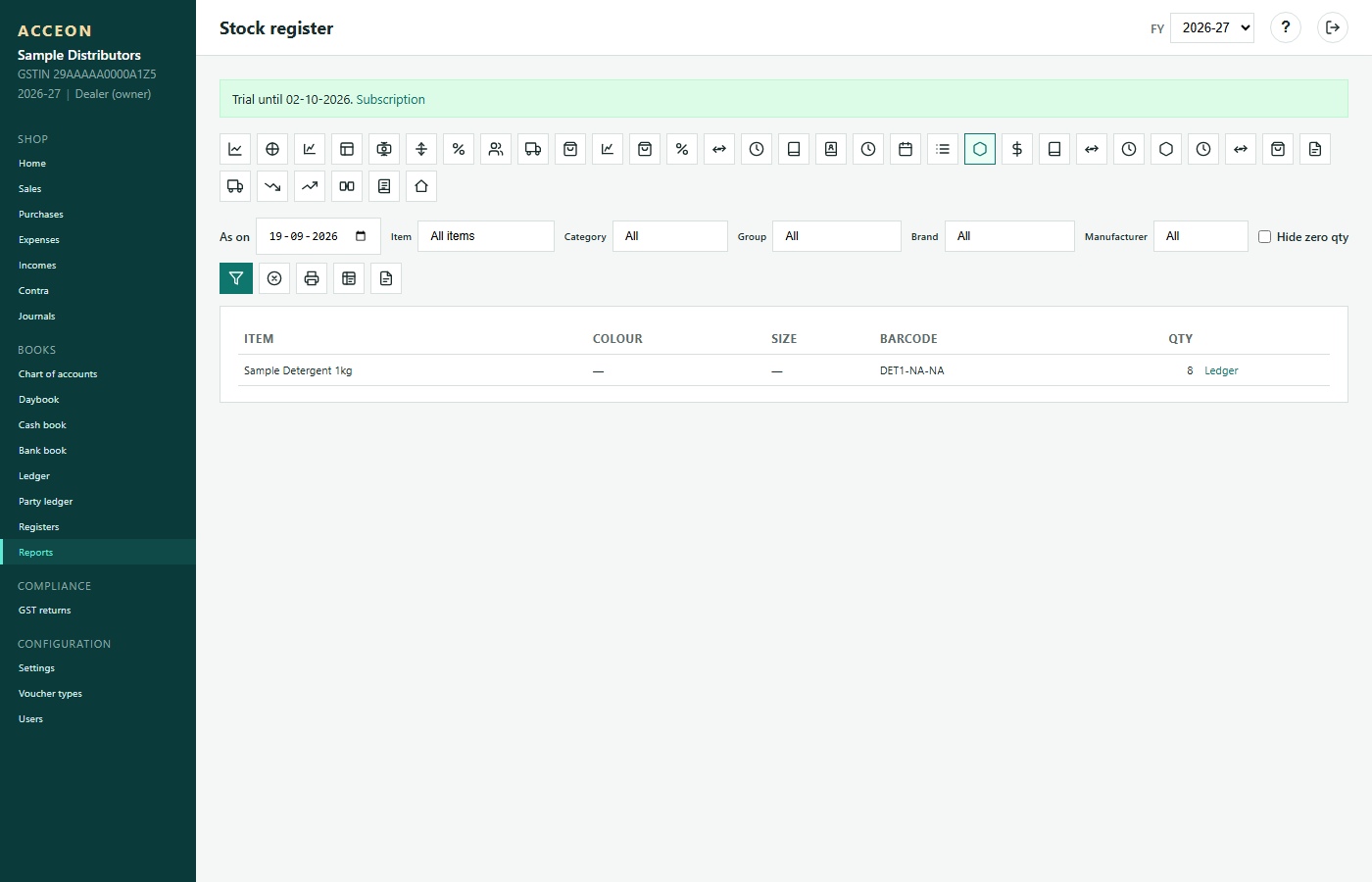
Screen: Stock register - Sample Distributors demo.
Stock
Current stock hub - quantities, values, labels and adjustments.
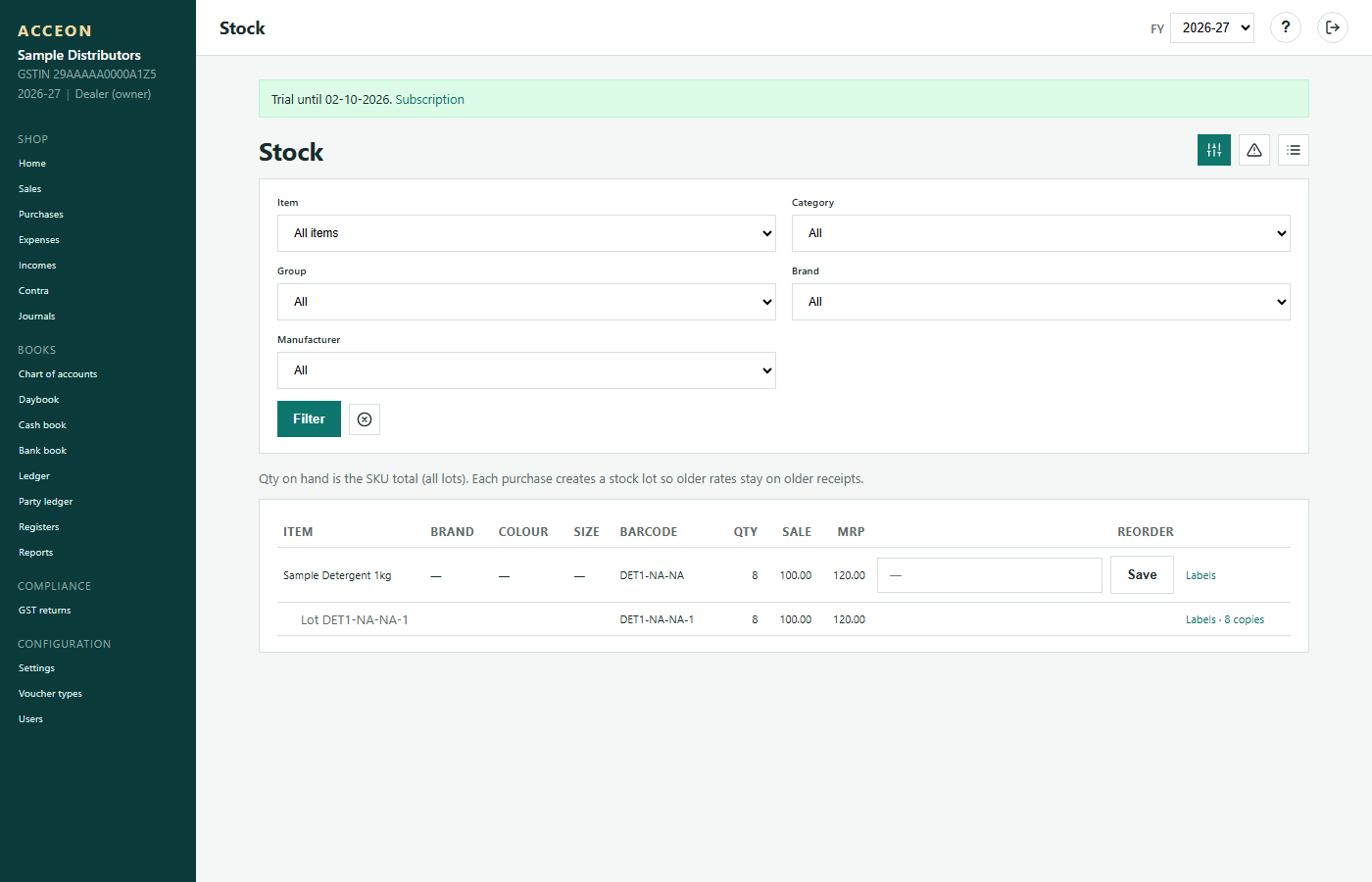
Screen: Stock - Sample Distributors demo.
Stock ledger
Item-wise in/out history.
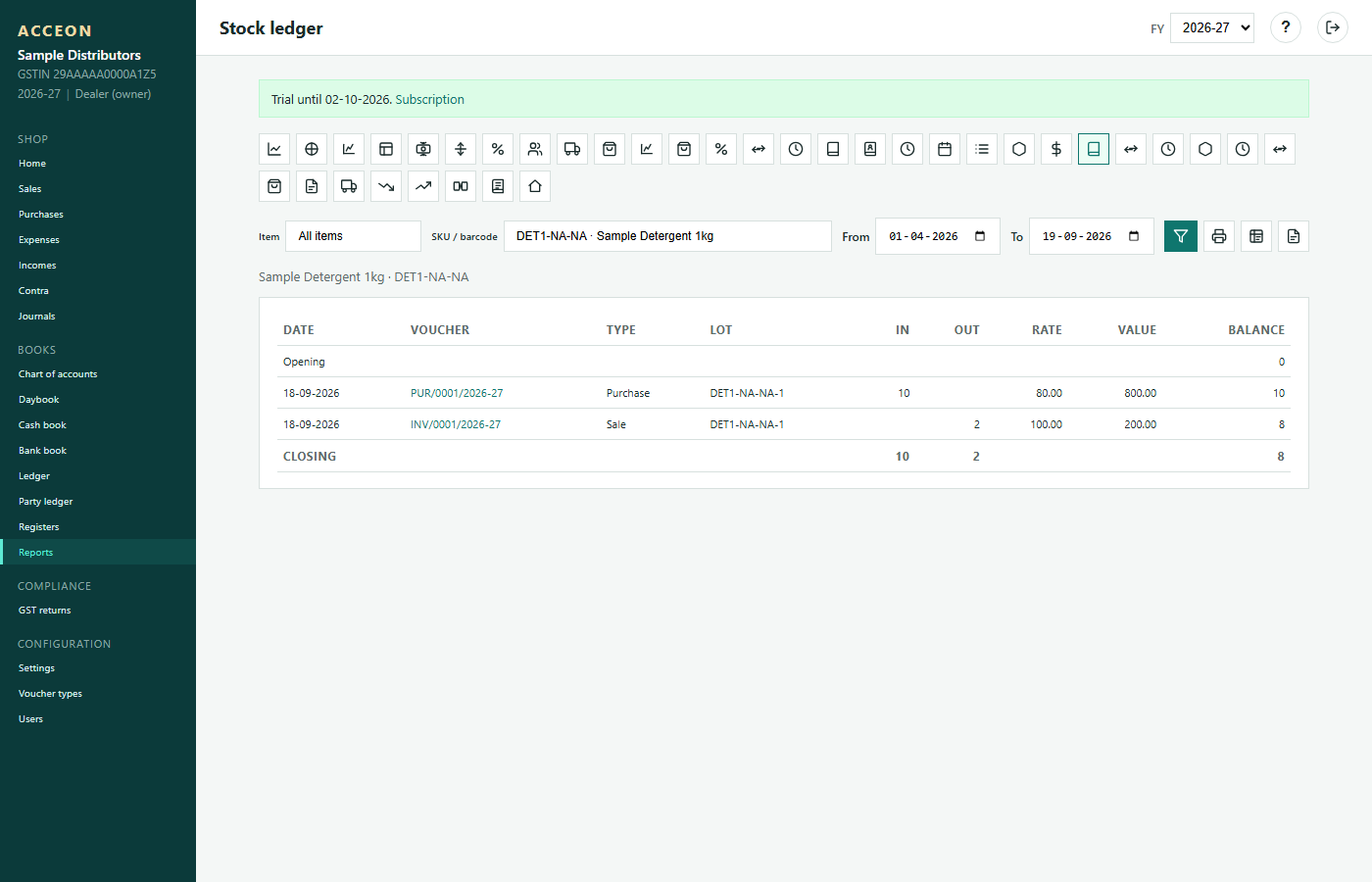
Screen: Stock ledger - Sample Distributors demo.
Stock movement
What moved in and out in the period.
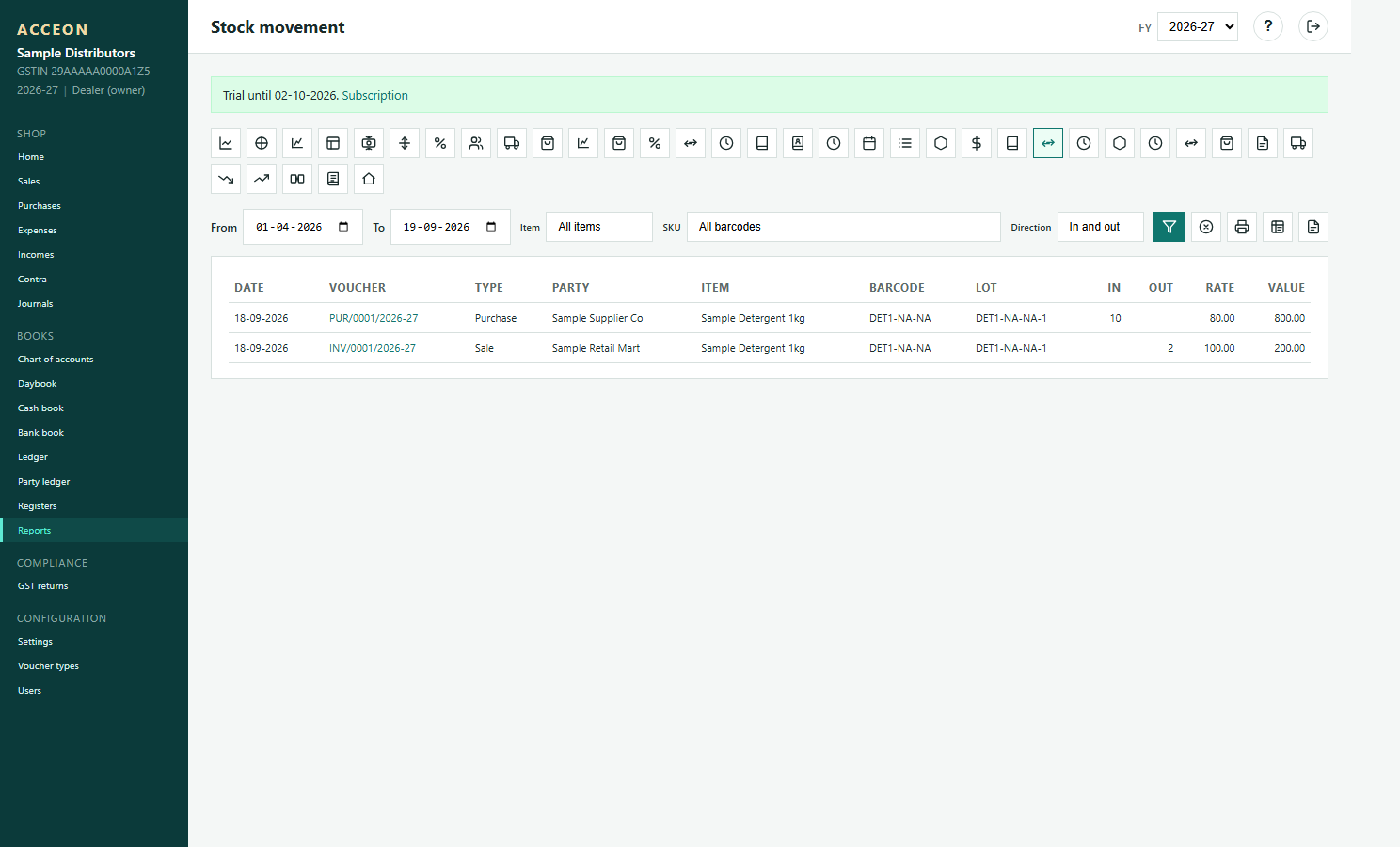
Screen: Stock movement - Sample Distributors demo.
Batch-wise stock / labels
Lot / barcode labels created from purchases. Print after posting a purchase.
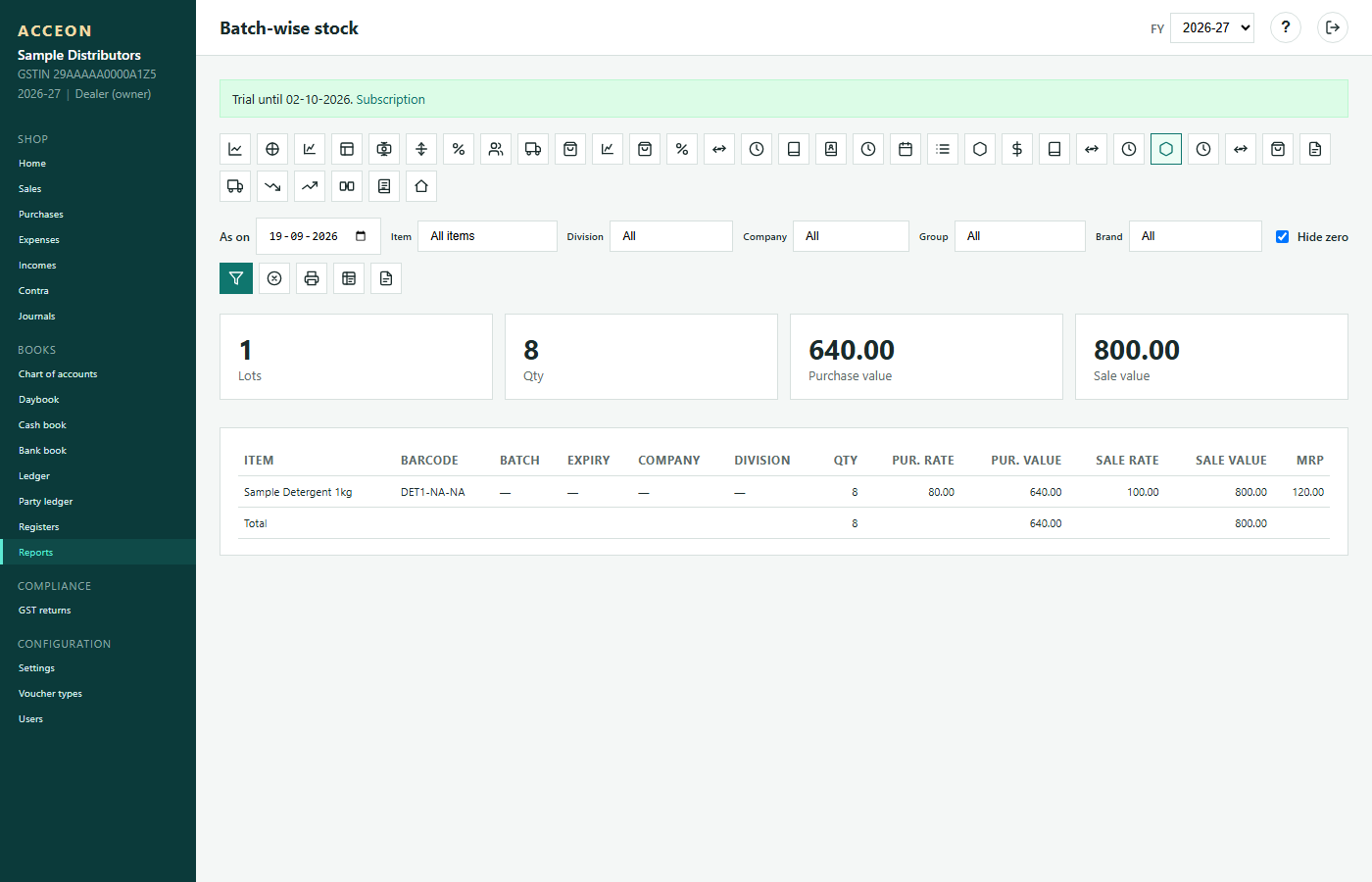
Screen: Batch-wise stock / labels - Sample Distributors demo.
Low stock
Items below reorder level. Plan the next purchase.
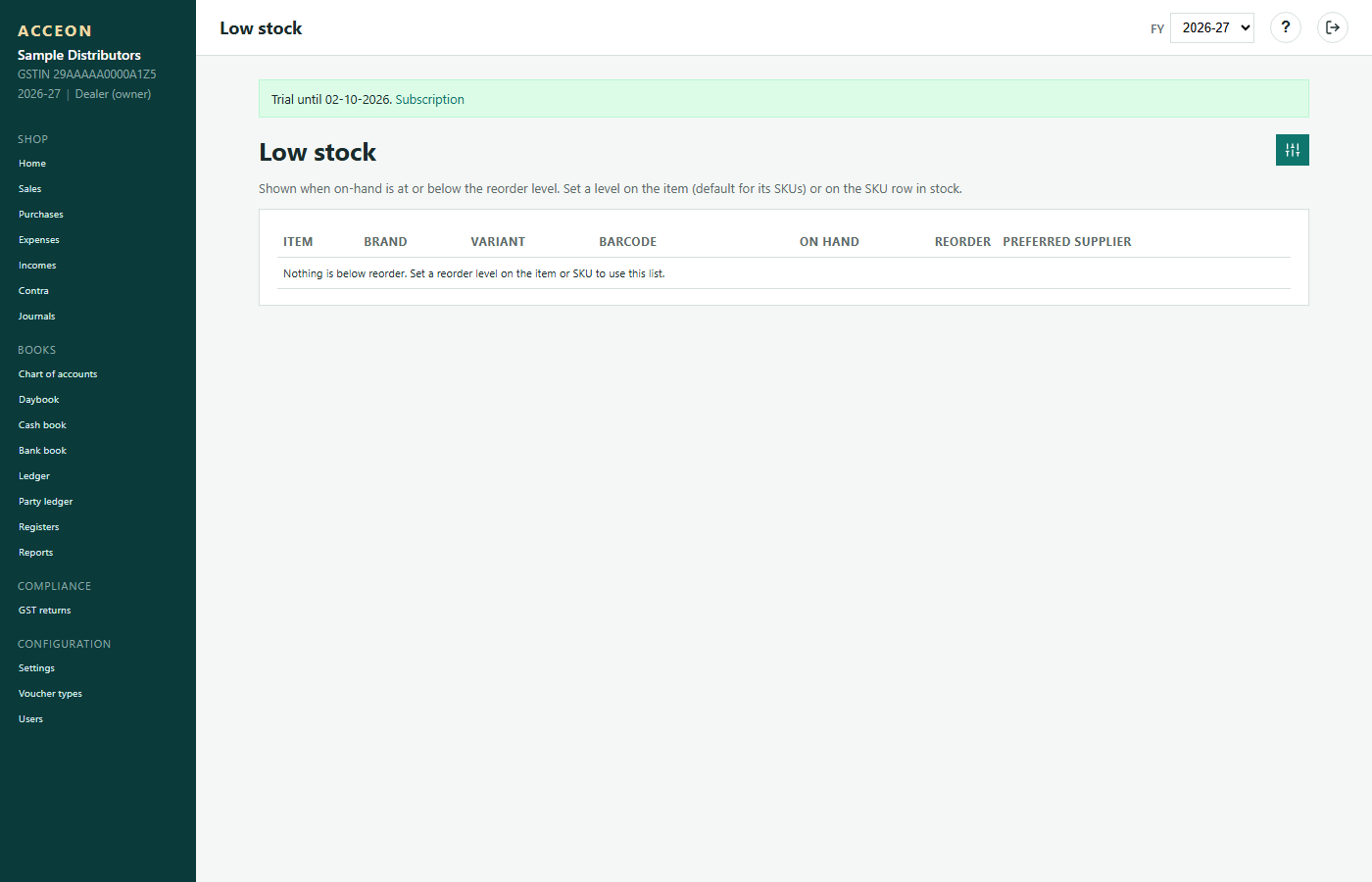
Screen: Low stock - Sample Distributors demo.
Reports
Outstanding, financials, rankings, ageing
Outstanding
Who owes you (customers) and whom you owe (suppliers). Then receive or pay.
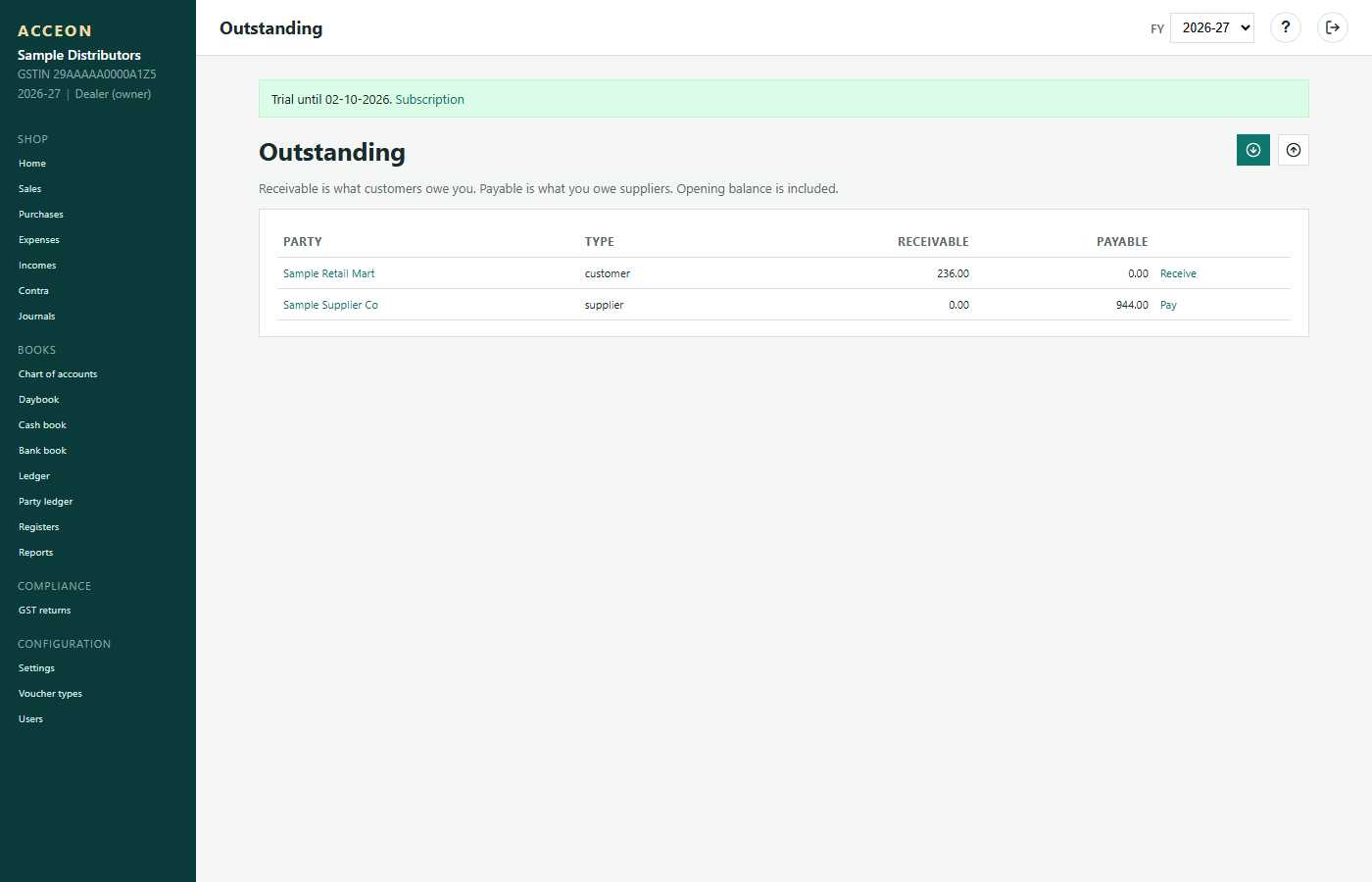
Screen: Outstanding - Sample Distributors demo.
Trial balance
All ledger debits and credits as on a date. Must tally.
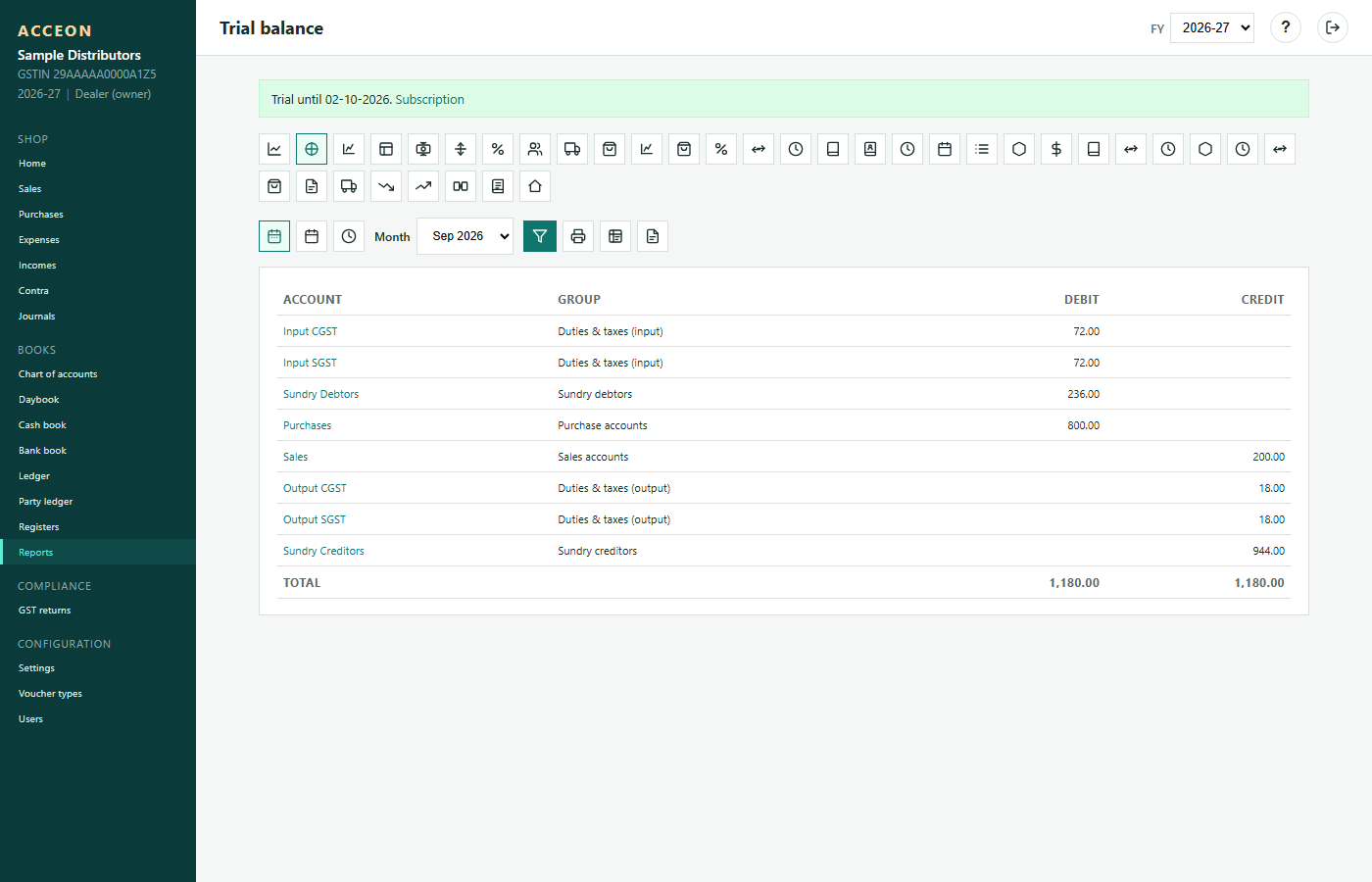
Screen: Trial balance - Sample Distributors demo.
Profit and loss
Income versus expenses for the period.
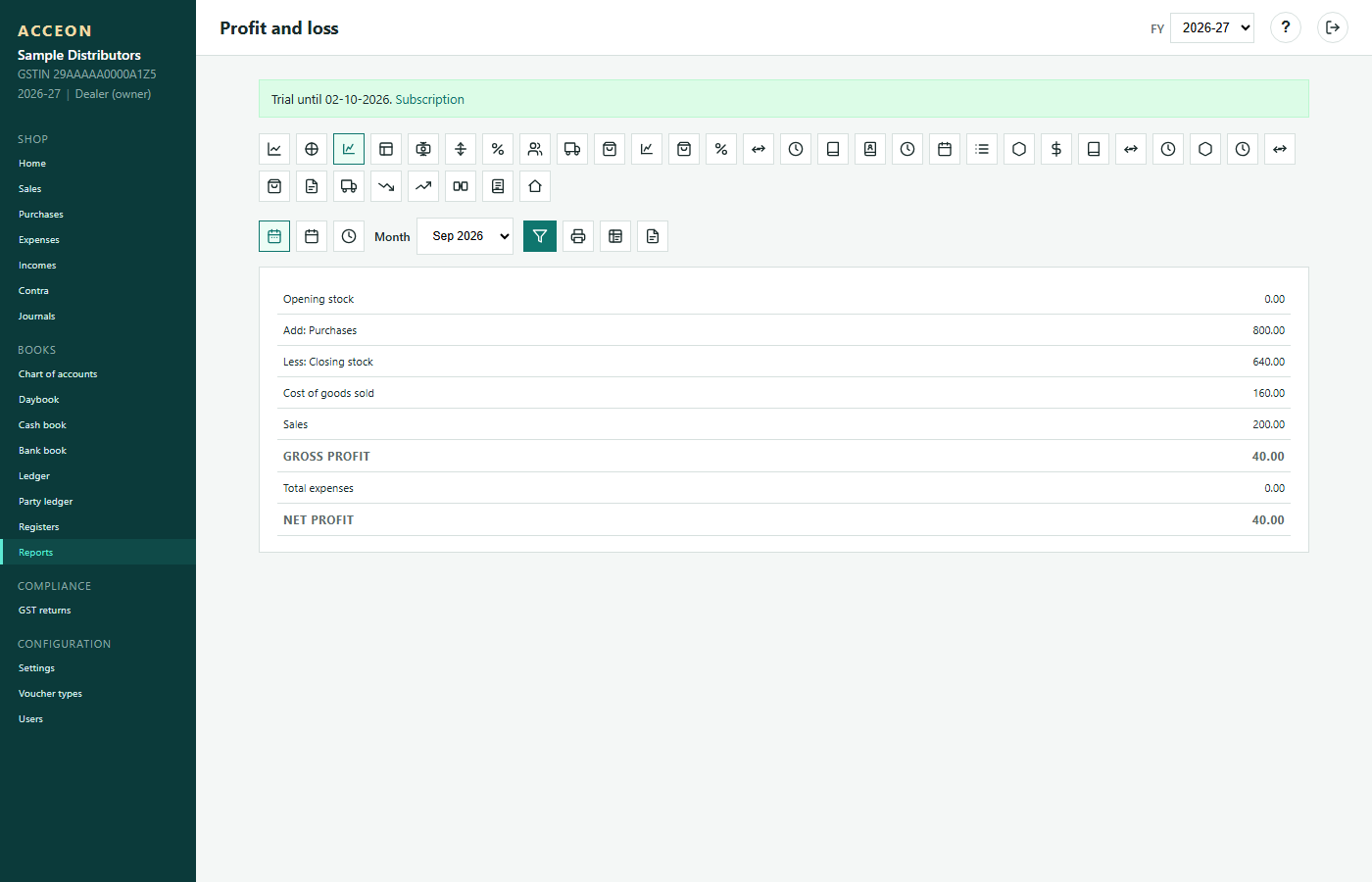
Screen: Profit and loss - Sample Distributors demo.
Balance sheet
Assets and liabilities as on a date.
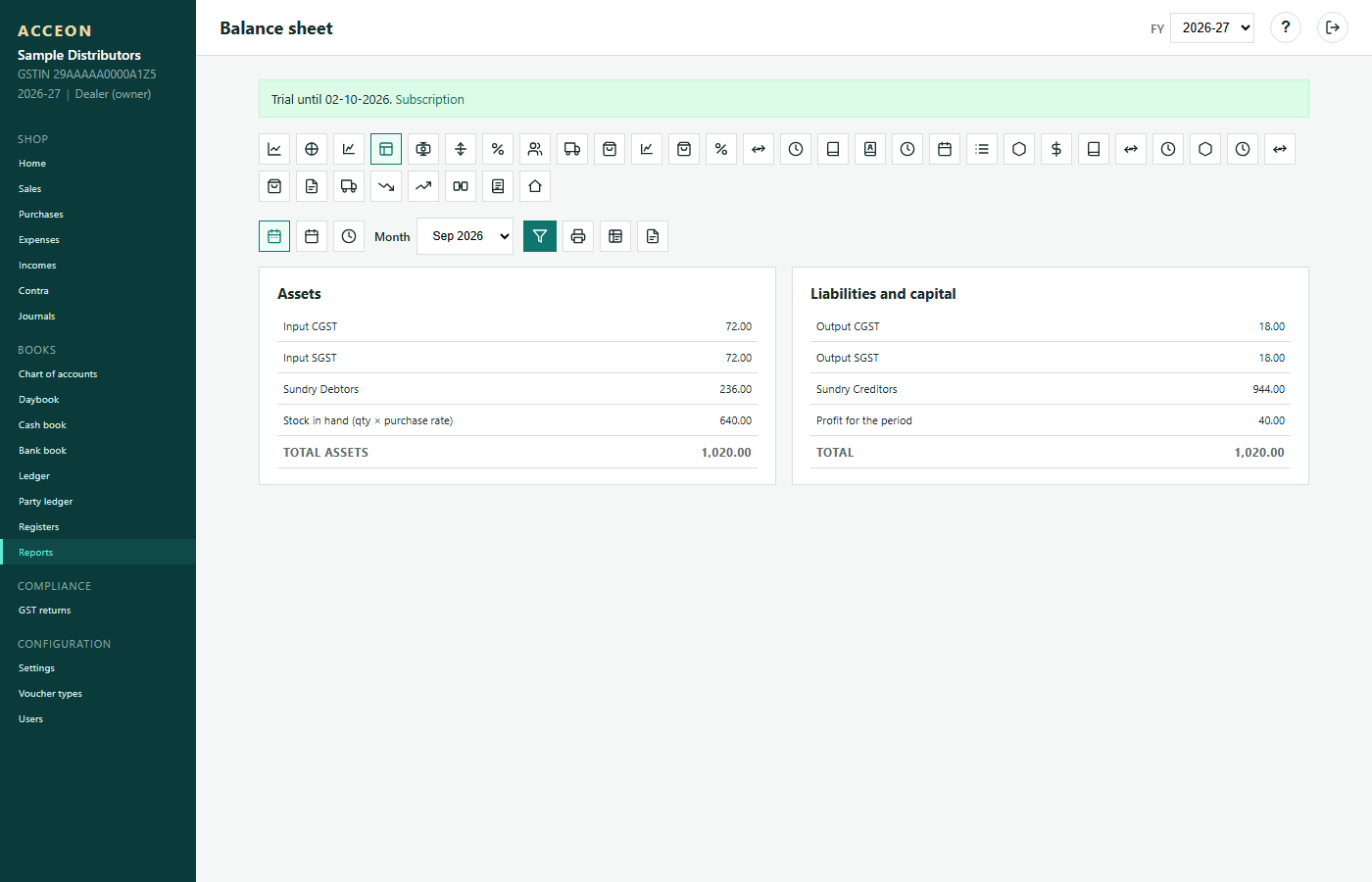
Screen: Balance sheet - Sample Distributors demo.
Cash flow
How cash moved in the period.
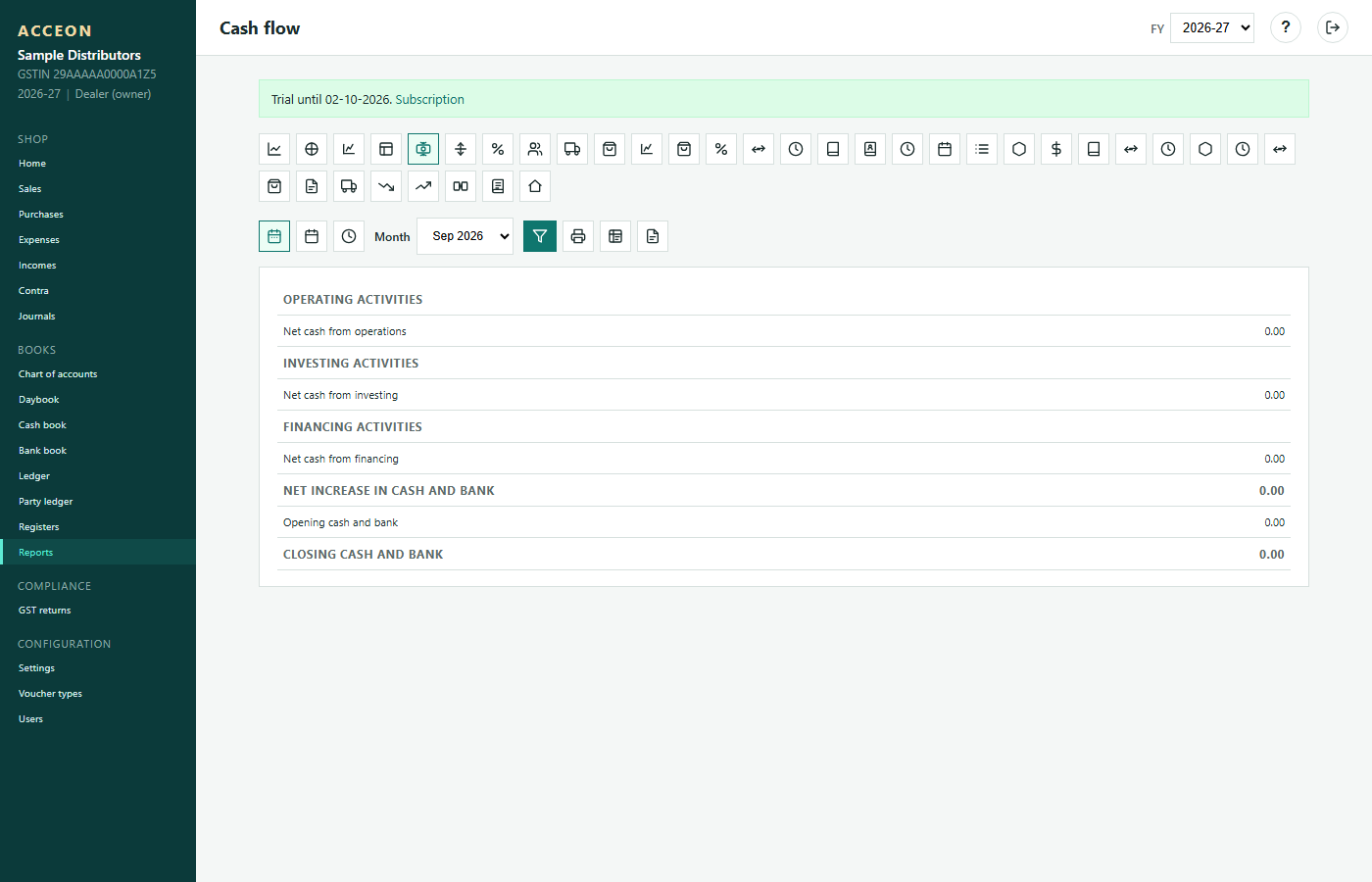
Screen: Cash flow - Sample Distributors demo.
Fund flow
Sources and application of funds between two dates.
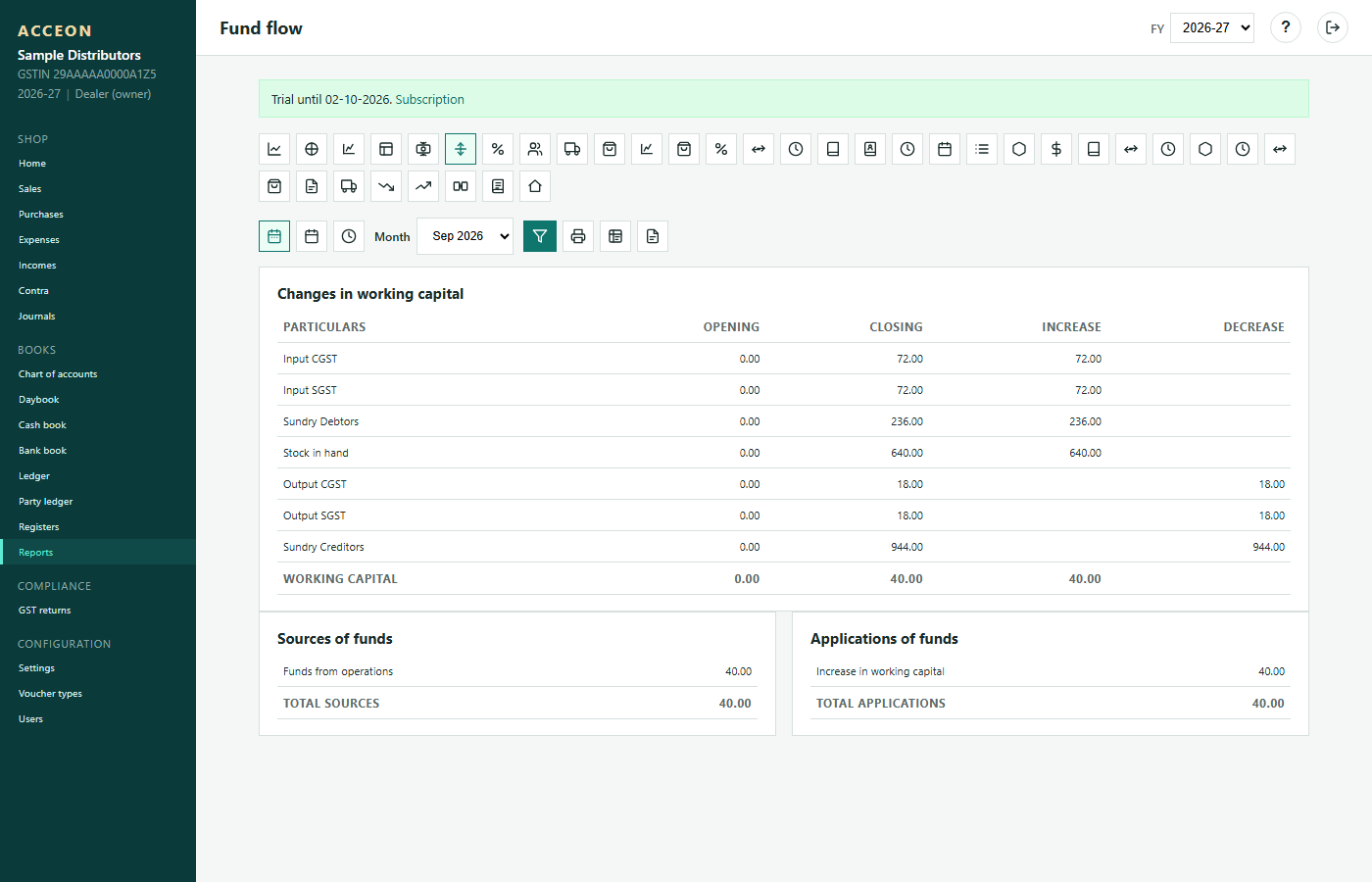
Screen: Fund flow - Sample Distributors demo.
Ratio analysis
Key business ratios from the books.
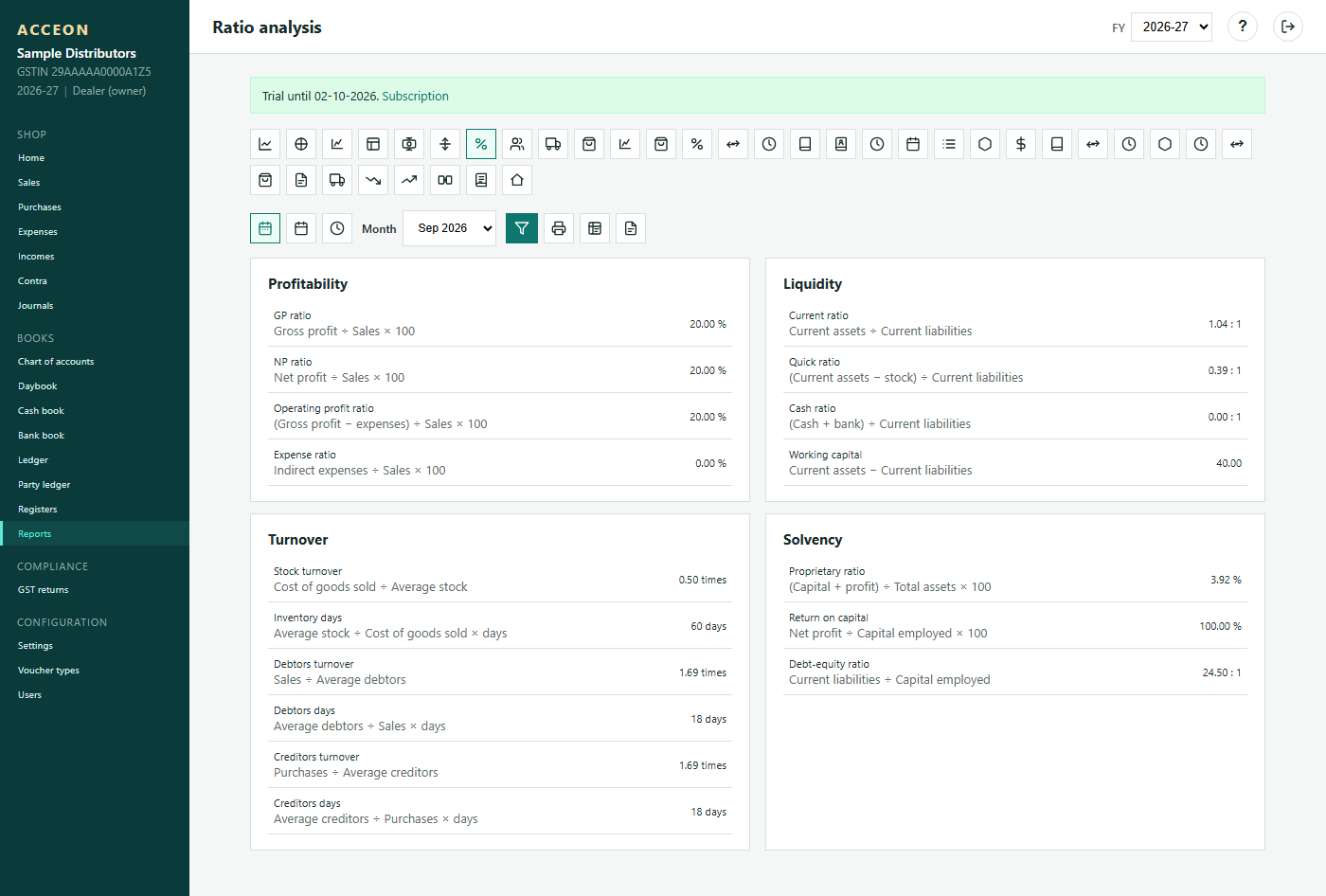
Screen: Ratio analysis - Sample Distributors demo.
Customers ranking
Top customers by sales value.
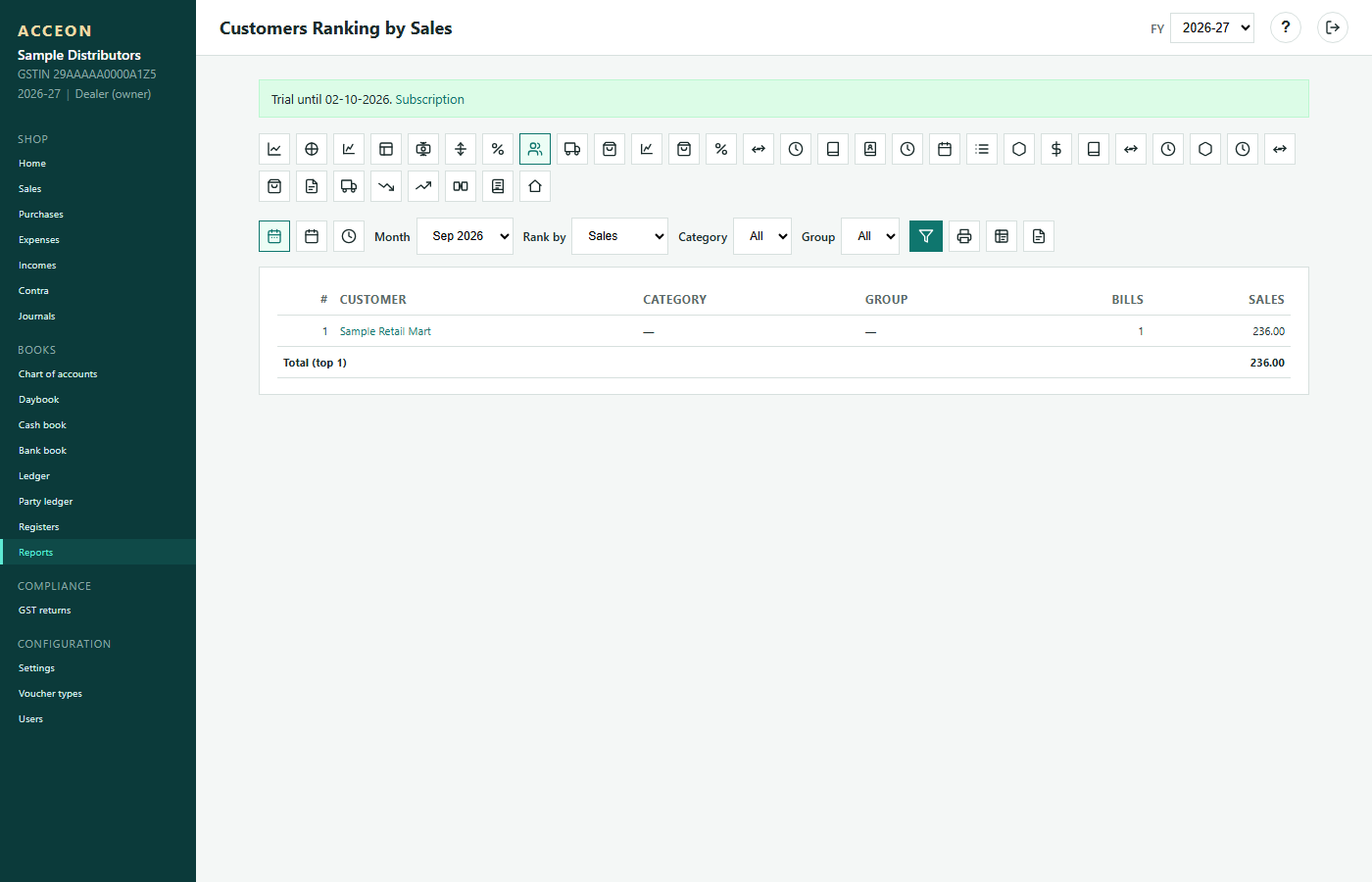
Screen: Customers ranking - Sample Distributors demo.
Suppliers ranking
Top suppliers by purchase value.
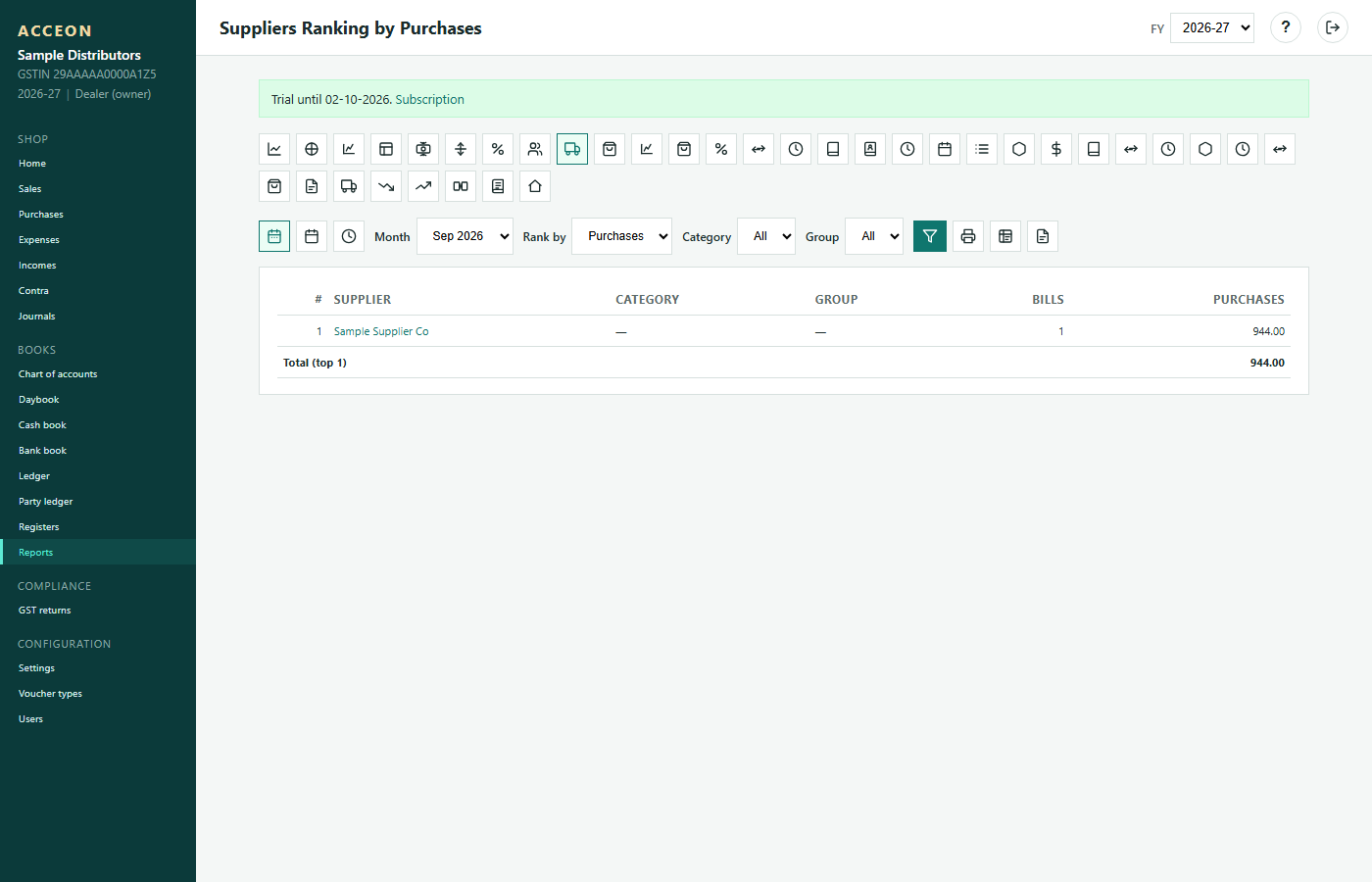
Screen: Suppliers ranking - Sample Distributors demo.
Items ranking
Best-selling or highest-value items.
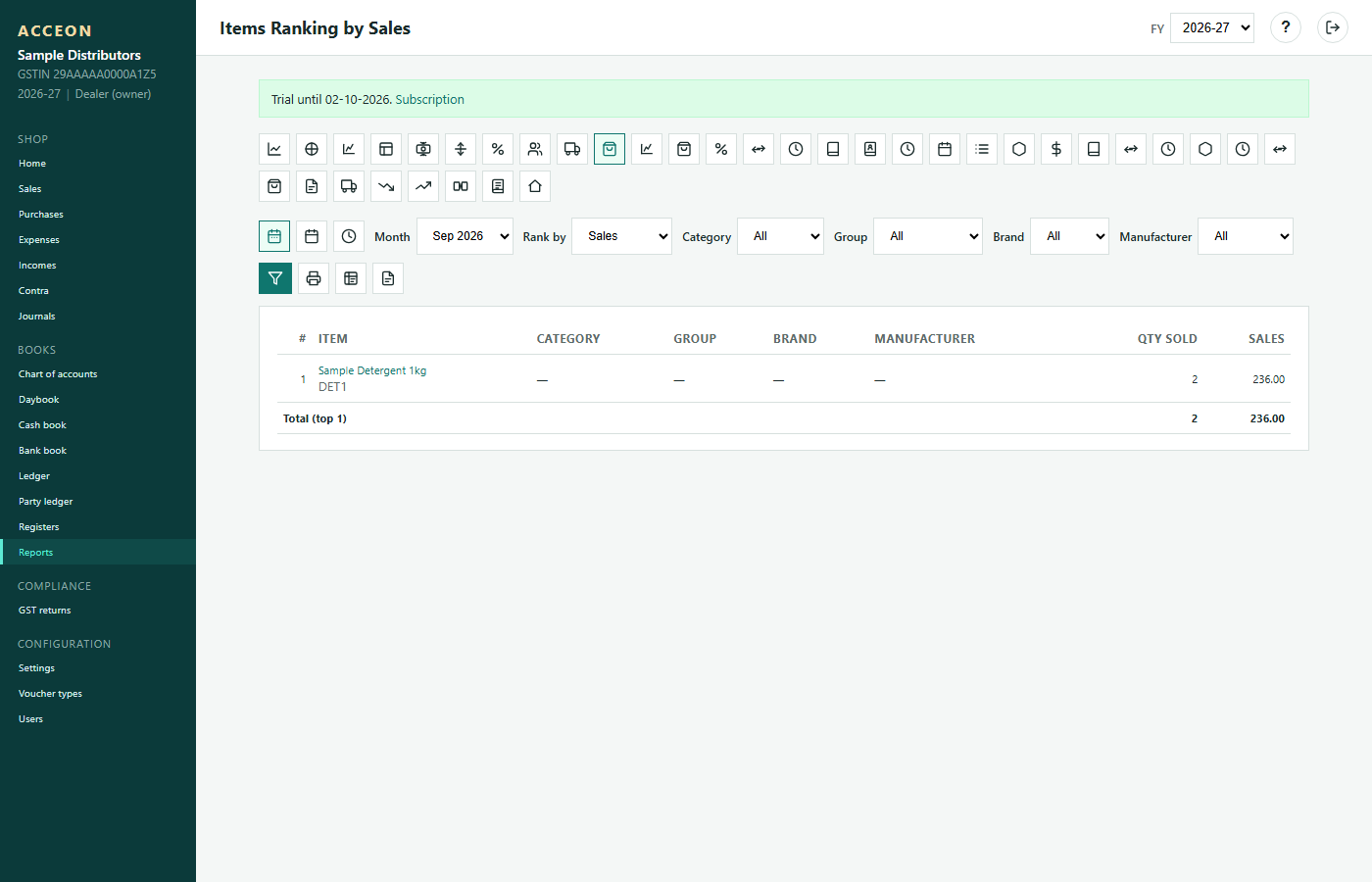
Screen: Items ranking - Sample Distributors demo.
Ageing
How old receivables and payables are (30 / 60 / 90 day buckets).
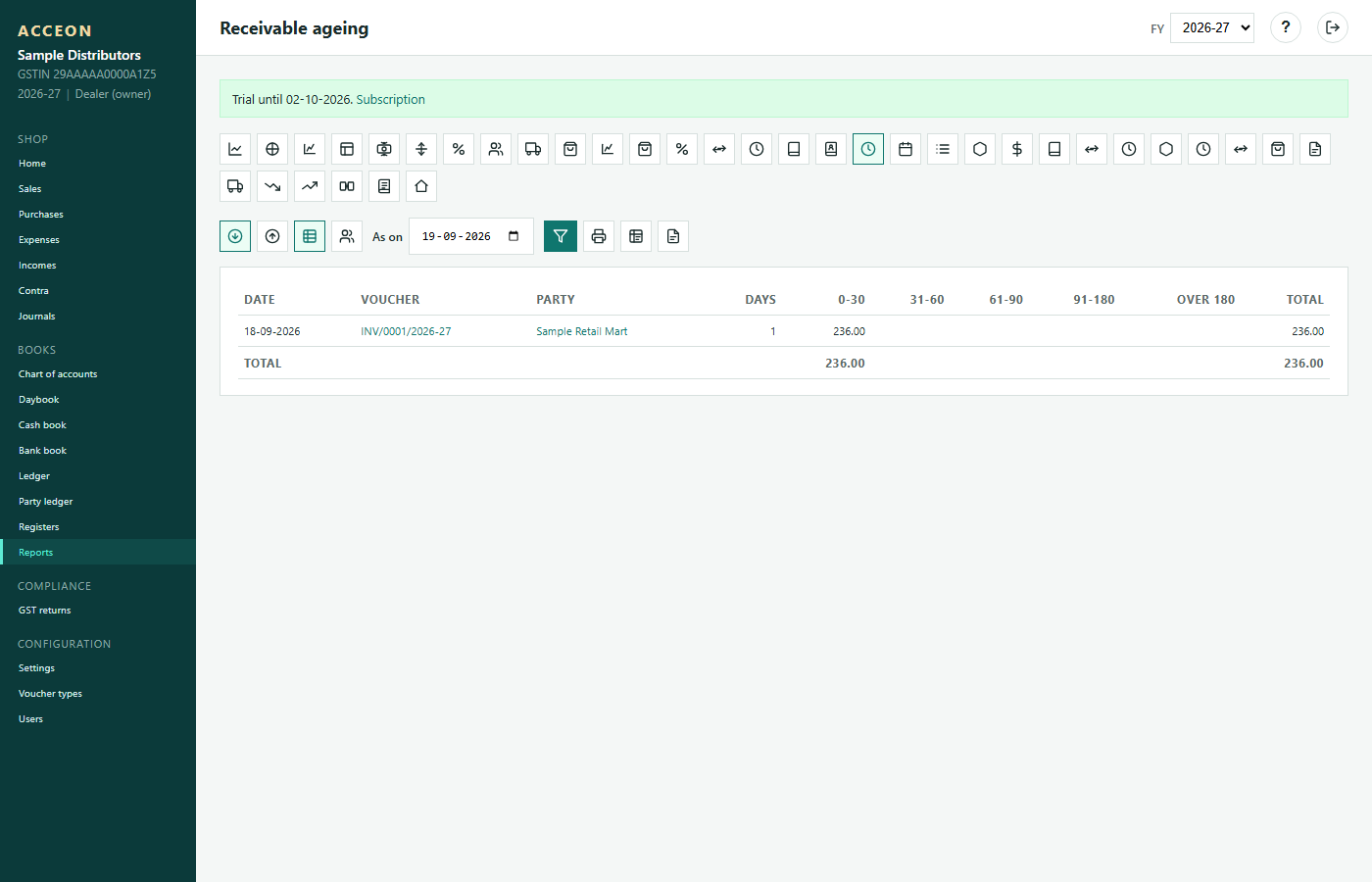
Screen: Ageing - Sample Distributors demo.
Stock ageing
How long stock has been sitting.
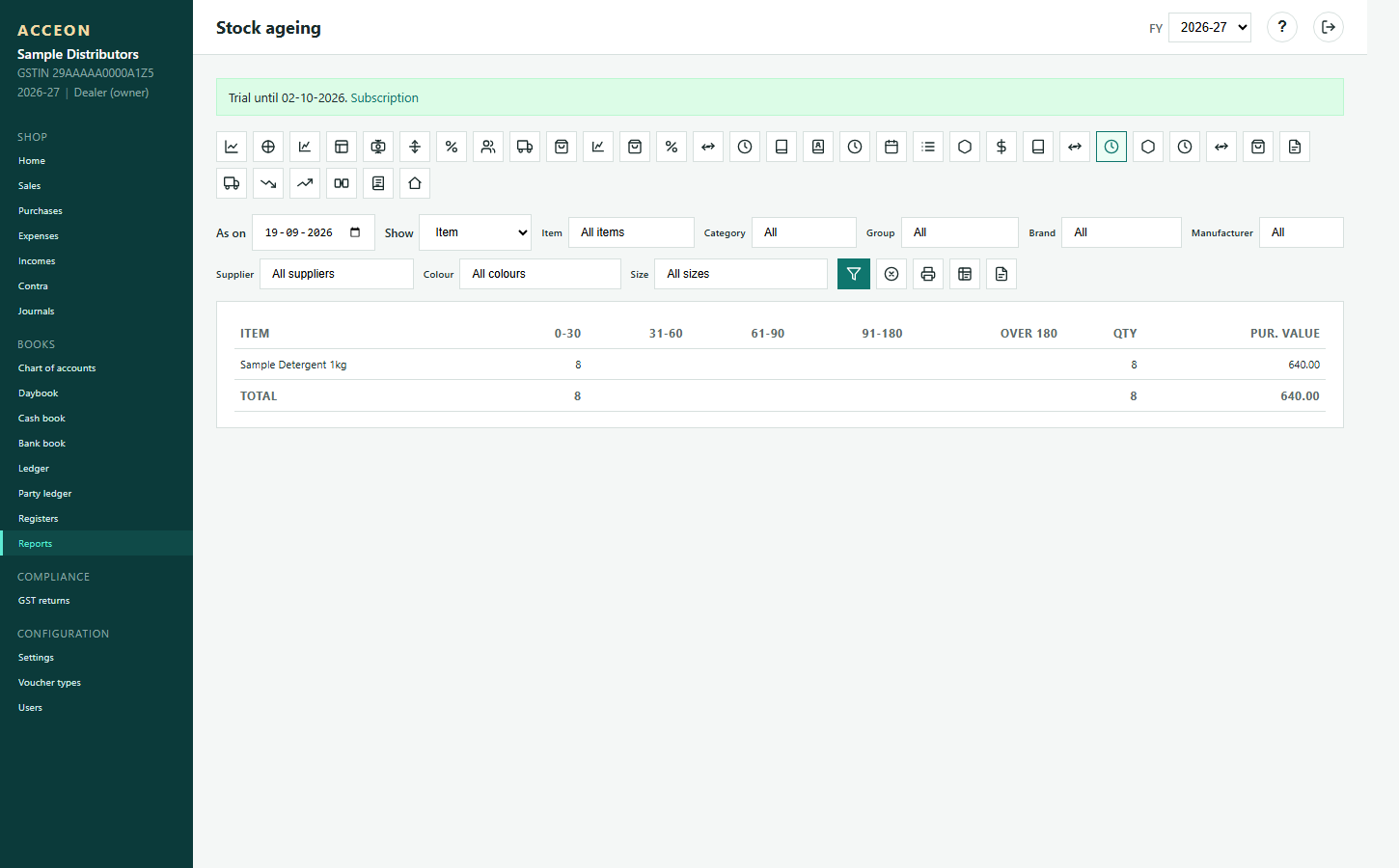
Screen: Stock ageing - Sample Distributors demo.
Batch-wise stock
Stock by lot / batch barcode created at purchase time.
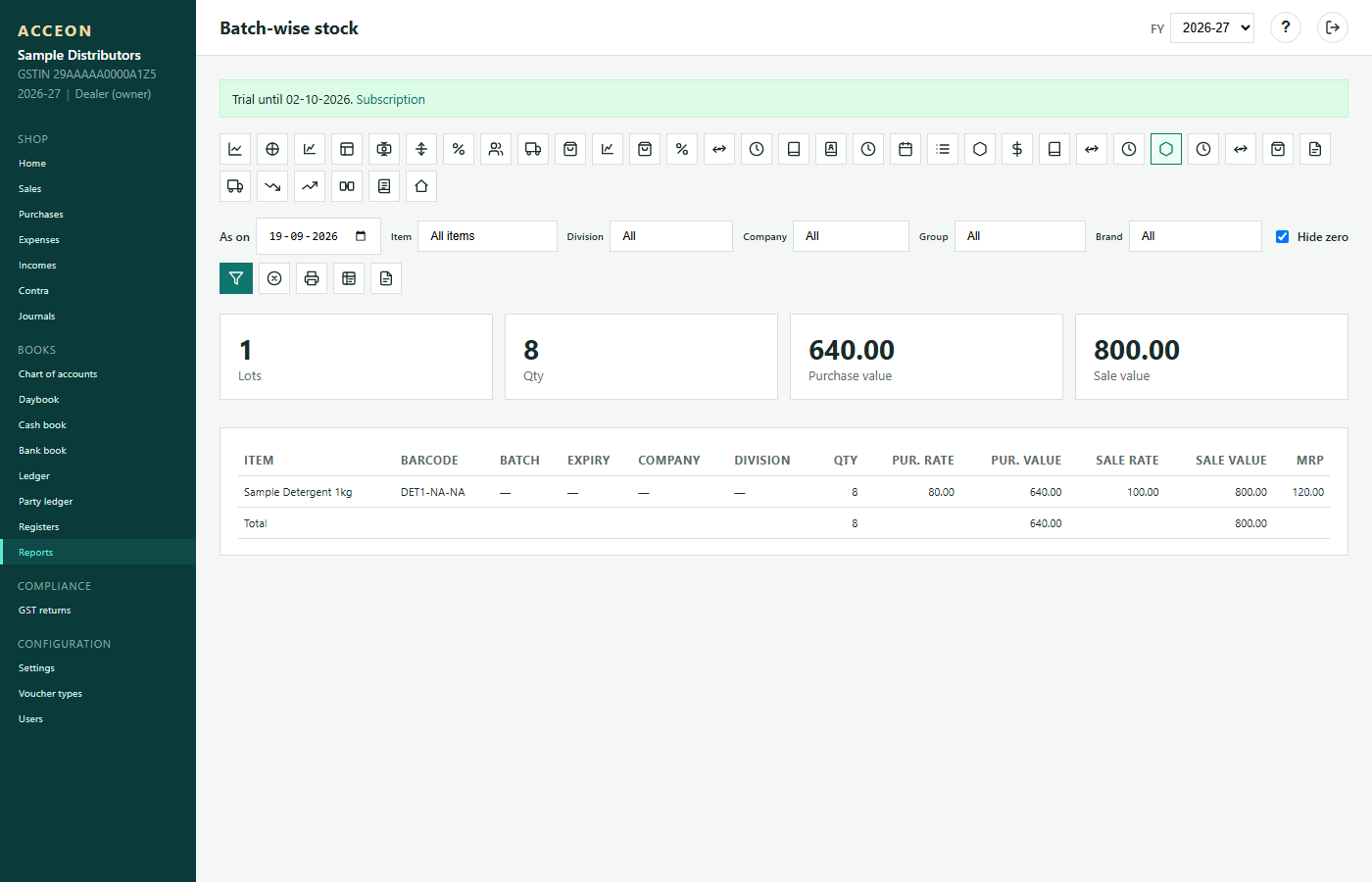
Screen: Batch-wise stock - Sample Distributors demo.
Expiry forecast
Batches nearing expiry (when expiry is captured on purchase).
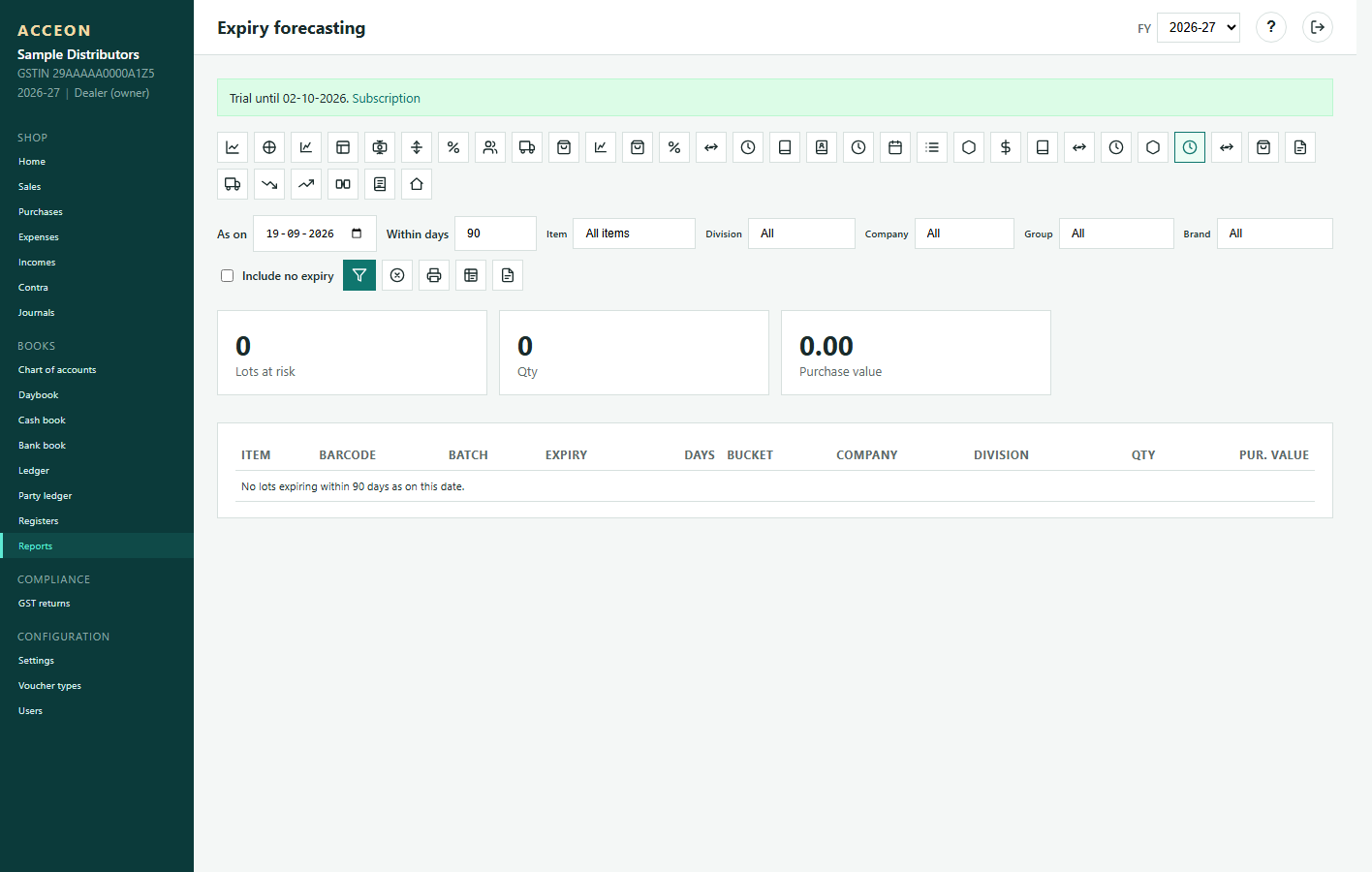
Screen: Expiry forecast - Sample Distributors demo.
Fast moving items
Items that sell quickly - keep purchase cover healthy.
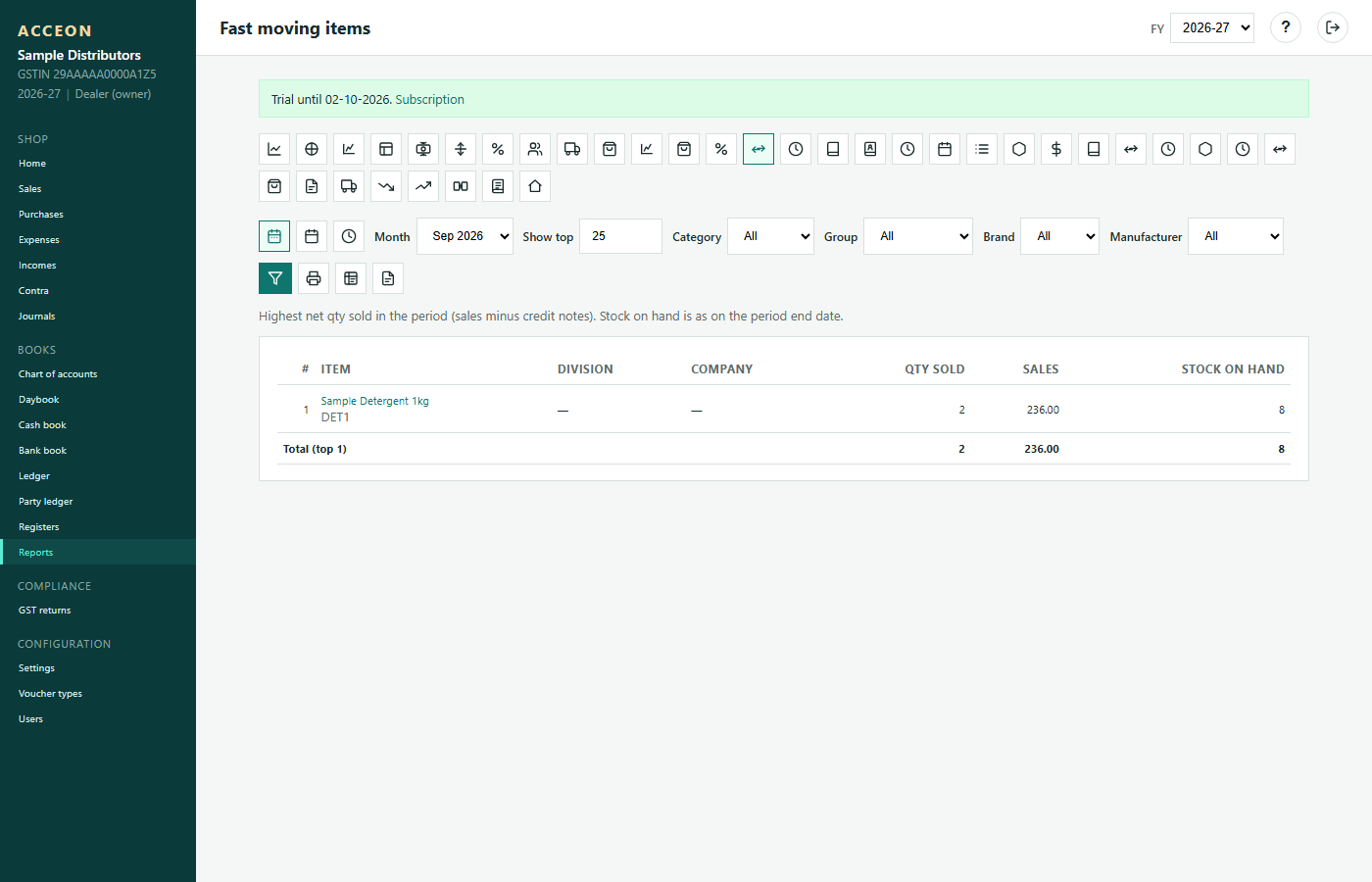
Screen: Fast moving items - Sample Distributors demo.
Slow moving items
Items that barely move - review purchase quantity.
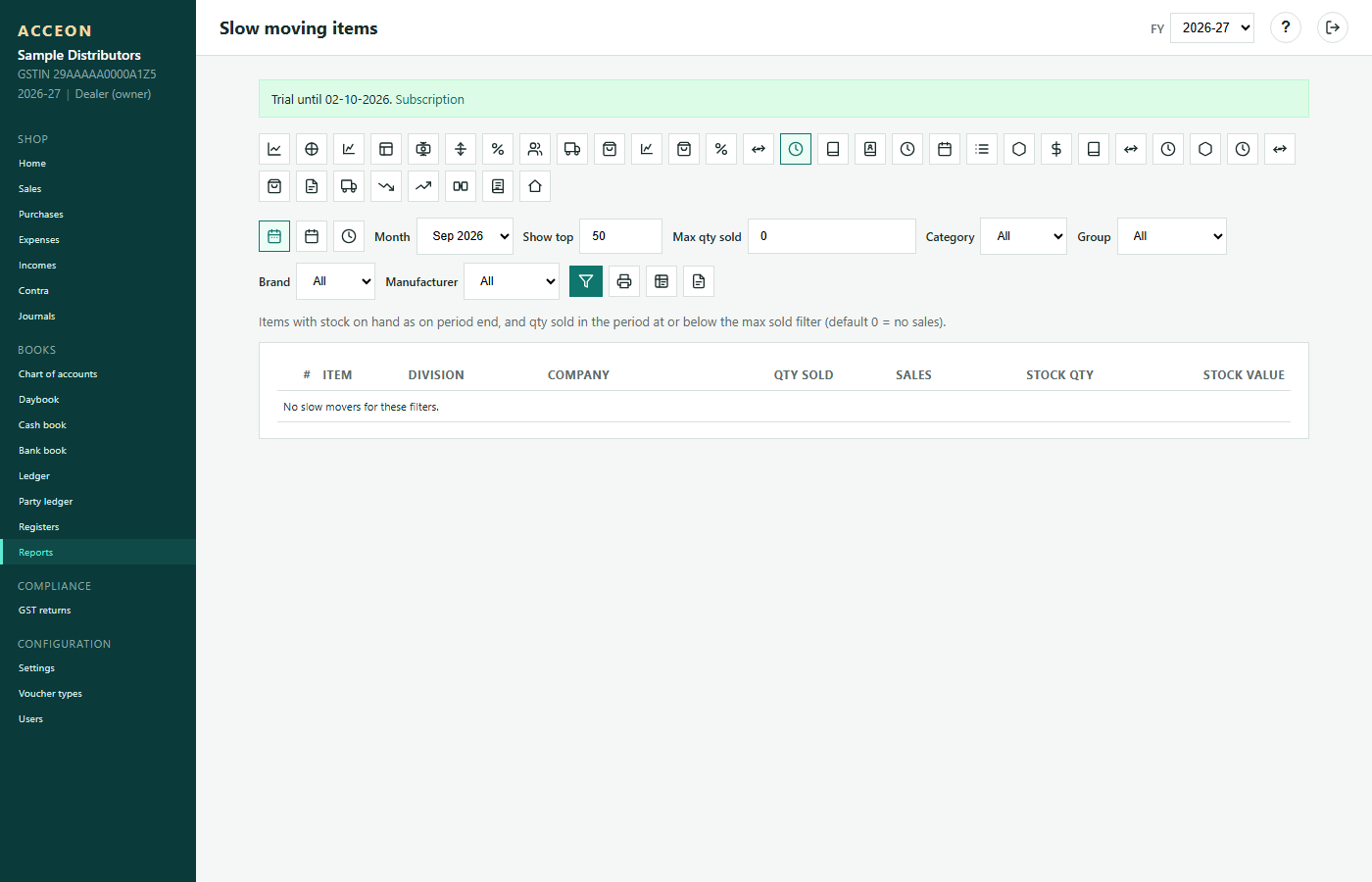
Screen: Slow moving items - Sample Distributors demo.
GST / Compliance
GSTR-1, 3B, purchase 2B matching
GSTR-1
Outward supplies data from your sales. Needs correct customer GSTIN on sales.
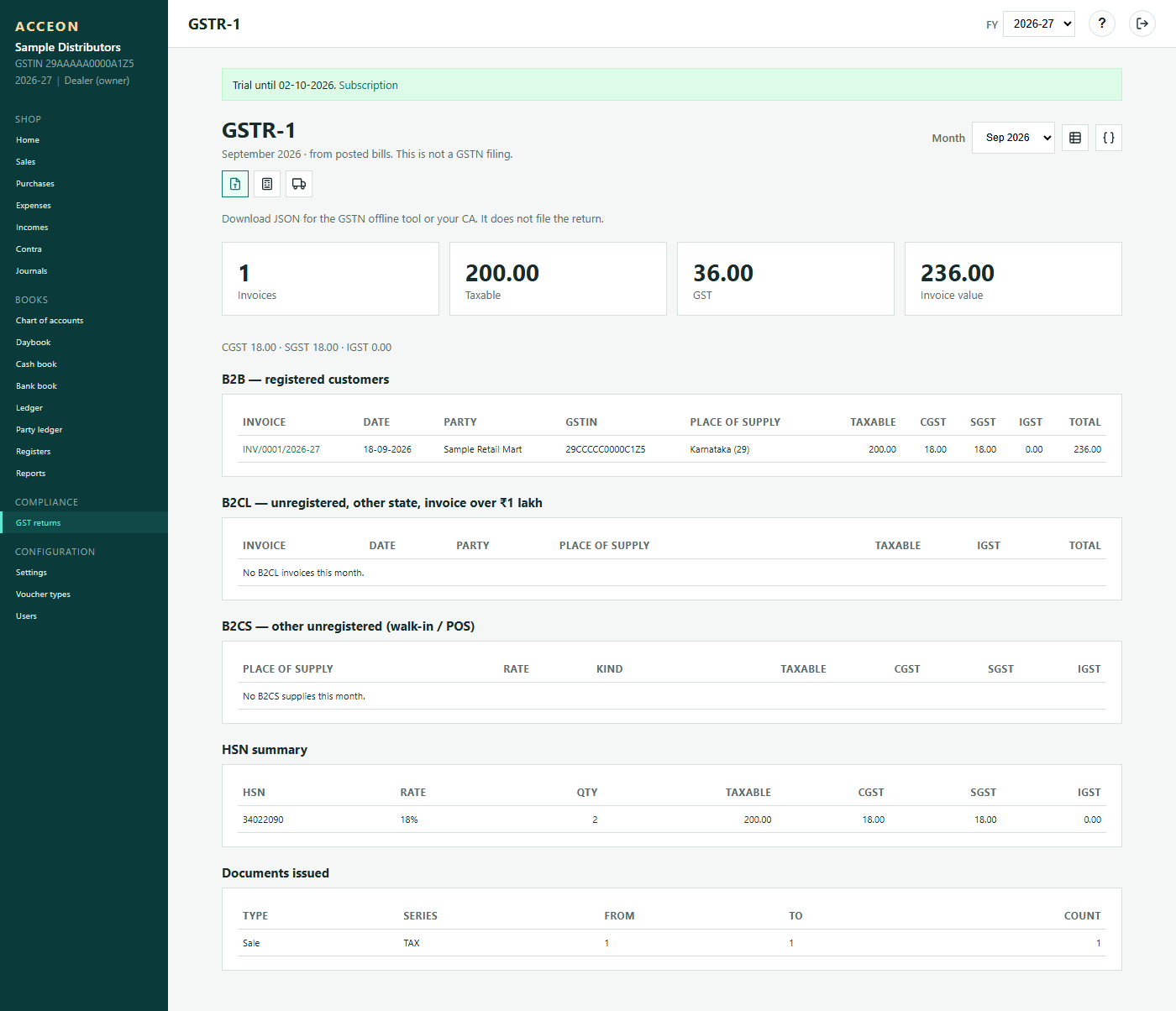
Screen: GSTR-1 - Sample Distributors demo.
GSTR-3B
Summary GST return (liability / ITC). Composition shops follow composition rules.
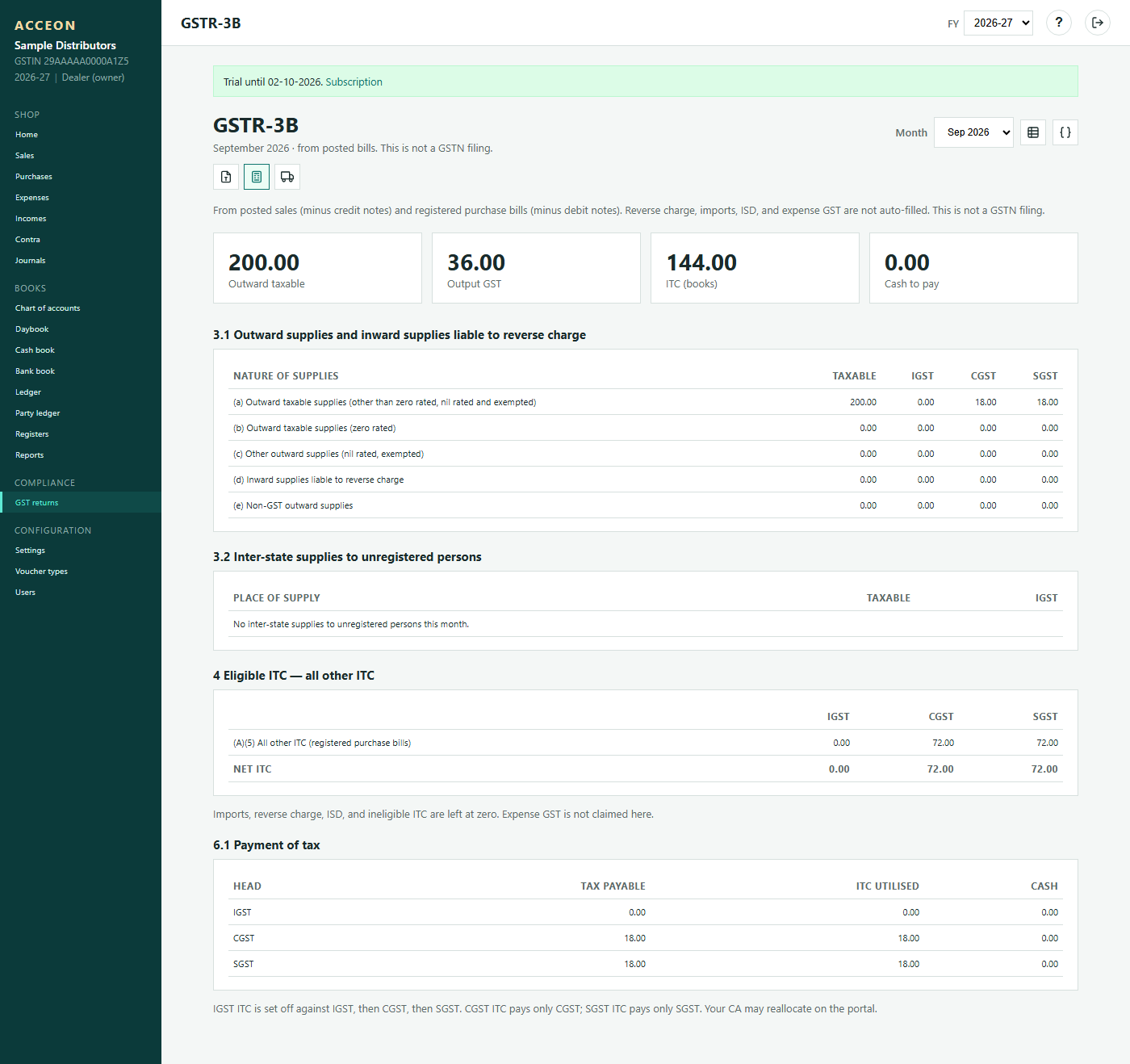
Screen: GSTR-3B - Sample Distributors demo.
Purchase GST (2B)
Match supplier invoices with GSTR-2B. Enter supplier invoice no., date and GSTIN carefully on Create purchase.
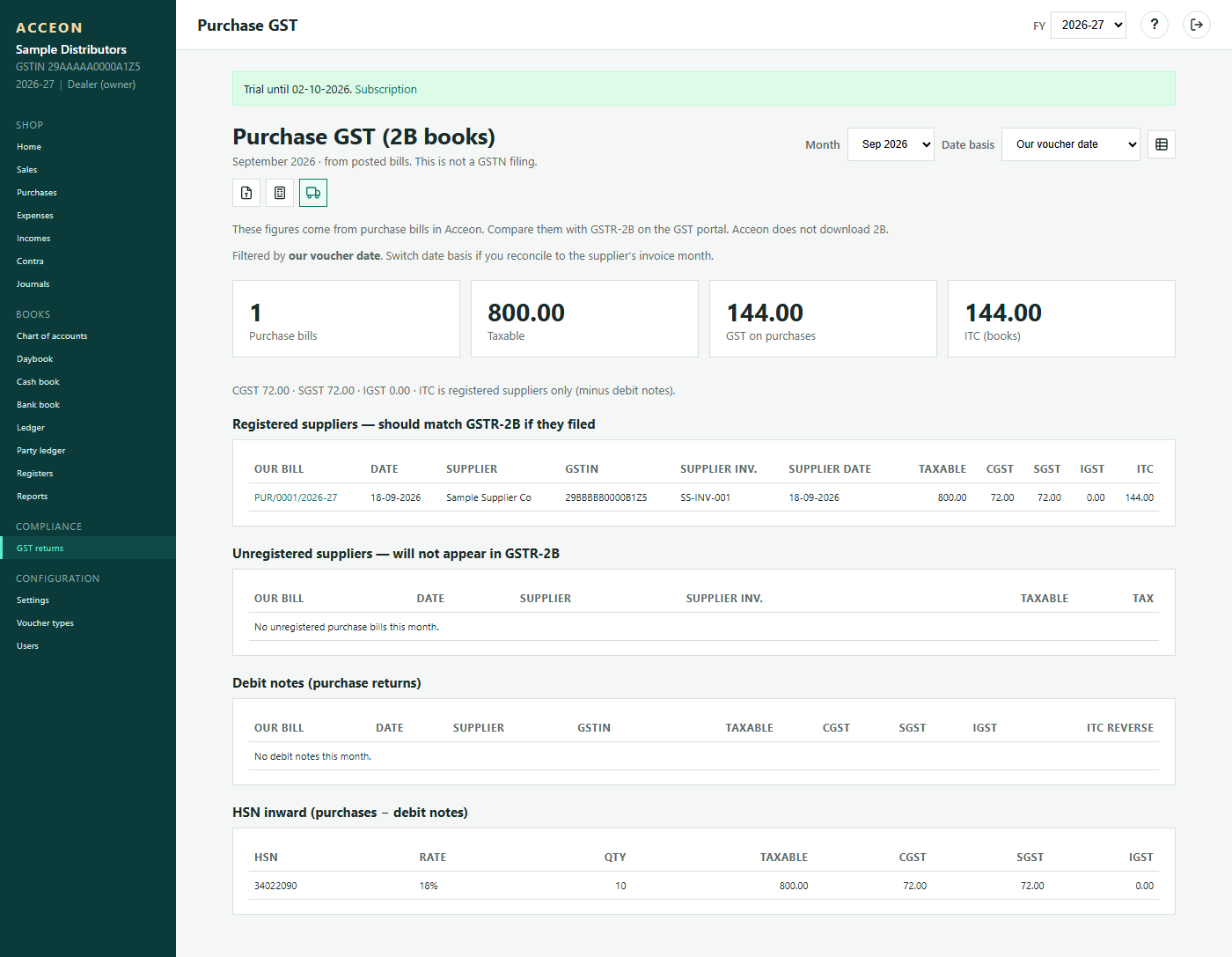
Screen: Purchase GST (2B) - Sample Distributors demo.
Configuration
Settings, users, roles, subscription
Settings
Do this right after registering the shop
Shop profile, GST, print options, stock options, discount caps.
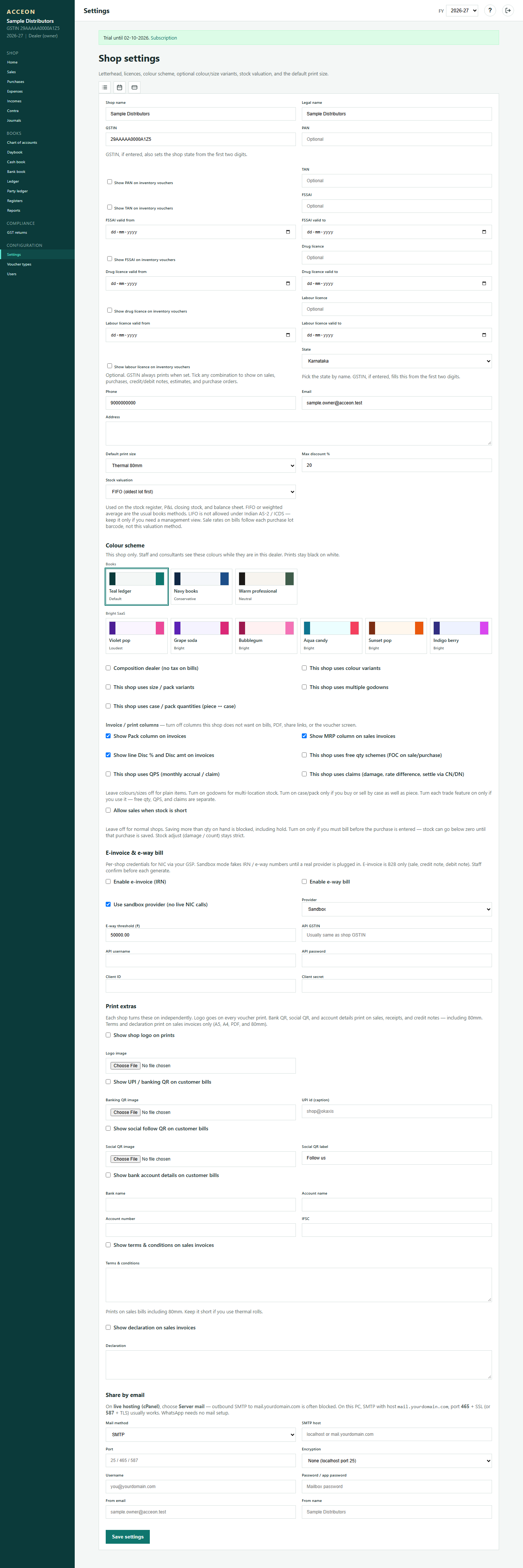
Screen: Settings - Sample Distributors demo.
Voucher types
Numbering and names for Purchase, Sales, and other vouchers. Leave defaults unless CA asks to change.
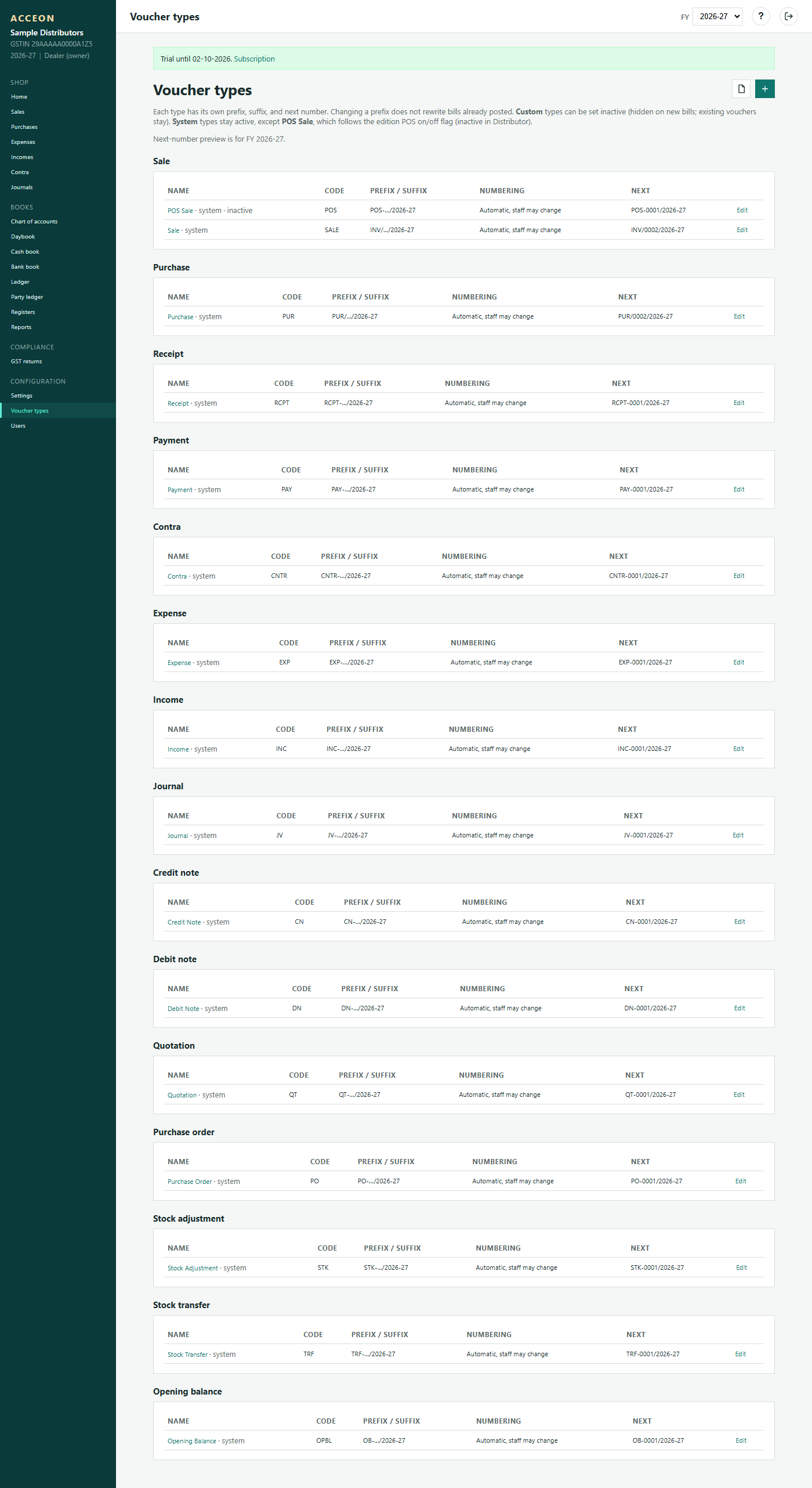
Screen: Voucher types - Sample Distributors demo.
Financial years
Open or select FY. Always confirm FY on the top bar before posting.
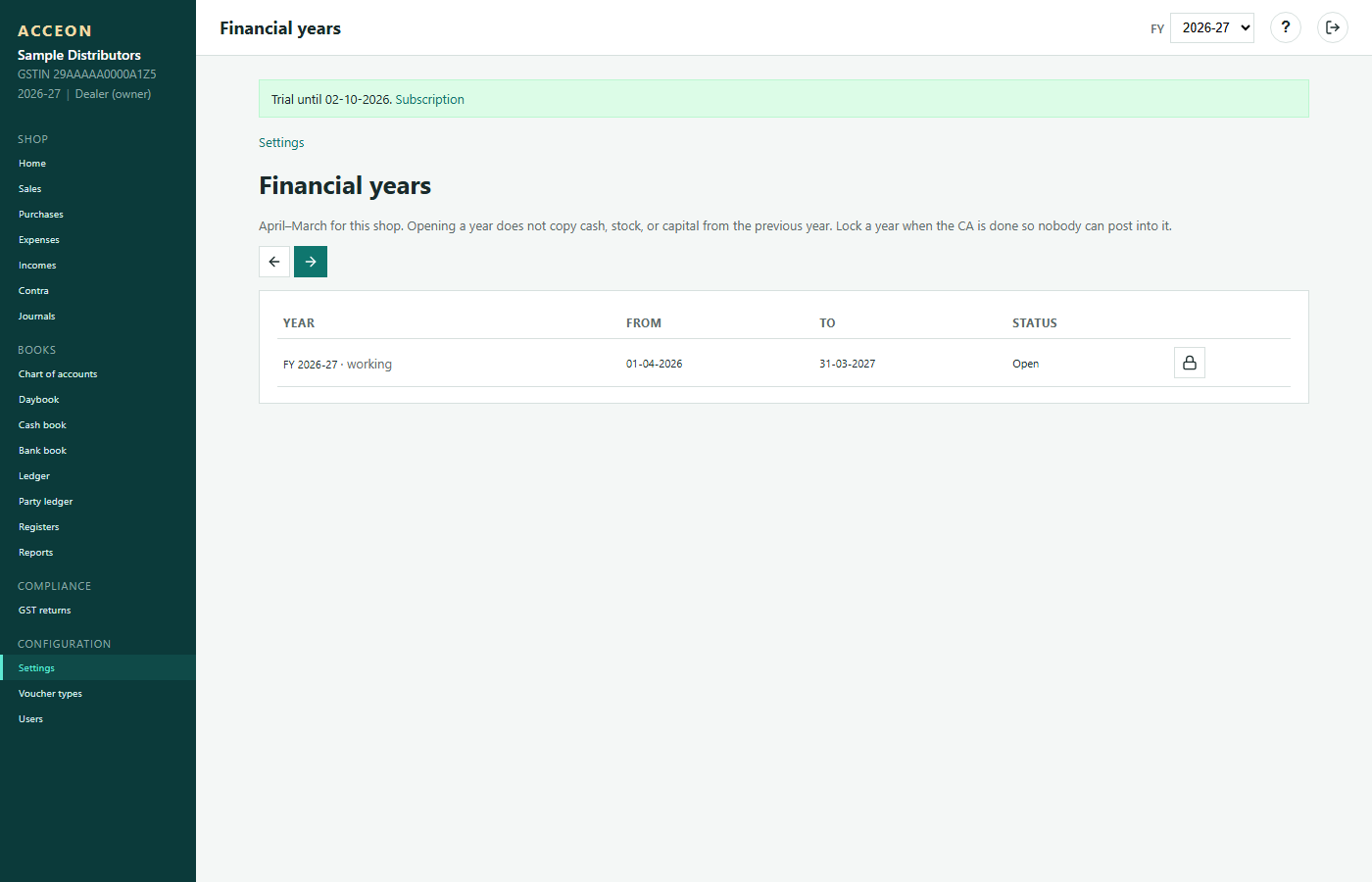
Screen: Financial years - Sample Distributors demo.
Subscription
Plan and trial / renewal status for the shop.
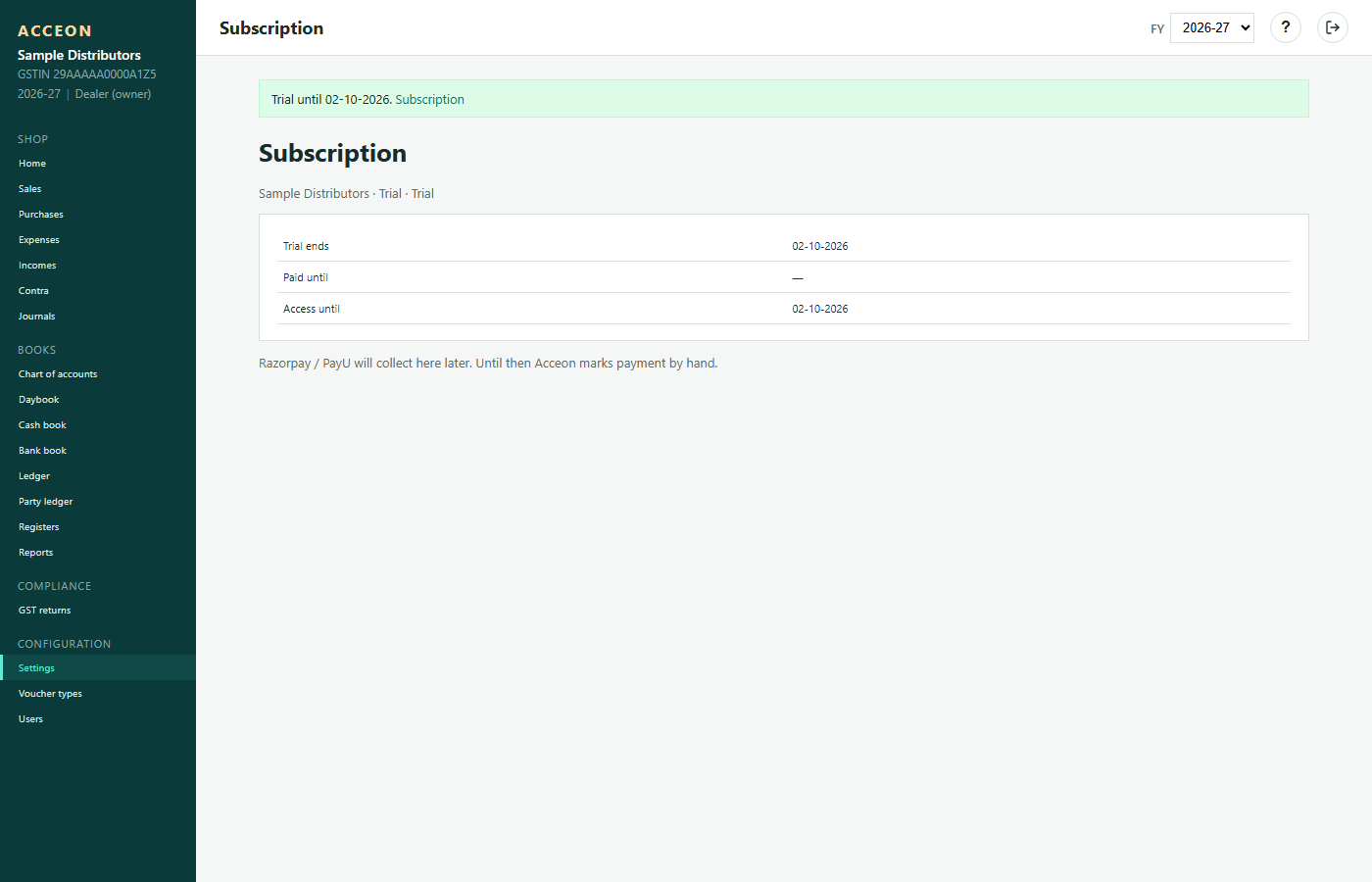
Screen: Subscription - Sample Distributors demo.
Users
Staff logins (Store, Cashier, Accountant, Manager). Never share the owner password.
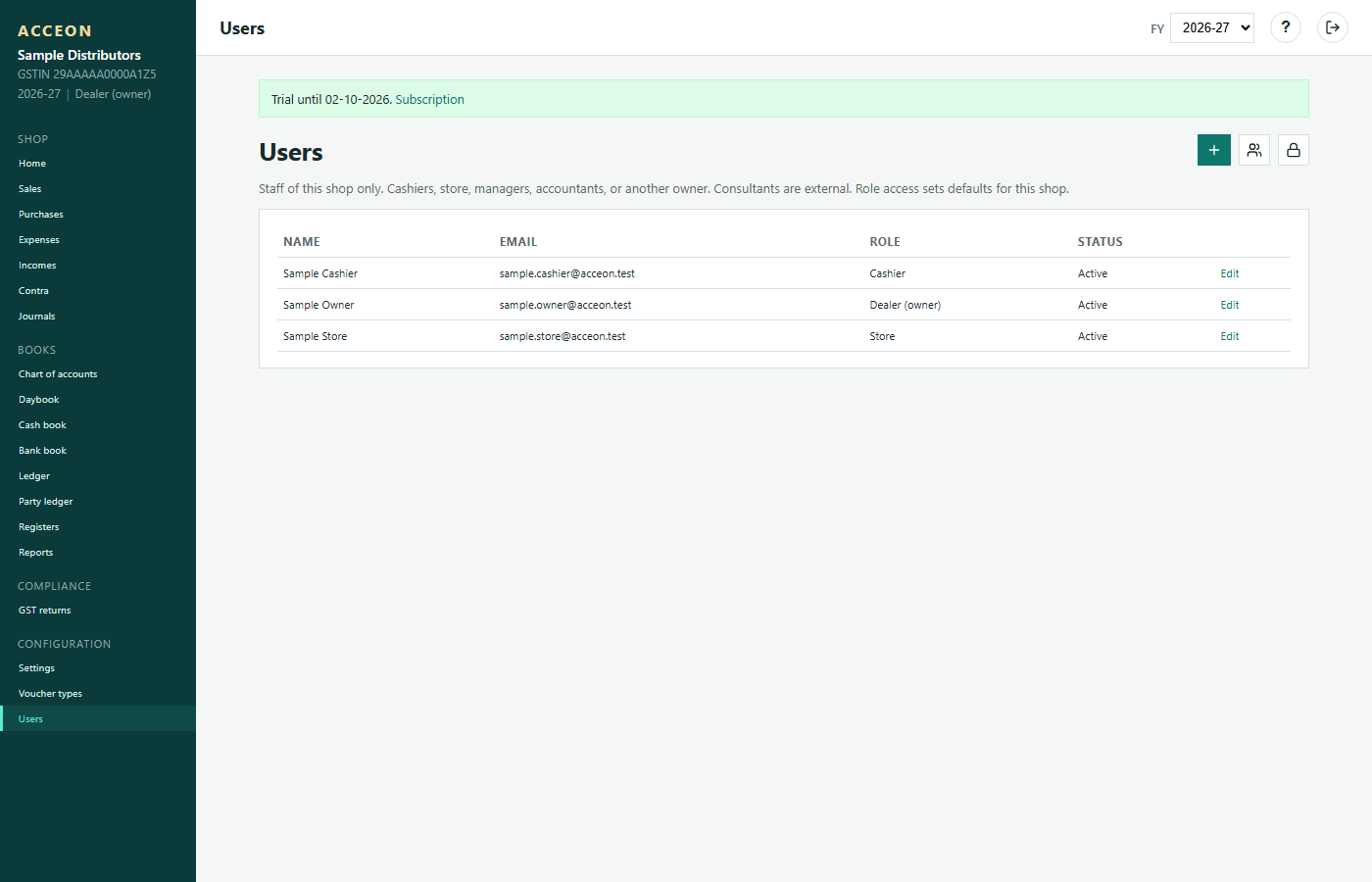
Screen: Users - Sample Distributors demo.
Create user
Name, email, phone, role and password. Role limits which menus the person can open.
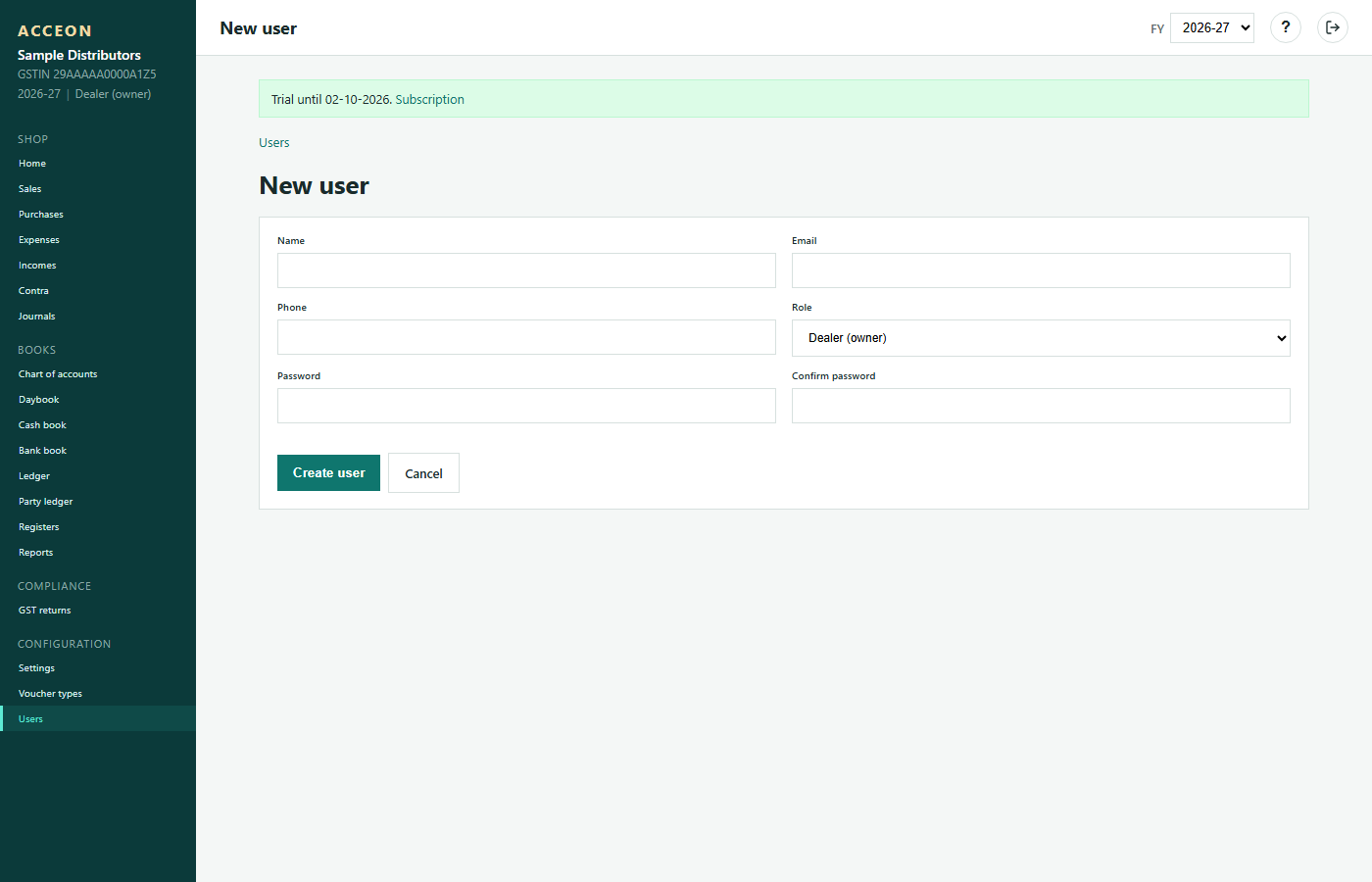
Screen: Create user - Sample Distributors demo.
Roles
Permission sets (Dealer, Store, Cashier, Accountant, Manager).
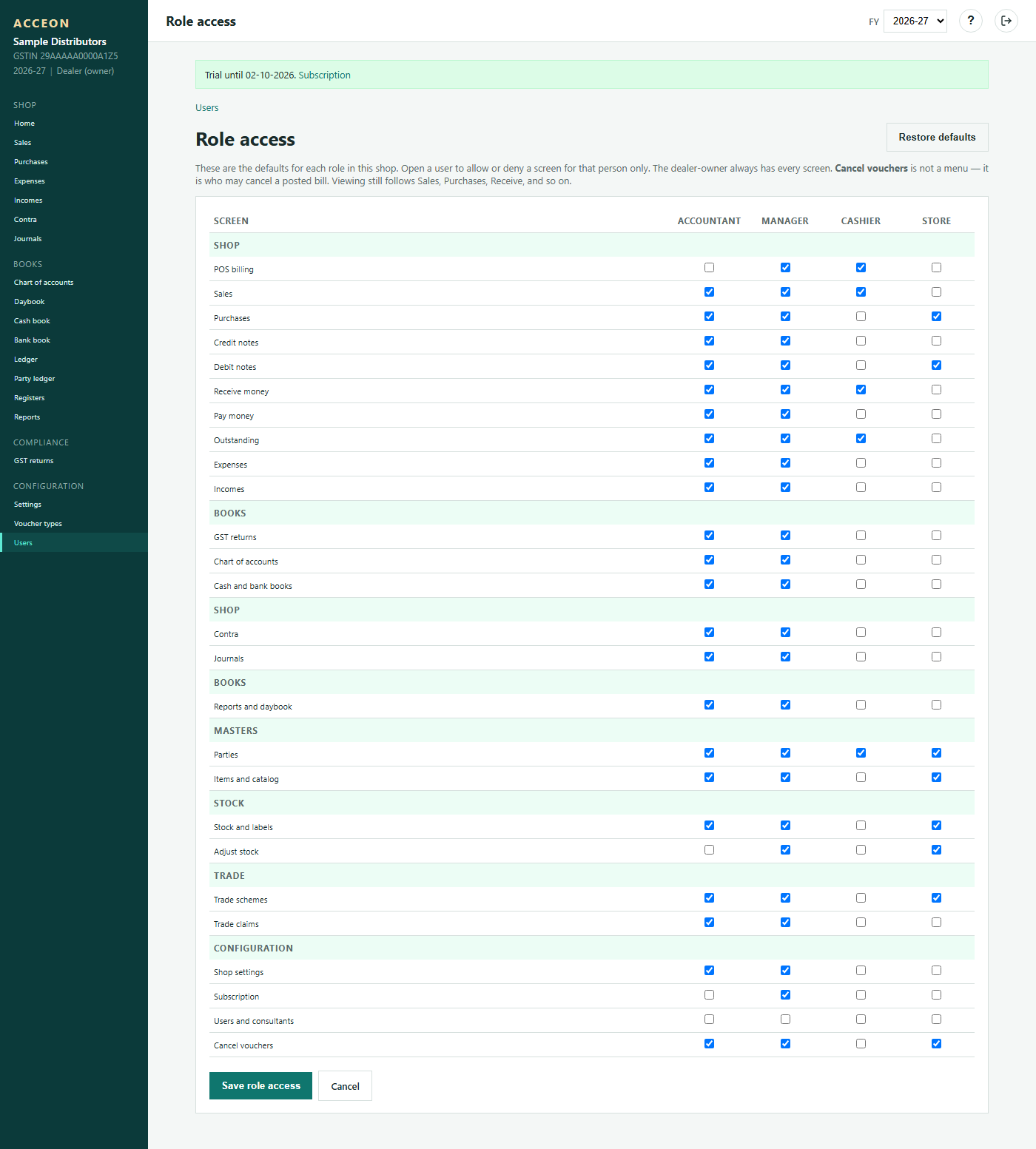
Screen: Roles - Sample Distributors demo.
Consultants
Accept or reject consultant access requests. See Register consultant.
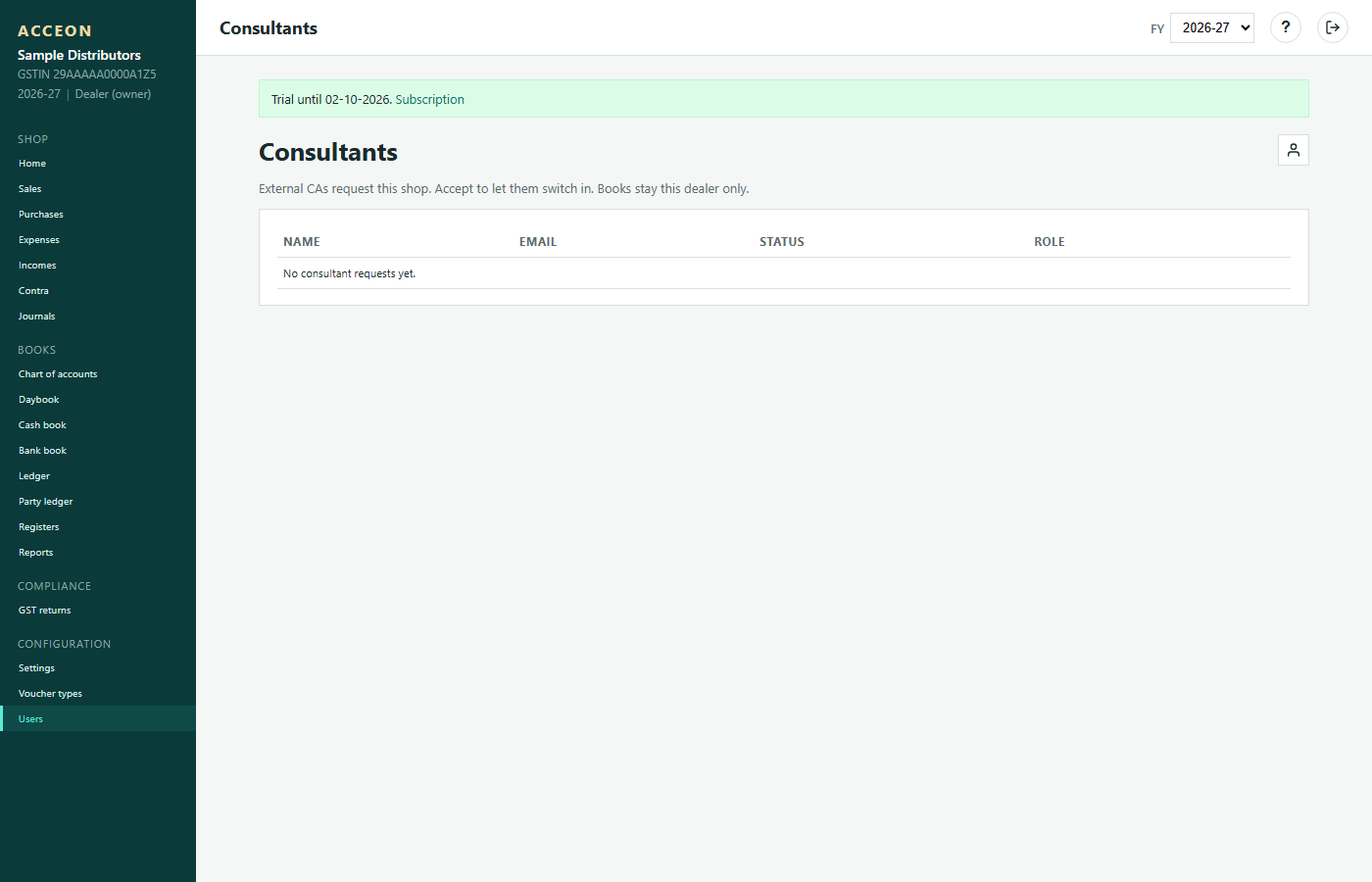
Screen: Consultants - Sample Distributors demo.
Reports hub
Directory of all reports.
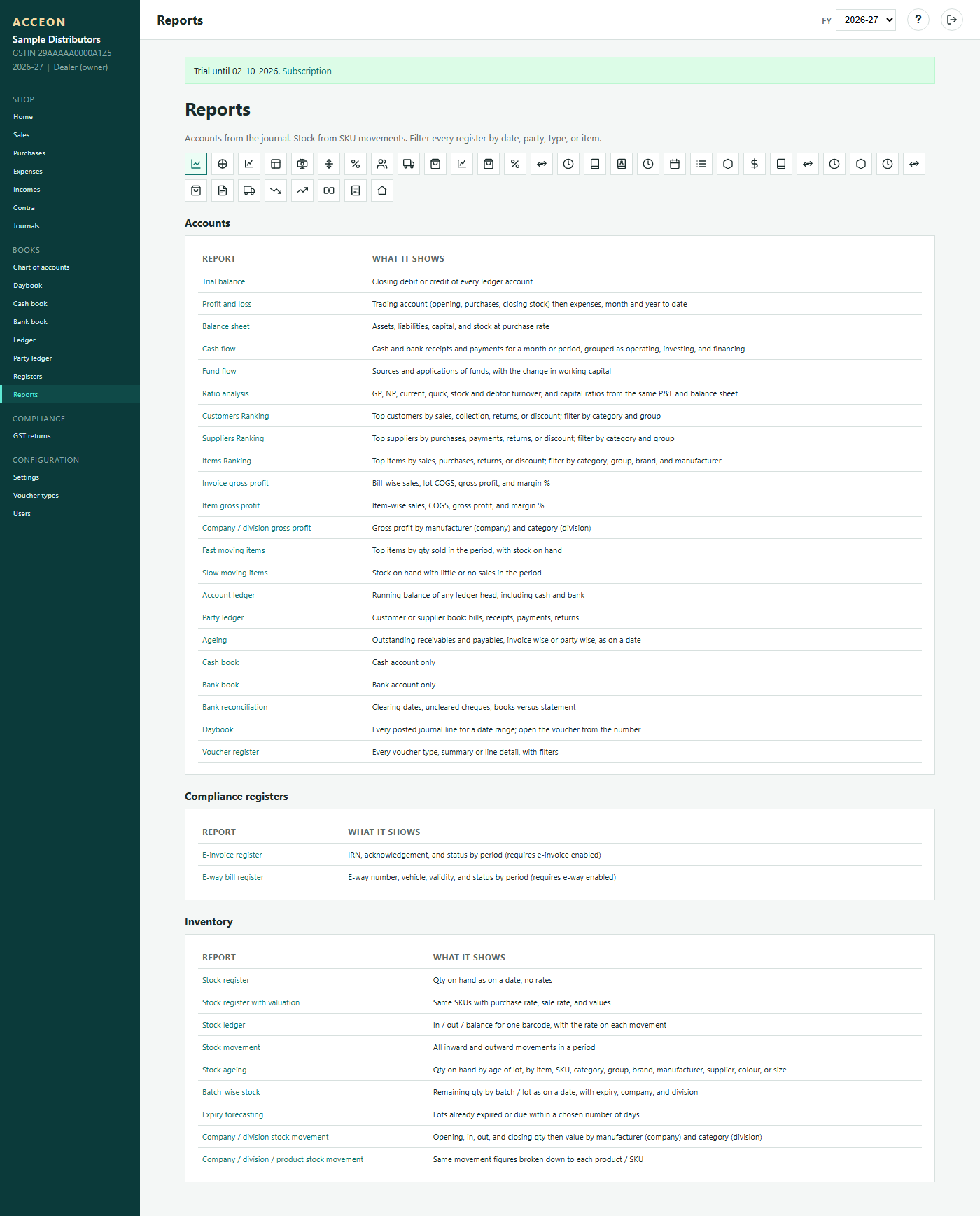
Screen: Reports hub - Sample Distributors demo.
Stock hub
Shortcut into stock value, labels and adjust. Same family as Stock.
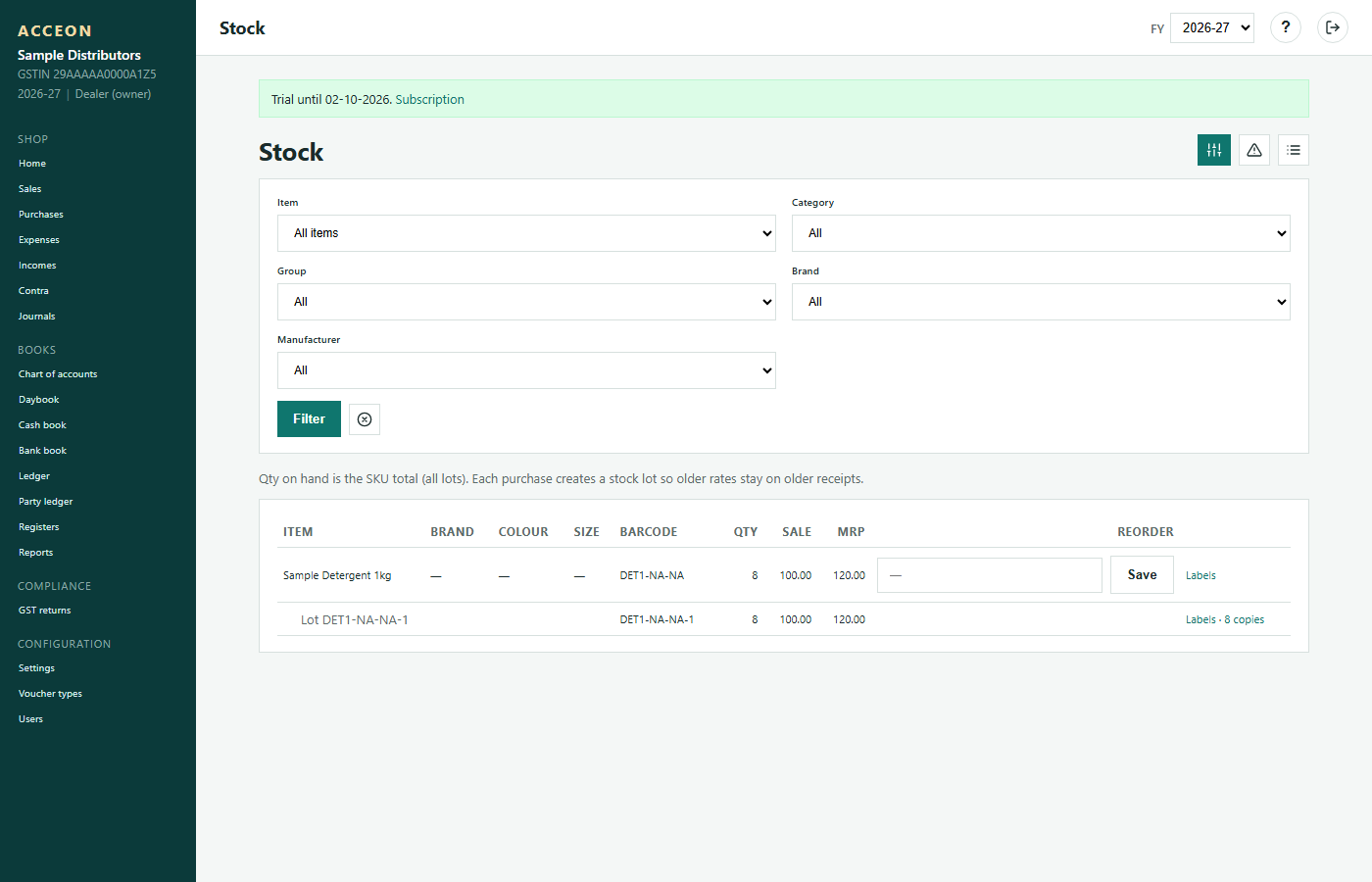
Screen: Stock hub - Sample Distributors demo.